![fc-logo.svg]](https://knowledgebase.foodsconnected.com/hubfs/fc-logo.svg)
When a supplier fills in the specification template and sends it for sign off, you will receive an email notification and a task on your Foods Connected account.
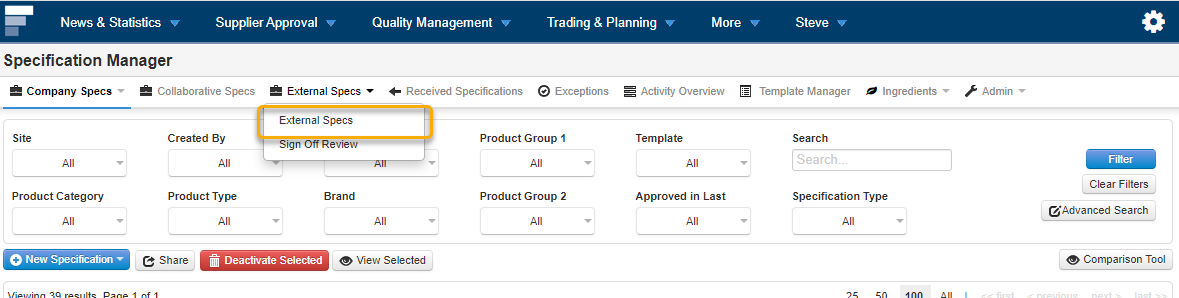
Step 1: From the Quality Management tab, click on Specification Manager and then the External Specs tab.
Step 2: You can use the filters along the top of the page to refine your results when searching for a specification. You can use the search box for searching for product names/codes, alternative product names/codes and linked product information. You also have the Advanced Search option for a more in-depth search through all the completed specifications.
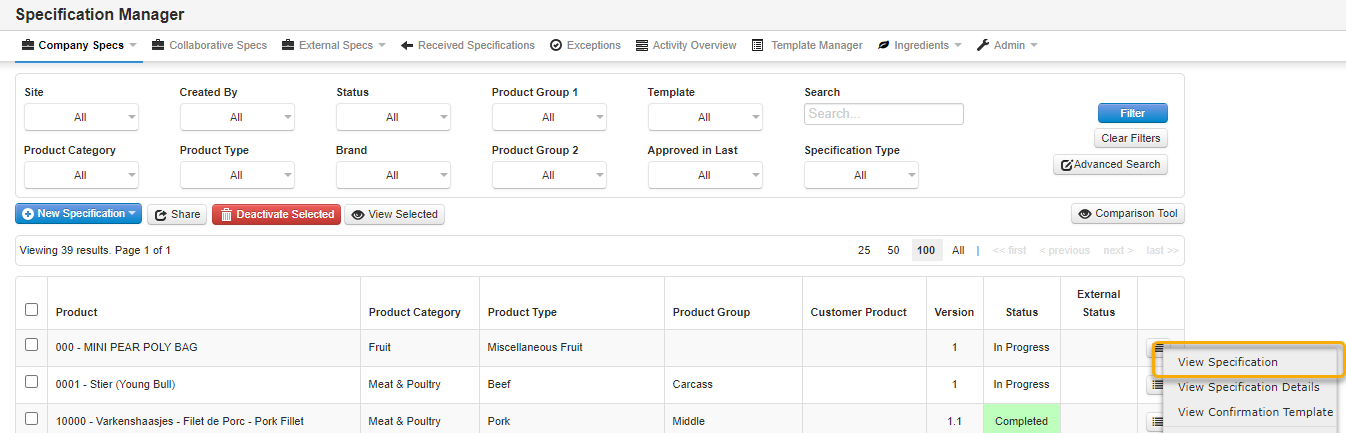
Step 3: When you have found the specification you would like to view, click on the View button beside it. You can also select the Details button to see the details of the specification.
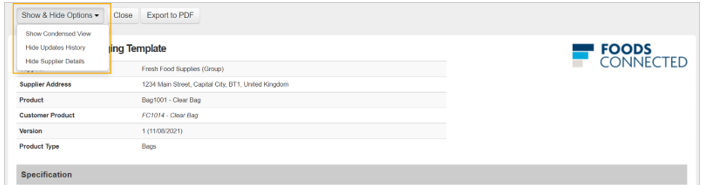
Step 4: When the specification opens to view, you have the option to hide information within the specification. You can select to show the condensed view according to your template setup, hide the updates history from the end of the specification or hide the supplier details from the top of the specification.
*If a linked product has been added to your specification product in the product file, it will display in brackets under the main product in the External Specs list and when viewing the specification.