![fc-logo.svg]](https://knowledgebase.foodsconnected.com/hubfs/fc-logo.svg)
Some of these may be completed through the tablet on the stages we touched on earlier in the tablet section. If there are any Unresolved issues and you are responsible, then follow the steps below
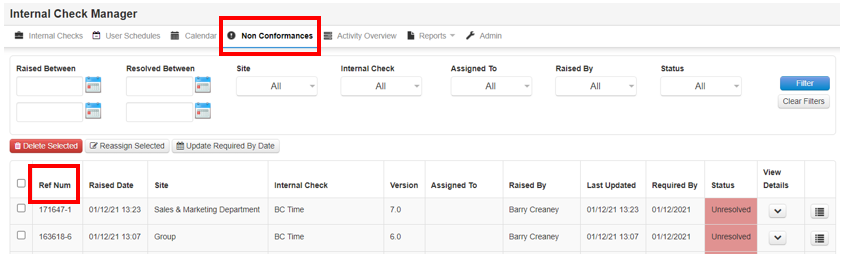
Step 1: Select the Non Conformances tab. To find the specific check you are looking for you can either use the filters at the top of the page, or when you have the auto generated reference number set up on your internal check template(s) the reference number now is visible in the non-conformance tab as a new column as well as within the specific template(s).
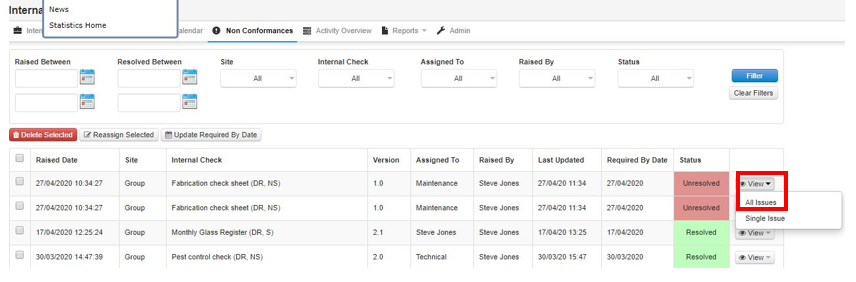
Step 2: Select the View icon on an Unresolved Issue, then select All Issues
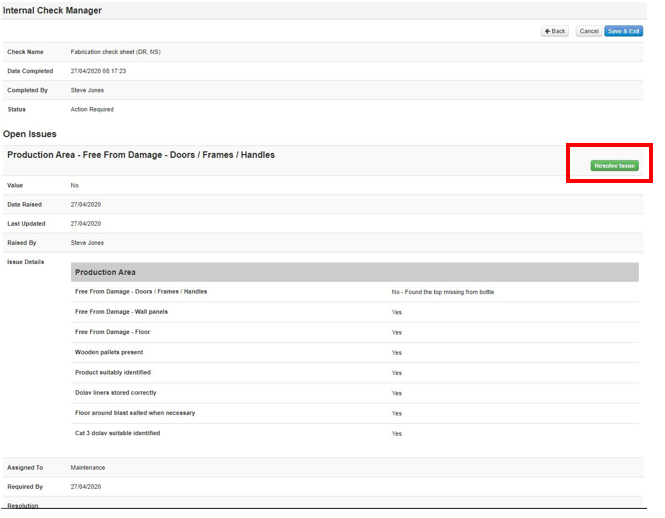
Step 3: You can now view the issues & resolve by selecting Resolve Issue
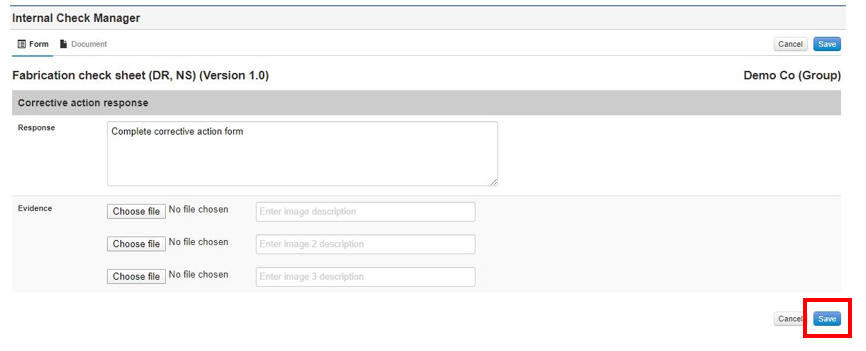
Step 4: Fill in your response and Save when done
Step 5: Repeat steps until all issues have been completed. Once done select Save & Exit. The status of the Non-Conformance changes from Unresolved to Resolved, whilst the status of the Check reverts to Approval Required.