![fc-logo.svg]](https://knowledgebase.foodsconnected.com/hubfs/fc-logo.svg)
Both a specification template and the relevant products need to be shared with suppliers for them to be able to upload their specification files. Products must first be added to the product file.
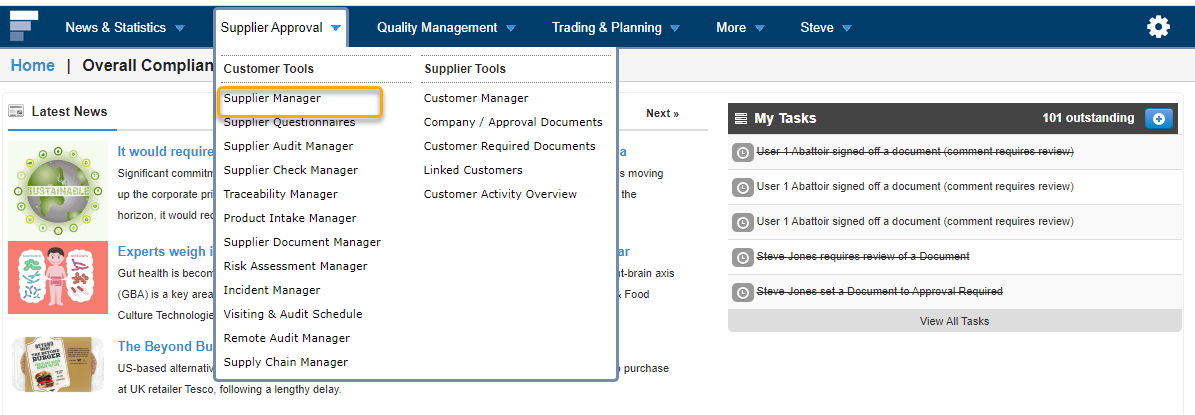
Step 1: Go to the Suppler Approval menu and select Supplier Manager, this will open your supplier list.
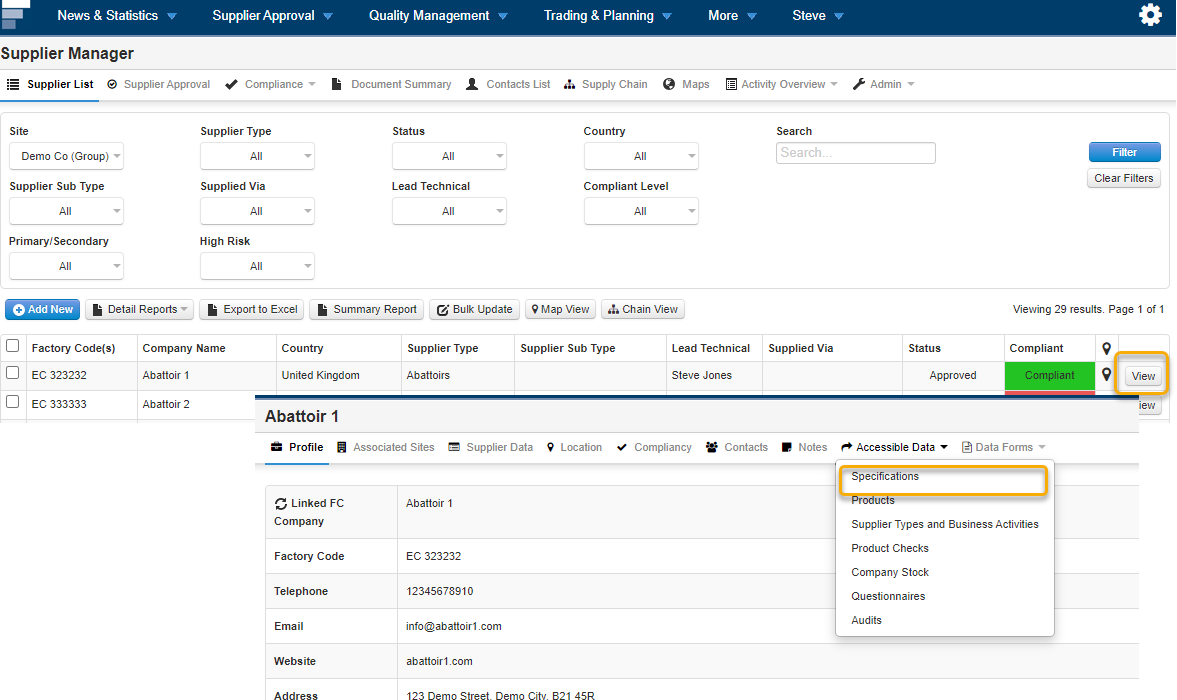
Step 2: Use the filters to find the supplier you want to share the template and products with and click on the View button beside their name.
Step 3: Within the supplier’s profile, click on the Accessible Data tab and select Specifications.
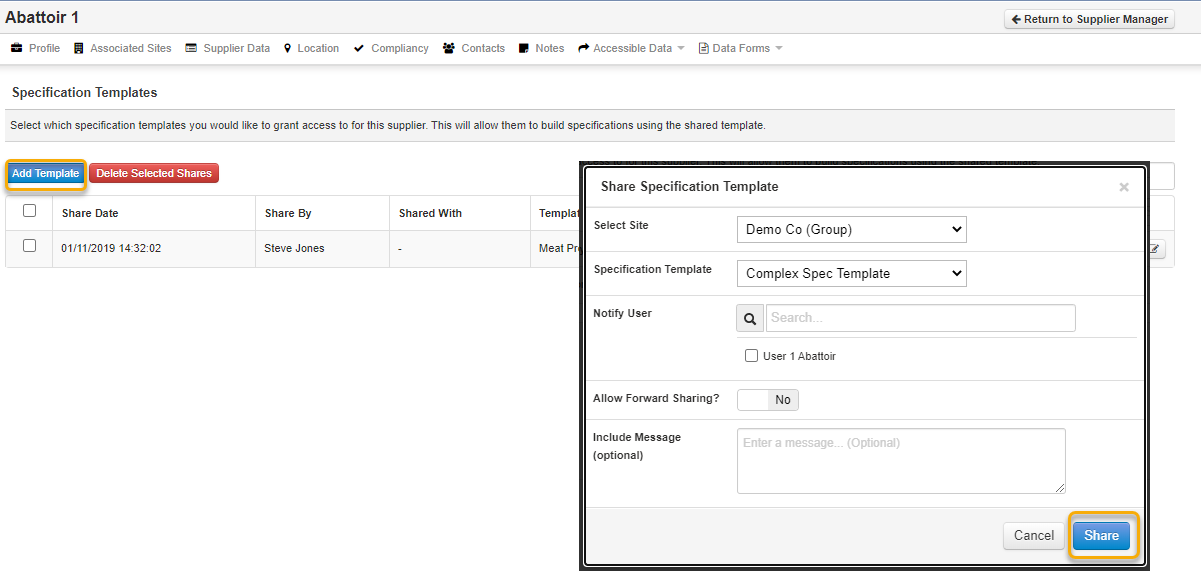
Step 4: Click on Add Template and a pop-up window will open; select the site you are sharing the template for as well as the template and supplier user. You can select Allow Forward Sharing if your supplier is going to request specifications from their supplier. Click on Share and this will notify the selected user(s) of the share.
From this page, you can also edit and delete template shares.
Step 5: Clicking on the Accessible Data section select Products (you will not be able to share products without first sharing a template).
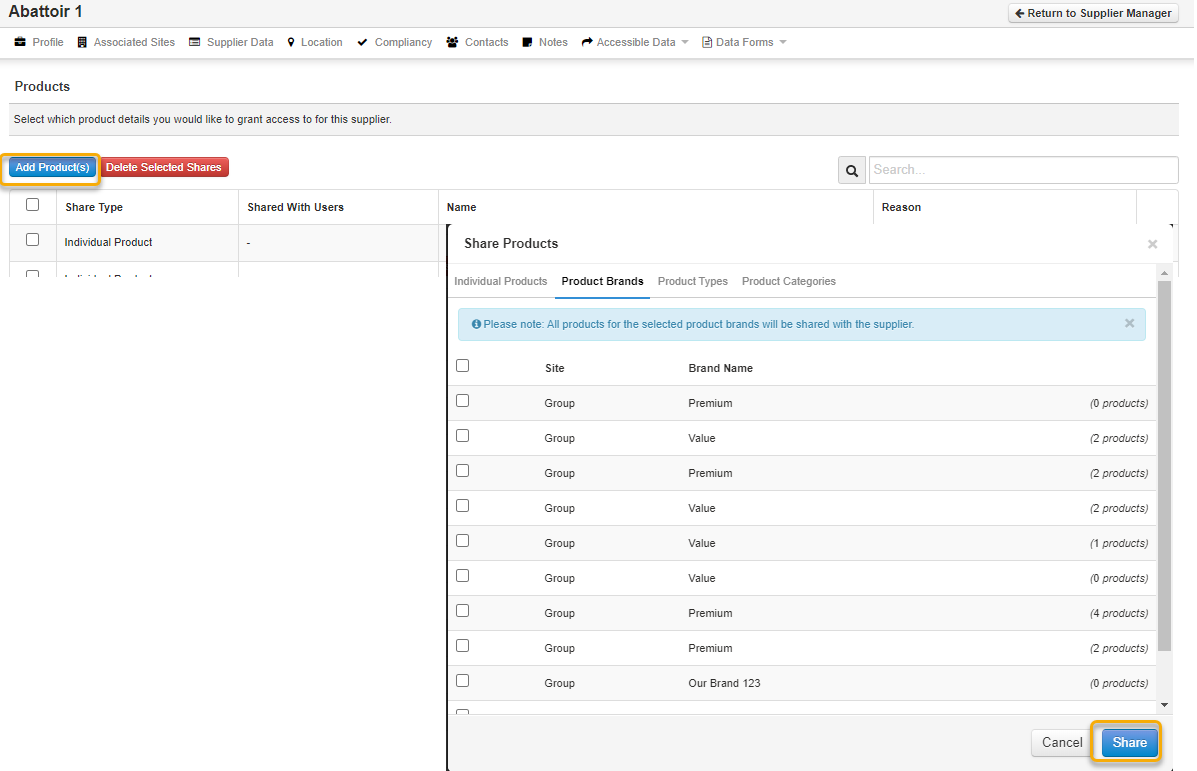
Step 6: Click on Add Product and a pop-up window will open, select the product(s) you would like your supplier to create specifications for and click on Share. A second window will open to select the user, reason for sharing (build external specification) and required by date, click on Share again to send the request to the supplier user(s).
From this page, you can also edit and delete product shares.
*Sharing with an agent*
If you have a supplier that supplies to you through an agent, you can share the template and products with the agent to complete on behalf of the supplier. Follow steps 1-4 (section 6.1) to share the template with the agent through the agent’s profile; sharing once with the agent will allow them to complete specifications for multiple suppliers if applicable.
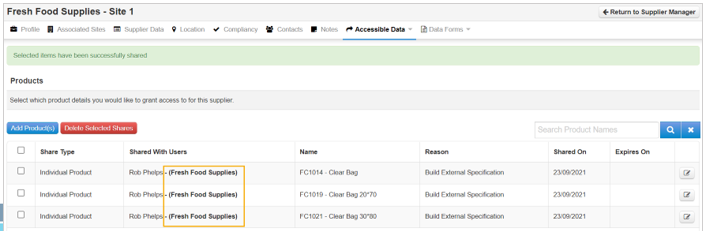
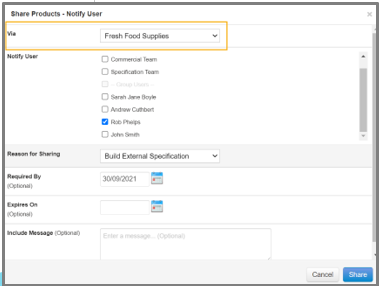
Then, you would add the products through the supplier’s profile as shown in steps 5 and 6 (section 6.1). When selecting the user to notify, you will have a ‘Via’ dropdown to select the relevant agent which will update the notify user list to the agent’s users. The list of shared products will highlight if they have been shared with an agent in the ‘Shared With Users’ column. Sharing in this way will notify the agent and enable them to complete the specifications on behalf of the supplier. The completed specification will display both the manufacturer and agent name in the specification details.
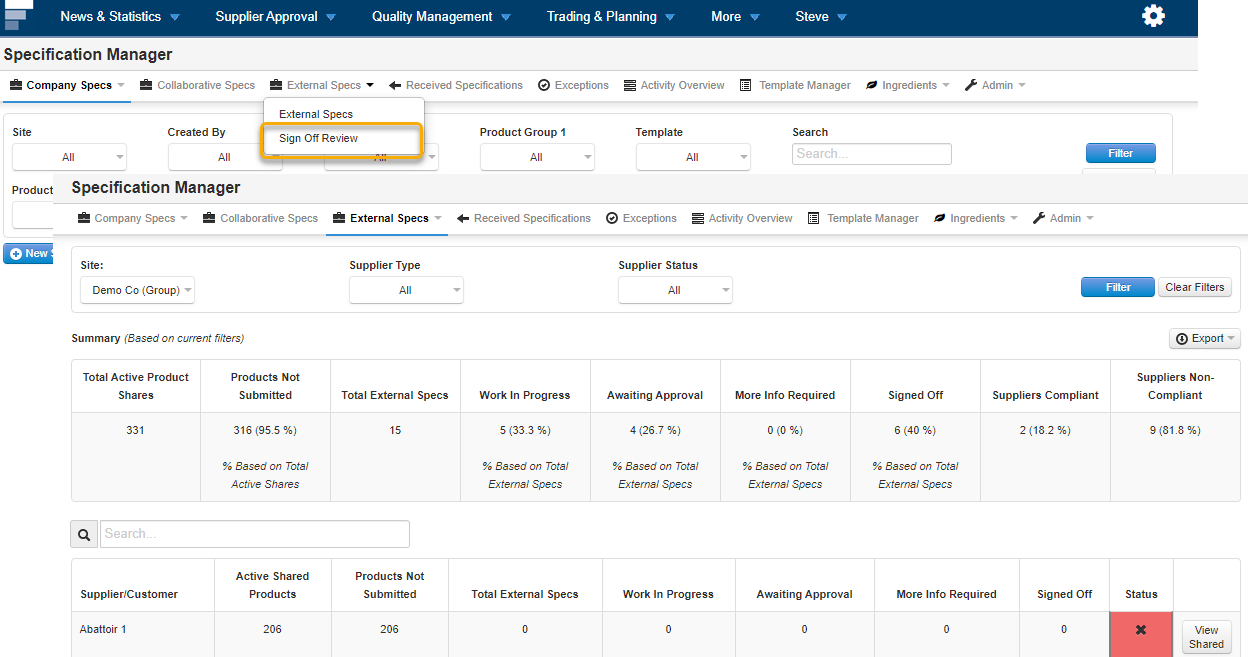
Step 7: To view which products have been shared with which suppliers along with how many specifications have been created from these shared products, from the Quality Management tab, click on Specification Manager and then the Sign Off Review section under the External Specs tab.