- Knowledge Base
- Workflow Manager
- Generating A New Project Workflow
-
FAQs
-
Activation Process
-
One Pagers
-
Document Request Manager
-
Settings- Company Settings
-
Settings- Company Users Email & Security
-
Supply Chain Manager
-
Product Check Manager
-
Internal Document Manager
-
Production Models
-
Supplier Manager
-
Settings- Manage Products
-
Supplier Questionnaire Manager
-
Supplier Check Manager
-
Supplier Document Manager
- Tool Documentation
- Initial Setup of Supplier Document Manager
- Creating A Supplier Document Template
- Building The Document
- Approving The Document Internally Before Sending Out
- Delete Documents
- View Selected
- Sharing A Document With Suppliers To Sign Off
- Exceptions
- Sign Off Review
- Viewing A Customer Document
- Sign Off The Document
- Assign Responsibility
- Delete/Reject Selected
- Receiving & Viewing An Exception
-
Risk Assessment Manager
-
Incident Manager
- Tool Documentation
- Initial Setup
- Create Incident Forms – Supplier & Customer Confirmations
- Edit Incident Forms – Supplier & Customer Confirmations
- RASFF Notifications
- Create An Incident From The RASFF Notifications
- View Incident
- Edit Incident
- Share An Incident
- View Company Incident Shares
- View Responses From Supplier
- Request More Info
- Respond To Incident/Confirm/Close Out Incident
- Supplier Side Incident Manager
-
Remote Audit Manager
-
Specification Manager
- Tool Documentation
- Initial Setup For Specification Manager
- Creating Specification Templates
- Creating And Managing Company Specifications
- Creating and Managing Collaborative Specifications
- Creating and Managing Ingredient Specifications
- Sharing and Managing External Specifications
- Providing Customer Access To Linked Specifications
- Managing Specification Exceptions
- Viewing Specifications On The App
-
Customer Complaint Manager
-
Internal Check Manager
-
Workflow Manager
-
Stock Manager
-
Forecast Manager
-
Order Manager
-
Meeting Notes Manager
-
Customer Tool Guides
-
Traceability Manager
-
Supplier Audit Manager
- Tool Documentation
- Initial Setup
- Building A Custom Audit
- Using And Completing An Audit
- Update An Audit
- Request An Internal Review
- Mark Audit As Complete
- Notify Team Members
- Send PDF Report
- Export Full Audit Table To PDF
- Export Full Audit Table To Excel
- Recall Audit
- Reopen Audit
- Managing Activity Subscriptions
- Supplier Provided Audits
-
Purchasing & Sales Manager
-
Visit & Audit Schedule
-
Formbuilder
3.4 Approving / Rejecting A Step
Step 1: If a step required approval the status bar will update
Step 2: The assigned step approver will receive an email notification at this point to inform them their action is required
Step 3: They will be required to load the step, review the data entered and either approve or reject
Step 4: Once the step has been approved the next step will then be available to load and complete (is a prerequisite has been assigned)
Step 5: Each step must be completed by the assigned completer and approved (if required) by the assigned approver to complete the full project workflow
Step 6: If a step is being rejected a reason is mandatory and must be provided. This detail will be logged in the activity log.
Step 7: If the step approver needs more information in order to approve, they step, they have the option to request more information from another user within their company.
Step 8: Select ‘Request More Info’ at the approval stage, select the user from the drop down list who they would like to consult with, give a response date (non mandatory), and provide a message detailing the extra information required.
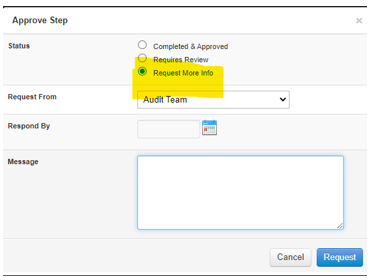
Step 9: An email will be issued to the above-mentioned user if the email notifications have been turned on for ‘request more info’. A task will also be added to their task list on the home page.
Step 10: When the responding use is viewing the step they will see a ‘Respond’ button, which when select will open a text box enabling then to add their feedback in response to the more info request,
Step 11: When step 10 has been completed, the step approver will receive a notification to inform them the response has now been provided. The response will be stored in the activity log and in the notes section.
