![fc-logo.svg]](https://knowledgebase.foodsconnected.com/hubfs/fc-logo.svg)
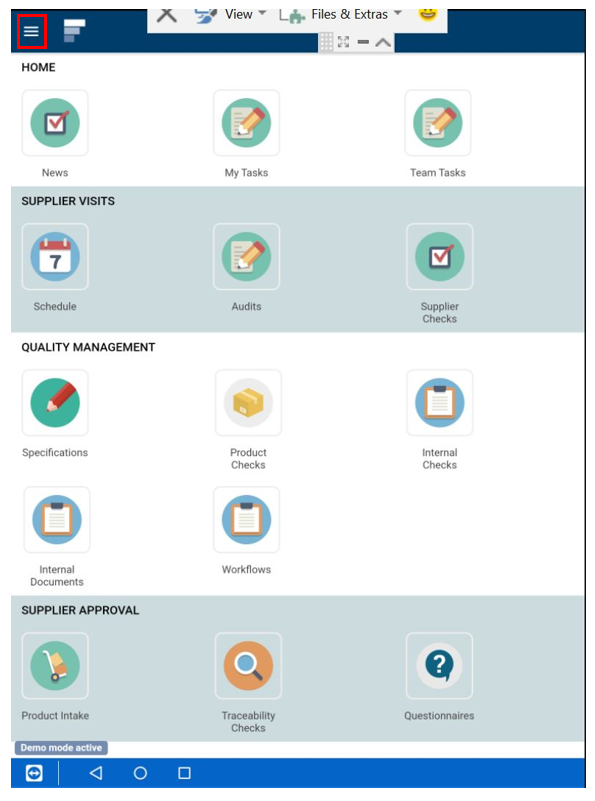
Step 1: When signed in go to the app select the lines icon

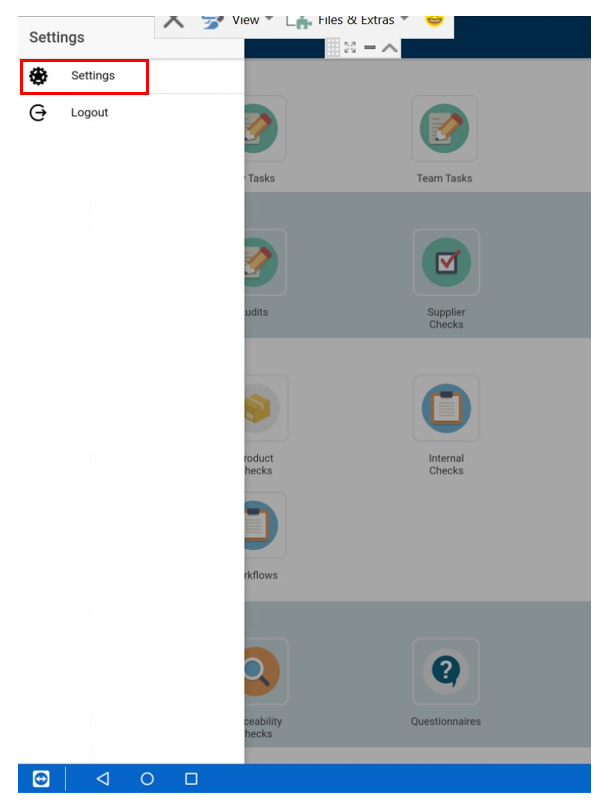
Step 2: Then choose settings
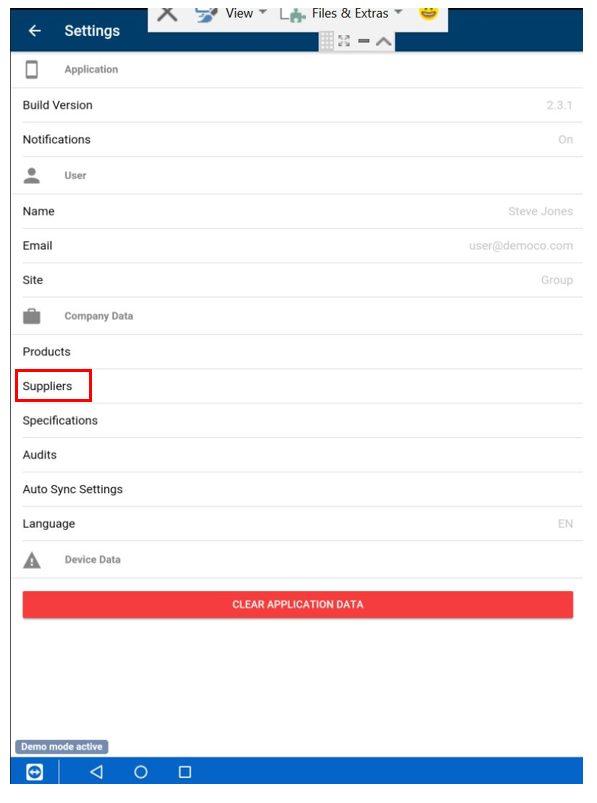
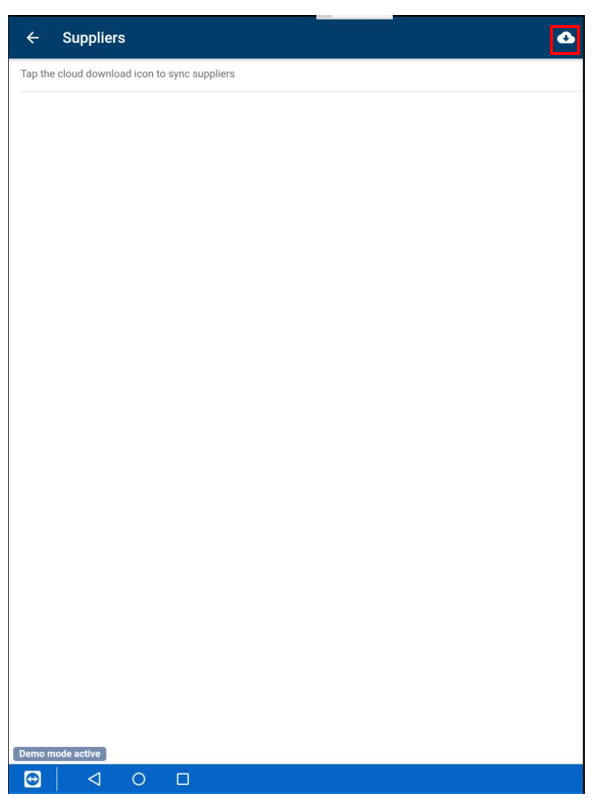
Step 3: Now download your suppliers to the app/tablet by selecting Suppliers
Step 4: Now select the Cloud icon to download your supplier list
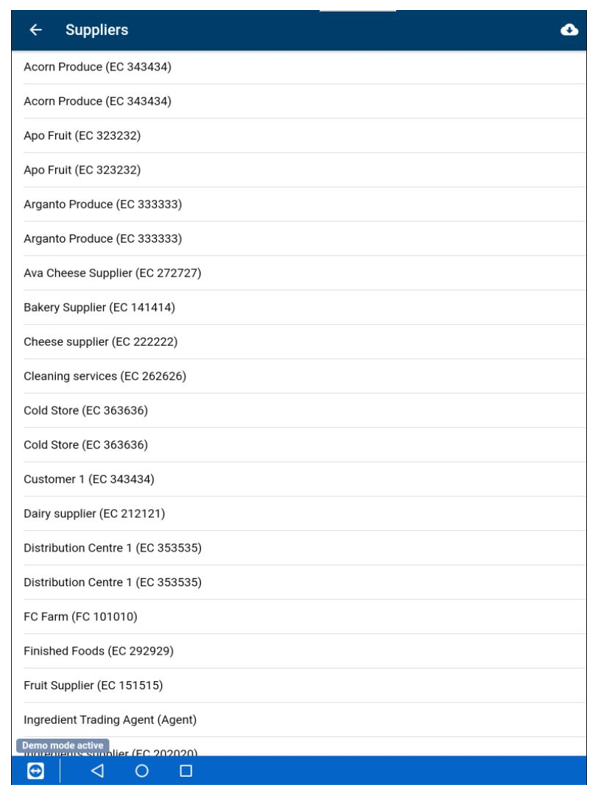
Step 5: The suppliers have now downloaded
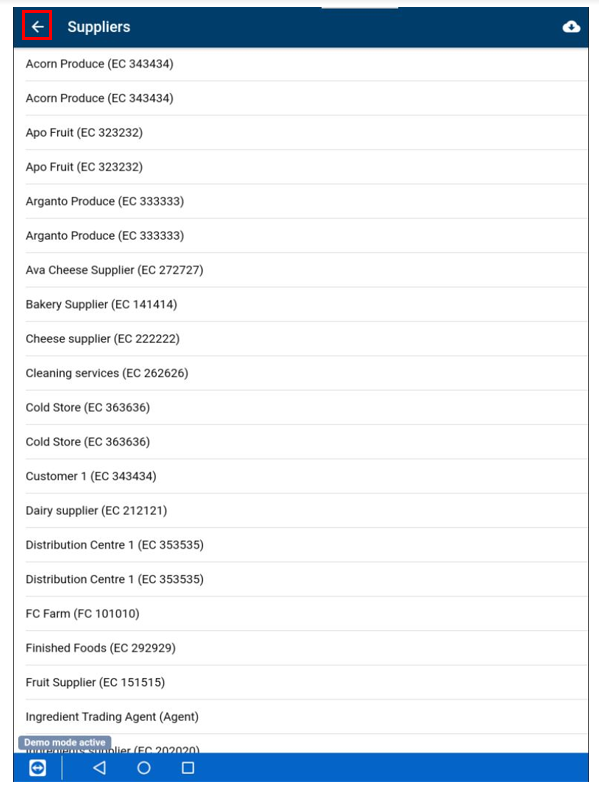
Step 6: Now select back
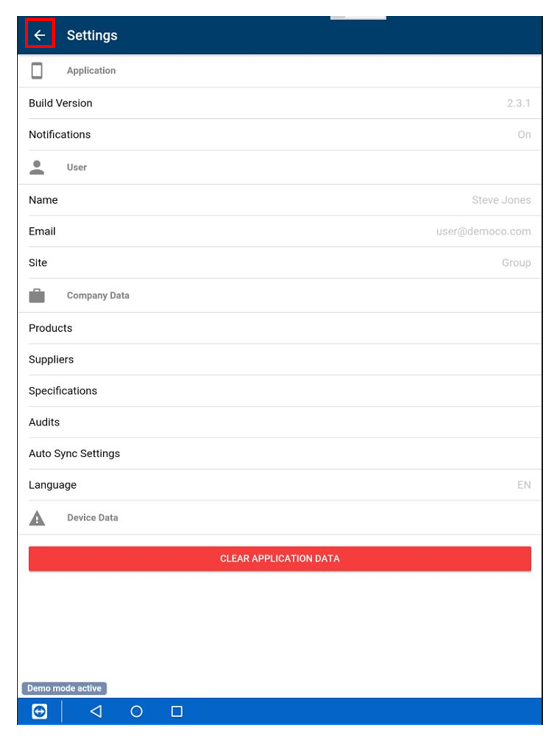
Step 7: Select back again
Step 8: You are back at the home screen. Now select Audits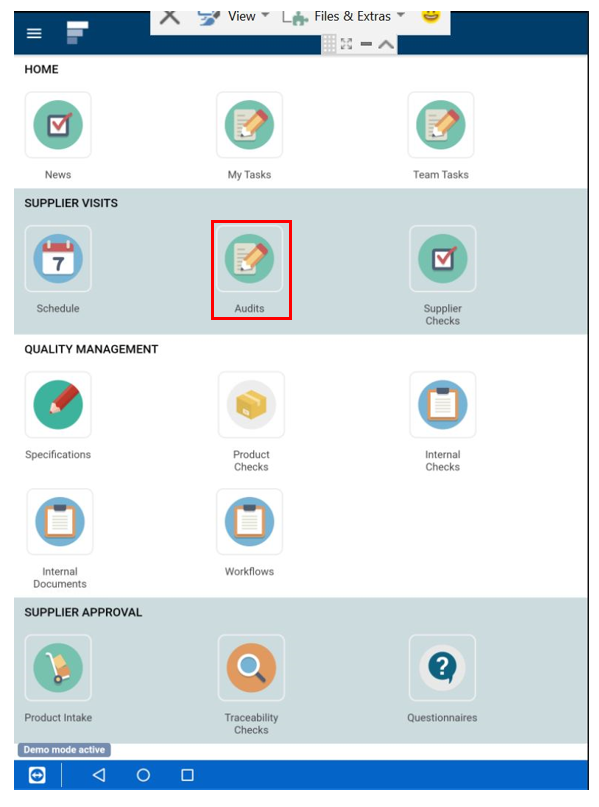
Step 9: Now download your templates to the App/tablet by select the Cloud icon
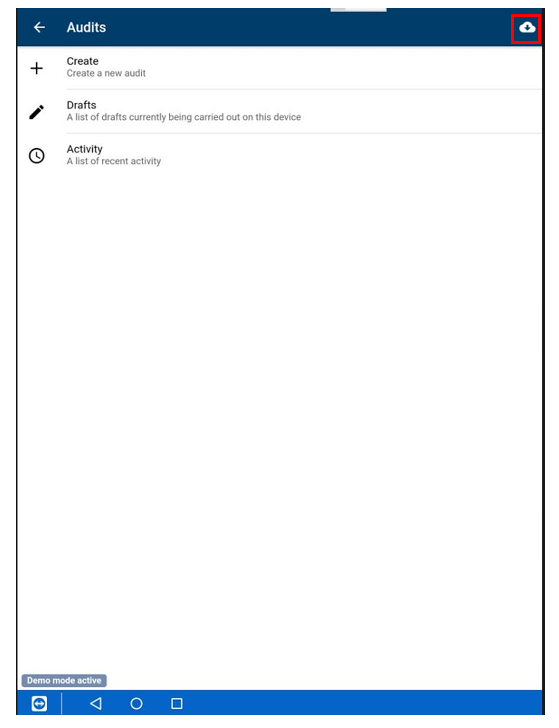
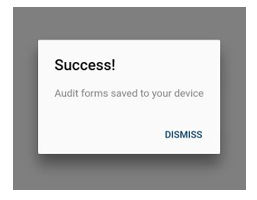
Step 10: When they download ok you’ll see this notification
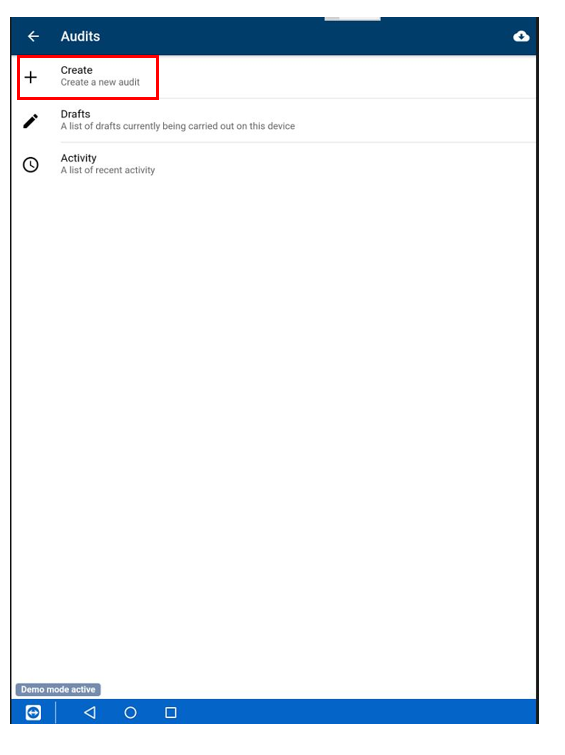
Step 11: Now select Create
Step 12: Select the details below, taking care to select your checklist too.
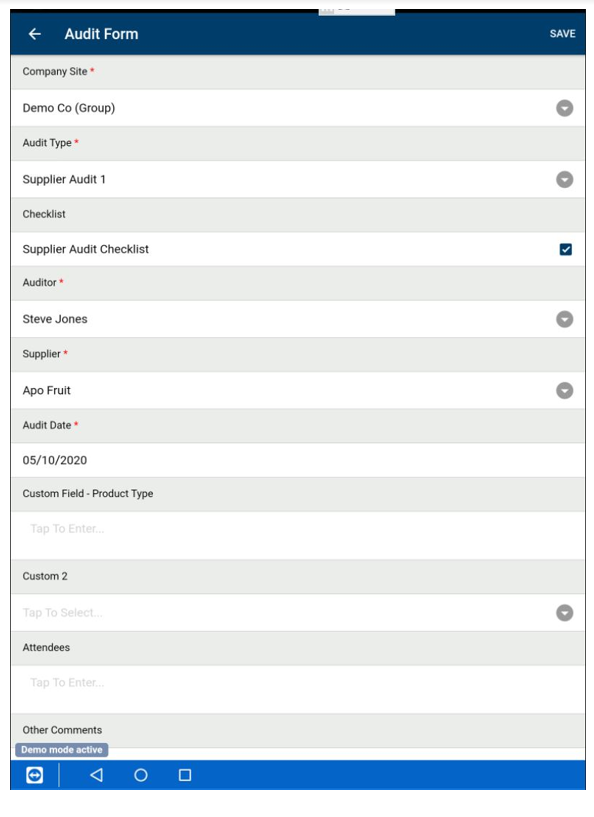
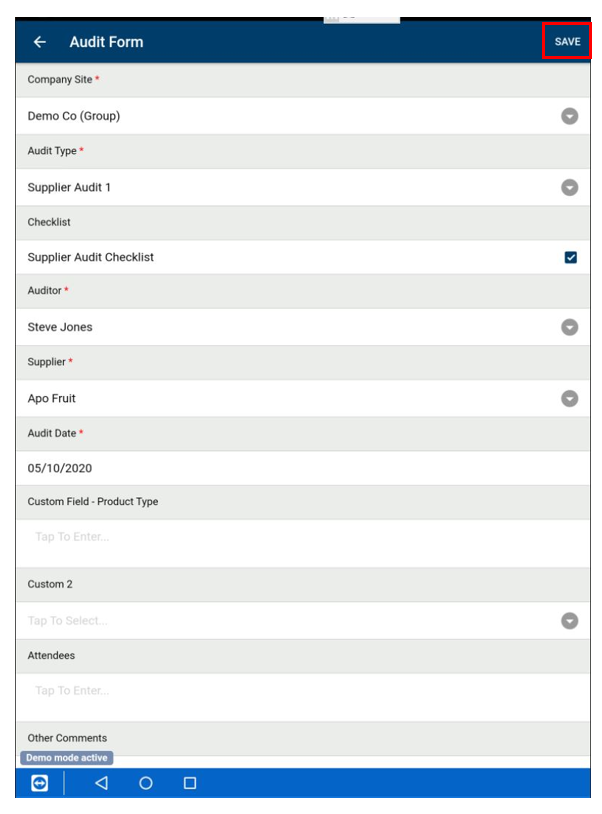
Step 13: Select Save when done
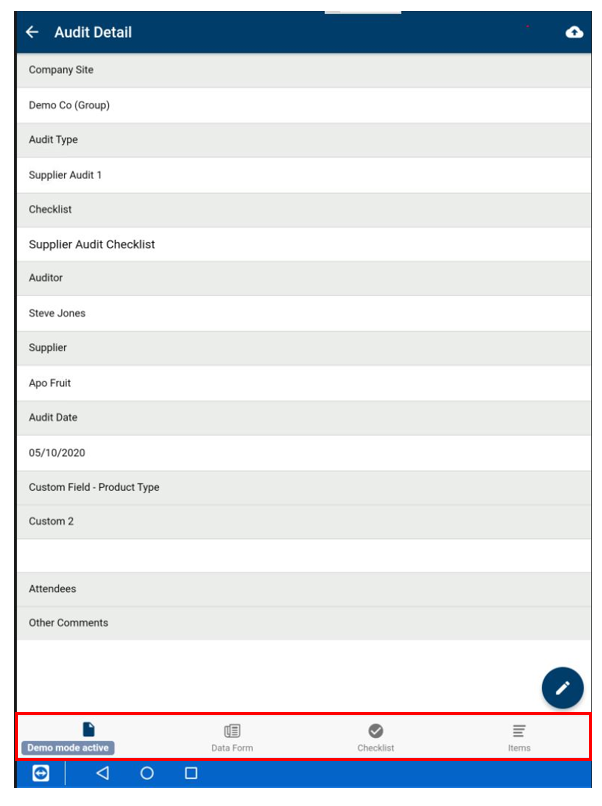
Step 14: Further tabs now appear at the bottom, start with the Data Form if you have activated one
Step 15: Select the pen icon to answer this part of the audit
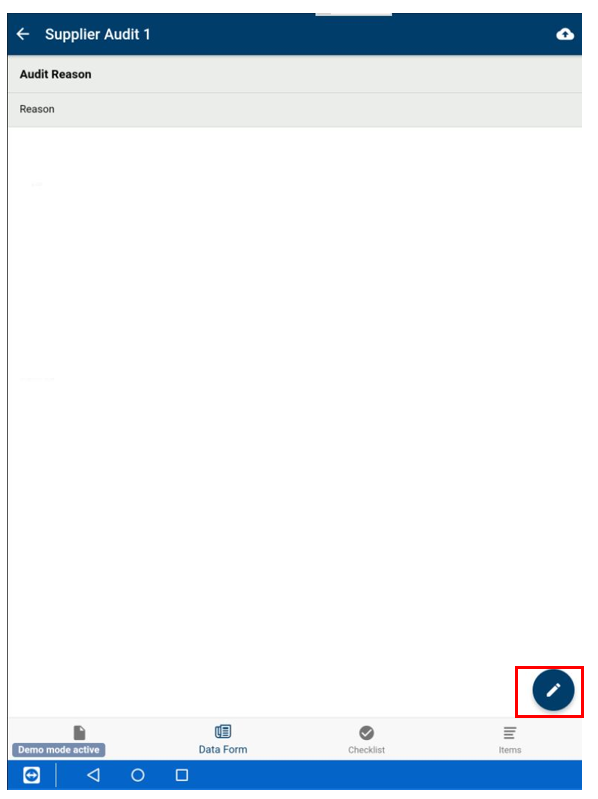
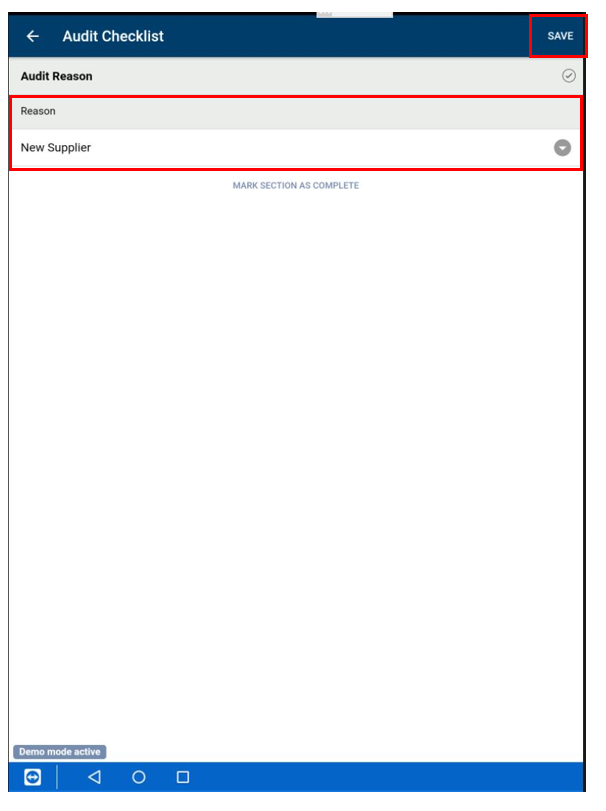
Step 16: Choose answer from whatever questions are before you. When done select Save
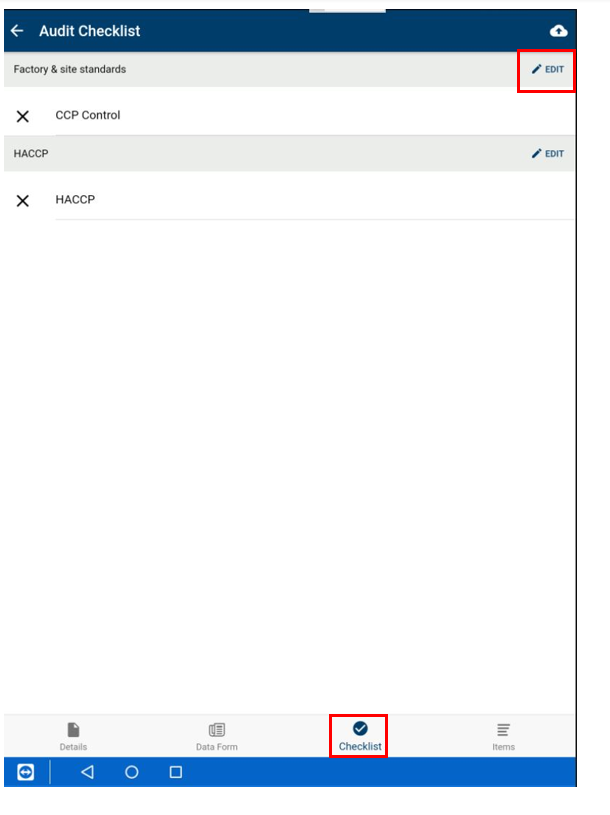
Step 17: Now choose Checklist at the bottom, and then to begin the checklist choose the edit button
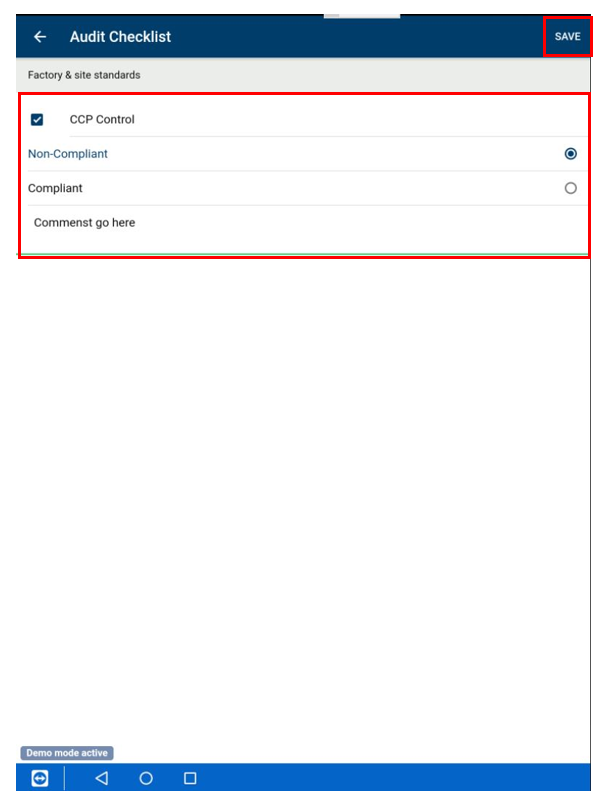
Step 18: Now select your answer and Save when done. If you choose Non-Compliant this will open a comments box and will create an Audit Item or NC automatically as this is the setting.
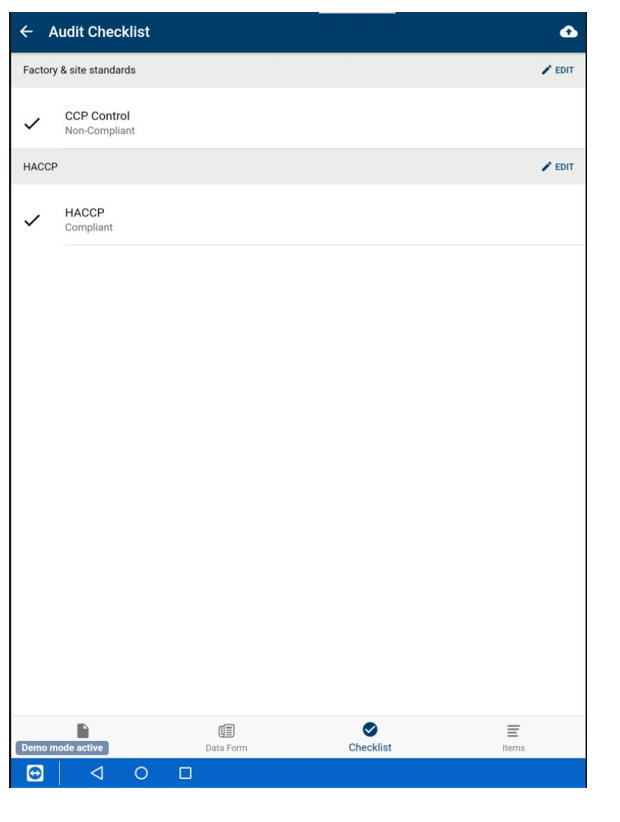
Step 19: Your checklist will look like this as you go through it.
Step 20: To view your audit items, edit them or add one ad hoc select Items at the bottom
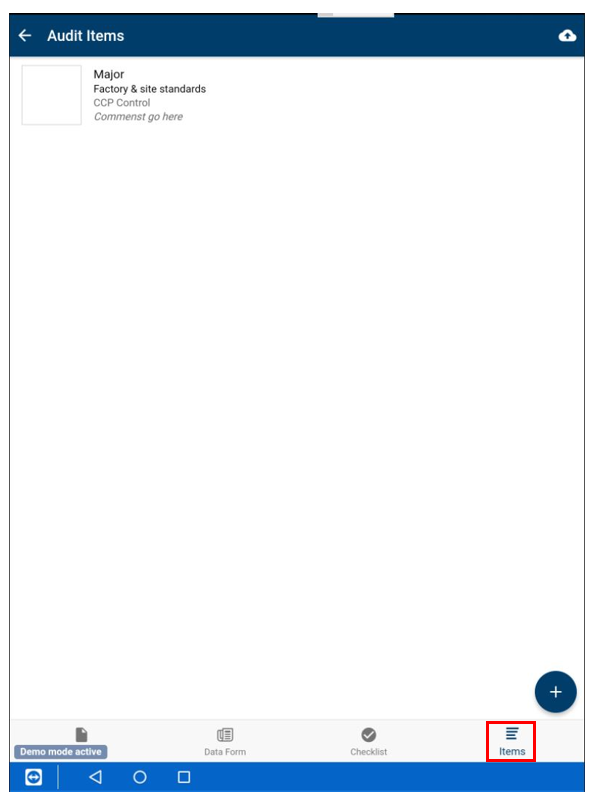
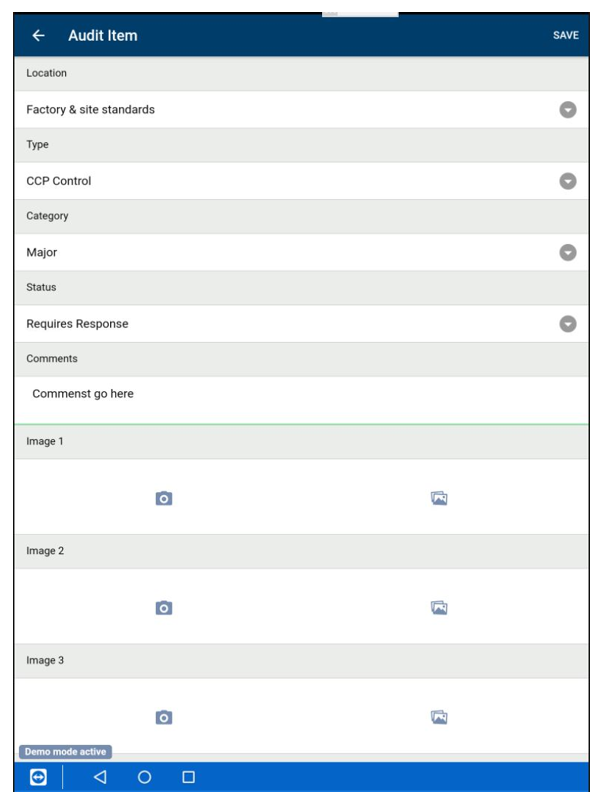
Step 21: To view your audit item that was created automatically by the checklist & edit it, select it. You can change the answers below Set Category or Status and add pictures. When done select Save
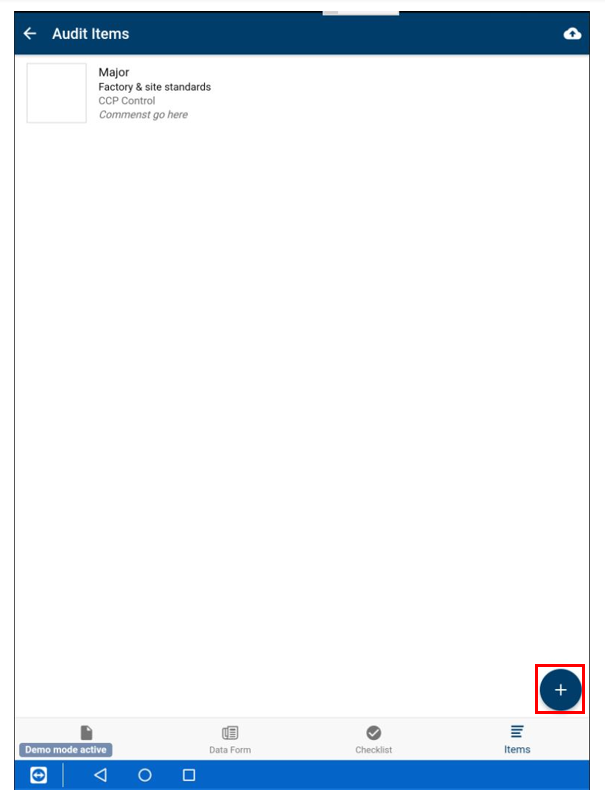
Step 22: To add an audit item ad hoc select the pen icon
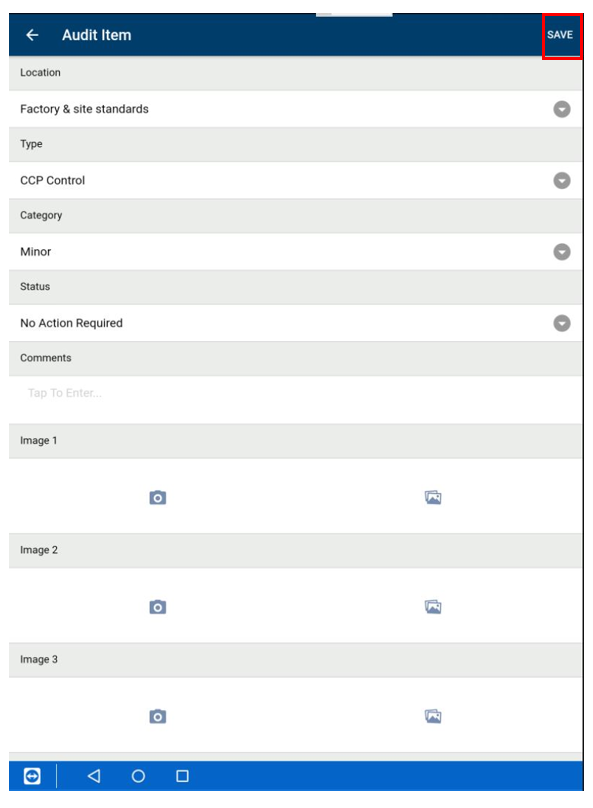
Step 23: Fill in your answers from the dropdown lists, select Save when done
Step 24: Repeat these steps above to complete your checklist and add or edit audit items
Step 25: When you are finished you need to upload the audit to the main system/desktop. To do this select the cloud icon

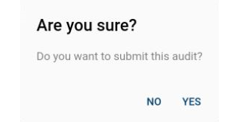
Step 26: And the box below appears select Yes
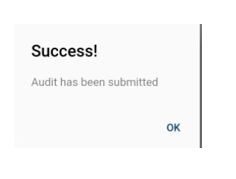
Step 27: You will now see this notification. After this it is back to the desktop to complete your audit steps