![fc-logo.svg]](https://knowledgebase.foodsconnected.com/hubfs/fc-logo.svg)
Step 1: The creator of the workflow now can revert the workflow version in increments of 1, e.g. V5 to V4 to V3.... If there is more than one version of the workflow
Step 2: Choose the workflow which you would like to revert a version and click on load.
Step 3: Click on the version option on the top right-hand side of the screen (clock with an anti-clockwise arrow.
Step 4: At the top of the list will display the current version currently being worked on. A red revert button will be available adjacent to this version and only this version
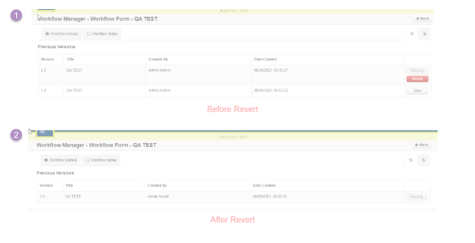
Step 5: By clicking on the revert option, it will open a model informing you the current version will be reverting to the previous version, a reason must be provided:
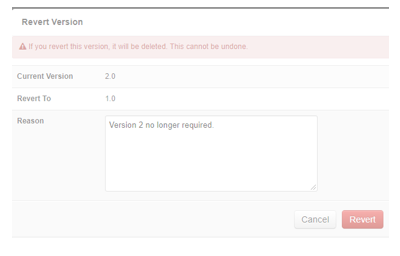
Step 6: Once the action has been completed the previous version will be permanently deleted, all data and tasks associated with the previous version will also be deleted.
Step 7: Any new versions made after this point will move up in an increment of 1, e.g. V1 > V2 > V3.