---
title: 3.1. Creating A Company Specification
description: "Step 1 Select Quality Management tab and select Specification Manager. Select the Company Specs tab and click on New Specification. Customers will see the various options: Primary Spec – create a spec"
---
[Skip to content](https://knowledgebase.foodsconnected.com/support/3.1.-creating-a-company-specification#main-content)
English
Show submenu for translations
[Contact us](https://knowledgebase.foodsconnected.com/support/kb-tickets/new?hsLang=en) [Customer portal](https://customerportal.foodsconnected.com/tickets-view?hsLang=en)
![fc-logo.svg\]](https://knowledgebase.foodsconnected.com/hubfs/fc-logo.svg)
- [Default HubSpot Blog](https://blog.foodsconnected.com/)
Open main navigation
Close main navigation
- [Default HubSpot Blog](https://blog.foodsconnected.com/)
- English
Show submenu for translations
- [Contact us](https://knowledgebase.foodsconnected.com/support/kb-tickets/new)
- [Customer portal](https://customerportal.foodsconnected.com/tickets-view)
- Go to foodsconnected.com
Go to foodsconnected.com
NEED SOME HELP?
- There are no suggestions because the search field is empty.
1. [Knowledge Base](https://knowledgebase.foodsconnected.com/support?hsLang=en)
2. [Specification Manager](https://knowledgebase.foodsconnected.com/support/specification-manager?hsLang=en)
3. [Creating And Managing Company Specifications](https://knowledgebase.foodsconnected.com/support/specification-manager?hsLang=en#creating-and-managing-company-specifications)
# 3.1. Creating A Company Specification
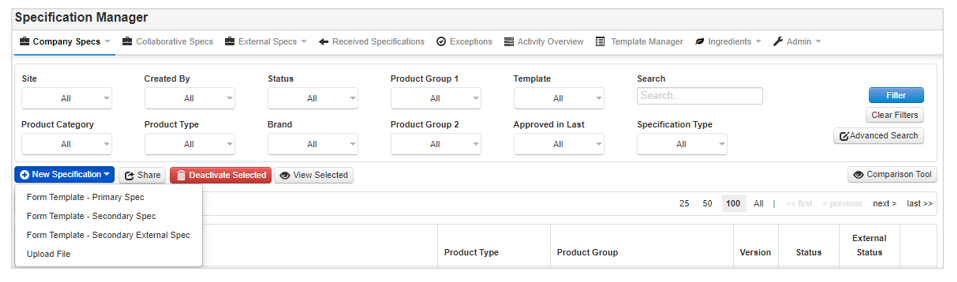
**Step 1** Select **Quality Management**taband select **Specification Manager. **Select the **Company Specs**tab and click on **New Specification***. *Customers will see the various options:
**Primary Spec** – create a specification with no prepopulated information specifications or complete specific fields to populate information required for a **Secondary Spec**.
**Secondary Spec*** – *prepopulates information from a **Primary Spec**that has been created.
**Secondary External Spec** – prepopulates selected information from external specs.
**Upload File**- upload specification files into Foods Connected.
Suppliers will only have the option to create a **primary spec** from customer shared templates.
[](https://s3.amazonaws.com/cdn.freshdesk.com/data/helpdesk/attachments/production/43146302270/original/P0R3Pw59LKxAMov327kS2pe6Ux3G8gYZNA.png?1596031933)
**Step 2: **Select your relevant option and then a page will open to set your specification details. Select the specification site, template, and product. The supplier and customer options are not mandatory.
*If you are creating a specification in response to a request from your customer, you will select the template and product that your customer shared with you through the system. You can link your own product details to the specification by using the ***Quick Add Product*** button.*
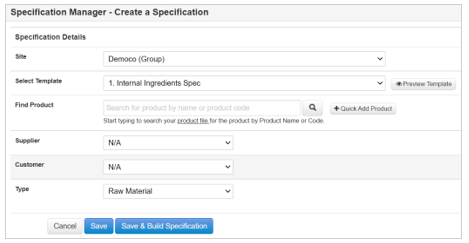
*If you have the **auto generate product codes **option switched on in your product file settings, when you use the **Quick Add Product **function, the product code will automatically generate based of the prefix and seed you have set.*
*\*Select ‘Raw Material’ for **Type **unless you are creating a specification for a finished product, see section 3.12 for steps on creating a finished product specification.*
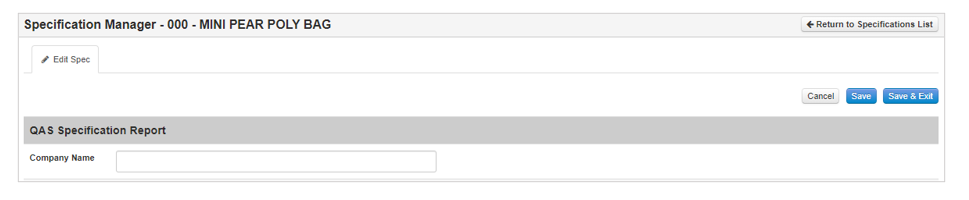
**Step 3: **Click on **Save & Build Specification**to open the template, fill in your specification details using the **Save**button to save your progress.
[](https://s3.amazonaws.com/cdn.freshdesk.com/data/helpdesk/attachments/production/43146303104/original/UBnNsDgsAPa1wub26-eKqlWeUcRY9OYGAQ.png?1596032049)
- [FAQs](https://knowledgebase.foodsconnected.com/support/faqs?hsLang=en)
- [Activation Process](https://knowledgebase.foodsconnected.com/support/activation-process?hsLang=en)
- [One Pagers](https://knowledgebase.foodsconnected.com/support/one-pagers?hsLang=en)
- [Document Request Manager](https://knowledgebase.foodsconnected.com/support/document-request-manager?hsLang=en#main-content)
- [Tool Documentation](https://knowledgebase.foodsconnected.com/support/document-request-manager?hsLang=en#tool-documentation)
- [Initial Setup of Supplier Document Manager](https://knowledgebase.foodsconnected.com/support/document-request-manager?hsLang=en#initial-setup-of-supplier-document-manager)
- [Company Documents](https://knowledgebase.foodsconnected.com/support/document-request-manager?hsLang=en#company-documents)
- [Document Request](https://knowledgebase.foodsconnected.com/support/document-request-manager?hsLang=en#document-request)
- [Sent Document Request](https://knowledgebase.foodsconnected.com/support/document-request-manager?hsLang=en#sent-document-request)
- [Linking Documents to a Product](https://knowledgebase.foodsconnected.com/support/document-request-manager?hsLang=en#linking-documents-to-a-product)
- [Document Watchlist](https://knowledgebase.foodsconnected.com/support/document-request-manager?hsLang=en#document-watchlist)
- [Settings- Company Settings](https://knowledgebase.foodsconnected.com/support/settings-company-settings?hsLang=en#main-content)
- [Company Settings- Full Guide](https://knowledgebase.foodsconnected.com/support/settings-company-settings?hsLang=en#company-settings-full-guide)
- [My Profile](https://knowledgebase.foodsconnected.com/support/settings-company-settings?hsLang=en#my-profile)
- [Task Manager](https://knowledgebase.foodsconnected.com/support/settings-company-settings?hsLang=en#task-manager)
- [User Email Settings](https://knowledgebase.foodsconnected.com/support/settings-company-settings?hsLang=en#user-email-settings)
- [Privacy Settings](https://knowledgebase.foodsconnected.com/support/settings-company-settings?hsLang=en#privacy-settings)
- [Changing Password](https://knowledgebase.foodsconnected.com/support/settings-company-settings?hsLang=en#changing-password)
- [Additional Security Measures](https://knowledgebase.foodsconnected.com/support/settings-company-settings?hsLang=en#additional-security-measures)
- [Company Profile](https://knowledgebase.foodsconnected.com/support/settings-company-settings?hsLang=en#company-profile)
- [Settings- Company Users Email & Security](https://knowledgebase.foodsconnected.com/support/settings-company-users-email-security?hsLang=en#main-content)
- [Tool Documentation](https://knowledgebase.foodsconnected.com/support/settings-company-users-email-security?hsLang=en#tool-documentation)
- [Company Users, Email & Security](https://knowledgebase.foodsconnected.com/support/settings-company-users-email-security?hsLang=en#company-users-email-security)
- [Supply Chain Manager](https://knowledgebase.foodsconnected.com/support/supply-chain-manager?hsLang=en#main-content)
- [Tool Documentation](https://knowledgebase.foodsconnected.com/support/supply-chain-manager?hsLang=en#tool-documentation)
- [Creating A Supply Chain Template](https://knowledgebase.foodsconnected.com/support/supply-chain-manager?hsLang=en#creating-a-supply-chain-template)
- [Generating & Sharing The Template](https://knowledgebase.foodsconnected.com/support/supply-chain-manager?hsLang=en#generating-sharing-the-template)
- [Completing The Supply Chain](https://knowledgebase.foodsconnected.com/support/supply-chain-manager?hsLang=en#completing-the-supply-chain)
- [Viewing & Exporting Completed Supply Chains](https://knowledgebase.foodsconnected.com/support/supply-chain-manager?hsLang=en#viewing-exporting-completed-supply-chains)
- [Extracting Path Points Into Supplier Manager](https://knowledgebase.foodsconnected.com/support/supply-chain-manager?hsLang=en#extracting-path-points-into-supplier-manager)
- [Editing Completed Supply Chains](https://knowledgebase.foodsconnected.com/support/supply-chain-manager?hsLang=en#editing-completed-supply-chains)
- [Bulk Updating Completed Supply Chains](https://knowledgebase.foodsconnected.com/support/supply-chain-manager?hsLang=en#bulk-updating-completed-supply-chains)
- [Product Check Manager](https://knowledgebase.foodsconnected.com/support/product-check-manager?hsLang=en#main-content)
- [Tool Documentation](https://knowledgebase.foodsconnected.com/support/product-check-manager?hsLang=en#tool-documentation)
- [How To Access Product Check Manager](https://knowledgebase.foodsconnected.com/support/product-check-manager?hsLang=en#how-to-access-product-check-manager)
- [Setup](https://knowledgebase.foodsconnected.com/support/product-check-manager?hsLang=en#setup)
- [How To Record A Product Check](https://knowledgebase.foodsconnected.com/support/product-check-manager?hsLang=en#how-to-record-a-product-check)
- [How To Record A Product Check On The Tablet](https://knowledgebase.foodsconnected.com/support/product-check-manager?hsLang=en#how-to-record-a-product-check-on-the-tablet)
- [How To Access The Activity Overview For Product Check Manager](https://knowledgebase.foodsconnected.com/support/product-check-manager?hsLang=en#how-to-access-the-activity-overview-for-product-check-manager)
- [Reporting](https://knowledgebase.foodsconnected.com/support/product-check-manager?hsLang=en#reporting)
- [User Access](https://knowledgebase.foodsconnected.com/support/product-check-manager?hsLang=en#user-access)
- [Internal Document Manager](https://knowledgebase.foodsconnected.com/support/internal-document-manager?hsLang=en#main-content)
- [Tool Documentation](https://knowledgebase.foodsconnected.com/support/internal-document-manager?hsLang=en#tool-documentation)
- [Initial Setup for Internal Documents](https://knowledgebase.foodsconnected.com/support/internal-document-manager?hsLang=en#initial-setup-for-internal-documents)
- [Adding Internal Documents](https://knowledgebase.foodsconnected.com/support/internal-document-manager?hsLang=en#adding-internal-documents)
- [Managing Internal Documents](https://knowledgebase.foodsconnected.com/support/internal-document-manager?hsLang=en#managing-internal-documents)
- [Managing Folders](https://knowledgebase.foodsconnected.com/support/internal-document-manager?hsLang=en#managing-folders)
- [Appendix](https://knowledgebase.foodsconnected.com/support/internal-document-manager?hsLang=en#appendix)
- [Production Models](https://knowledgebase.foodsconnected.com/support/production-models?hsLang=en#main-content)
- [Overview](https://knowledgebase.foodsconnected.com/support/production-models?hsLang=en#overview)
- [Setup Production Model Template](https://knowledgebase.foodsconnected.com/support/production-models?hsLang=en#setup-production-model-template)
- [Generating Production Model](https://knowledgebase.foodsconnected.com/support/production-models?hsLang=en#generating-production-model)
- [Setting up a Cost Model](https://knowledgebase.foodsconnected.com/support/production-models?hsLang=en#setting-up-a-cost-model)
- [Generating a Cost Model](https://knowledgebase.foodsconnected.com/support/production-models?hsLang=en#generating-a-cost-model)
- [Supplier Manager](https://knowledgebase.foodsconnected.com/support/supplier-manager?hsLang=en#main-content)
- [Tool Documentation](https://knowledgebase.foodsconnected.com/support/supplier-manager?hsLang=en#tool-documentation)
- [Initial Set up](https://knowledgebase.foodsconnected.com/support/supplier-manager?hsLang=en#initial-set-up)
- [Adding a New Supplier](https://knowledgebase.foodsconnected.com/support/supplier-manager?hsLang=en#adding-a-new-supplier)
- [Accessing Your Supplier List](https://knowledgebase.foodsconnected.com/support/supplier-manager?hsLang=en#accessing-your-supplier-list)
- [Viewing Supplier Details](https://knowledgebase.foodsconnected.com/support/supplier-manager?hsLang=en#viewing-supplier-details)
- [Editing or Updating Supplier Details](https://knowledgebase.foodsconnected.com/support/supplier-manager?hsLang=en#editing-or-updating-supplier-details)
- [Activity Overview](https://knowledgebase.foodsconnected.com/support/supplier-manager?hsLang=en#activity-overview)
- [Settings- Manage Products](https://knowledgebase.foodsconnected.com/support/settings-manage-products?hsLang=en#main-content)
- [Admin](https://knowledgebase.foodsconnected.com/support/settings-manage-products?hsLang=en#admin)
- [Initial Set Up](https://knowledgebase.foodsconnected.com/support/settings-manage-products?hsLang=en#initial-set-up)
- [Managing Products](https://knowledgebase.foodsconnected.com/support/settings-manage-products?hsLang=en#managing-products)
- [Customer Received Products](https://knowledgebase.foodsconnected.com/support/settings-manage-products?hsLang=en#customer-received-products)
- [Product Activity](https://knowledgebase.foodsconnected.com/support/settings-manage-products?hsLang=en#product-activity)
- [Supplier Questionnaire Manager](https://knowledgebase.foodsconnected.com/support/supplier-questionnaire-manager?hsLang=en#main-content)
- [Tool Documentation](https://knowledgebase.foodsconnected.com/support/supplier-questionnaire-manager?hsLang=en#tool-documentation)
- [Creating A Questionnaire Template](https://knowledgebase.foodsconnected.com/support/supplier-questionnaire-manager?hsLang=en#creating-a-questionnaire-template)
- [Sharing A Questionnaire](https://knowledgebase.foodsconnected.com/support/supplier-questionnaire-manager?hsLang=en#sharing-a-questionnaire)
- [Responding to Questionnaires](https://knowledgebase.foodsconnected.com/support/supplier-questionnaire-manager?hsLang=en#responding-to-questionnaires)
- [Viewing Received Questionnaires](https://knowledgebase.foodsconnected.com/support/supplier-questionnaire-manager?hsLang=en#viewing-received-questionnaires)
- [Reporting Questionnaires](https://knowledgebase.foodsconnected.com/support/supplier-questionnaire-manager?hsLang=en#reporting-questionnaires)
- [Supplier Check Manager](https://knowledgebase.foodsconnected.com/support/supplier-check-manager?hsLang=en#main-content)
- [Tool Documentation](https://knowledgebase.foodsconnected.com/support/supplier-check-manager?hsLang=en#tool-documentation)
- [Creating A Supplier Check](https://knowledgebase.foodsconnected.com/support/supplier-check-manager?hsLang=en#creating-a-supplier-check)
- [Recording A Check On The Tablet](https://knowledgebase.foodsconnected.com/support/supplier-check-manager?hsLang=en#recording-a-check-on-the-tablet)
- [Recording A Check On The Desktop](https://knowledgebase.foodsconnected.com/support/supplier-check-manager?hsLang=en#recording-a-check-on-the-desktop)
- [Viewing, Reviewing, Requesting Corrective Action & Confirming Checks](https://knowledgebase.foodsconnected.com/support/supplier-check-manager?hsLang=en#viewing-reviewing-requesting-corrective-action-confirming-checks)
- [Completing A Snapshot Report](https://knowledgebase.foodsconnected.com/support/supplier-check-manager?hsLang=en#completing-a-snapshot-report)
- [Supplier Document Manager](https://knowledgebase.foodsconnected.com/support/supplier-document-manager?hsLang=en#main-content)
- [Tool Documentation](https://knowledgebase.foodsconnected.com/support/supplier-document-manager?hsLang=en#tool-documentation)
- [Initial Setup of Supplier Document Manager](https://knowledgebase.foodsconnected.com/support/supplier-document-manager?hsLang=en#initial-setup-of-supplier-document-manager)
- [Creating A Supplier Document Template](https://knowledgebase.foodsconnected.com/support/supplier-document-manager?hsLang=en#creating-a-supplier-document-template)
- [Building The Document](https://knowledgebase.foodsconnected.com/support/supplier-document-manager?hsLang=en#building-the-document)
- [Approving The Document Internally Before Sending Out](https://knowledgebase.foodsconnected.com/support/supplier-document-manager?hsLang=en#approving-the-document-internally-before-sending-out)
- [Delete Documents](https://knowledgebase.foodsconnected.com/support/supplier-document-manager?hsLang=en#delete-documents)
- [View Selected](https://knowledgebase.foodsconnected.com/support/supplier-document-manager?hsLang=en#view-selected)
- [Sharing A Document With Suppliers To Sign Off](https://knowledgebase.foodsconnected.com/support/supplier-document-manager?hsLang=en#sharing-a-document-with-suppliers-to-sign-off)
- [Exceptions](https://knowledgebase.foodsconnected.com/support/supplier-document-manager?hsLang=en#exceptions)
- [Sign Off Review](https://knowledgebase.foodsconnected.com/support/supplier-document-manager?hsLang=en#sign-off-review)
- [Viewing A Customer Document](https://knowledgebase.foodsconnected.com/support/supplier-document-manager?hsLang=en#viewing-a-customer-document)
- [Sign Off The Document](https://knowledgebase.foodsconnected.com/support/supplier-document-manager?hsLang=en#sign-off-the-document)
- [Assign Responsibility](https://knowledgebase.foodsconnected.com/support/supplier-document-manager?hsLang=en#assign-responsibility)
- [Delete/Reject Selected](https://knowledgebase.foodsconnected.com/support/supplier-document-manager?hsLang=en#delete-reject-selected)
- [Receiving & Viewing An Exception](https://knowledgebase.foodsconnected.com/support/supplier-document-manager?hsLang=en#receiving-viewing-an-exception)
- [Risk Assessment Manager](https://knowledgebase.foodsconnected.com/support/risk-assessment-manager?hsLang=en#main-content)
- [Tool Documentation](https://knowledgebase.foodsconnected.com/support/risk-assessment-manager?hsLang=en#tool-documentation)
- [Creating A Risk Assessment Template](https://knowledgebase.foodsconnected.com/support/risk-assessment-manager?hsLang=en#creating-a-risk-assessment-template)
- [Recording, Updating & Viewing Risk Assessments](https://knowledgebase.foodsconnected.com/support/risk-assessment-manager?hsLang=en#recording-updating-viewing-risk-assessments)
- [Creating Reports](https://knowledgebase.foodsconnected.com/support/risk-assessment-manager?hsLang=en#creating-reports)
- [Incident Manager](https://knowledgebase.foodsconnected.com/support/incident-manager?hsLang=en#main-content)
- [Tool Documentation](https://knowledgebase.foodsconnected.com/support/incident-manager?hsLang=en#tool-documentation)
- [Initial Setup](https://knowledgebase.foodsconnected.com/support/incident-manager?hsLang=en#initial-setup)
- [Create Incident Forms – Supplier & Customer Confirmations](https://knowledgebase.foodsconnected.com/support/incident-manager?hsLang=en#create-incident-forms-supplier-customer-confirmations)
- [Edit Incident Forms – Supplier & Customer Confirmations](https://knowledgebase.foodsconnected.com/support/incident-manager?hsLang=en#edit-incident-forms-supplier-customer-confirmations)
- [RASFF Notifications](https://knowledgebase.foodsconnected.com/support/incident-manager?hsLang=en#rasff-notifications)
- [Create An Incident From The RASFF Notifications](https://knowledgebase.foodsconnected.com/support/incident-manager?hsLang=en#create-an-incident-from-the-rasff-notifications)
- [View Incident](https://knowledgebase.foodsconnected.com/support/incident-manager?hsLang=en#view-incident)
- [Edit Incident](https://knowledgebase.foodsconnected.com/support/incident-manager?hsLang=en#edit-incident)
- [Share An Incident](https://knowledgebase.foodsconnected.com/support/incident-manager?hsLang=en#share-an-incident)
- [View Company Incident Shares](https://knowledgebase.foodsconnected.com/support/incident-manager?hsLang=en#view-company-incident-shares)
- [View Responses From Supplier](https://knowledgebase.foodsconnected.com/support/incident-manager?hsLang=en#view-responses-from-supplier)
- [Request More Info](https://knowledgebase.foodsconnected.com/support/incident-manager?hsLang=en#request-more-info)
- [Respond To Incident/Confirm/Close Out Incident](https://knowledgebase.foodsconnected.com/support/incident-manager?hsLang=en#respond-to-incident-confirm-close-out-incident)
- [Supplier Side Incident Manager](https://knowledgebase.foodsconnected.com/support/incident-manager?hsLang=en#supplier-side-incident-manager)
- [Remote Audit Manager](https://knowledgebase.foodsconnected.com/support/remote-audit-manager?hsLang=en#main-content)
- [Tool Documentation](https://knowledgebase.foodsconnected.com/support/remote-audit-manager?hsLang=en#tool-documentation)
- [Initial Set Up](https://knowledgebase.foodsconnected.com/support/remote-audit-manager?hsLang=en#initial-set-up)
- [2. Creating / Editing Standard Template](https://knowledgebase.foodsconnected.com/support/remote-audit-manager?hsLang=en#2-creating-editing-standard-template)
- [Sharing Standard Template](https://knowledgebase.foodsconnected.com/support/remote-audit-manager?hsLang=en#sharing-standard-template)
- [Receiving A Shared Standard](https://knowledgebase.foodsconnected.com/support/remote-audit-manager?hsLang=en#receiving-a-shared-standard)
- [Recalling A Shared Standard](https://knowledgebase.foodsconnected.com/support/remote-audit-manager?hsLang=en#recalling-a-shared-standard)
- [Reviewing & Approving](https://knowledgebase.foodsconnected.com/support/remote-audit-manager?hsLang=en#reviewing-approving)
- [Accessing Activity History](https://knowledgebase.foodsconnected.com/support/remote-audit-manager?hsLang=en#accessing-activity-history)
- [Updating Standard](https://knowledgebase.foodsconnected.com/support/remote-audit-manager?hsLang=en#updating-standard)
- [Specification Manager](https://knowledgebase.foodsconnected.com/support/specification-manager?hsLang=en#main-content)
- [Tool Documentation](https://knowledgebase.foodsconnected.com/support/specification-manager?hsLang=en#tool-documentation)
- [Initial Setup For Specification Manager](https://knowledgebase.foodsconnected.com/support/specification-manager?hsLang=en#initial-setup-for-specification-manager)
- [Creating Specification Templates](https://knowledgebase.foodsconnected.com/support/specification-manager?hsLang=en#creating-specification-templates)
- [Creating And Managing Company Specifications](https://knowledgebase.foodsconnected.com/support/specification-manager?hsLang=en#creating-and-managing-company-specifications)
- [Creating and Managing Collaborative Specifications](https://knowledgebase.foodsconnected.com/support/specification-manager?hsLang=en#creating-and-managing-collaborative-specifications)
- [Creating and Managing Ingredient Specifications](https://knowledgebase.foodsconnected.com/support/specification-manager?hsLang=en#creating-and-managing-ingredient-specifications)
- [Sharing and Managing External Specifications](https://knowledgebase.foodsconnected.com/support/specification-manager?hsLang=en#sharing-and-managing-external-specifications)
- [Providing Customer Access To Linked Specifications](https://knowledgebase.foodsconnected.com/support/specification-manager?hsLang=en#providing-customer-access-to-linked-specifications)
- [Managing Specification Exceptions](https://knowledgebase.foodsconnected.com/support/specification-manager?hsLang=en#managing-specification-exceptions)
- [Viewing Specifications On The App](https://knowledgebase.foodsconnected.com/support/specification-manager?hsLang=en#viewing-specifications-on-the-app)
- [Customer Complaint Manager](https://knowledgebase.foodsconnected.com/support/customer-complaint-manager?hsLang=en#main-content)
- [Tool Documentation](https://knowledgebase.foodsconnected.com/support/customer-complaint-manager?hsLang=en#tool-documentation)
- [How To Access Customer Complaints](https://knowledgebase.foodsconnected.com/support/customer-complaint-manager?hsLang=en#how-to-access-customer-complaints)
- [Setup](https://knowledgebase.foodsconnected.com/support/customer-complaint-manager?hsLang=en#setup)
- [Customer Complaint Usage](https://knowledgebase.foodsconnected.com/support/customer-complaint-manager?hsLang=en#customer-complaint-usage)
- [How To Access The Activity Overview For Customer Complaints](https://knowledgebase.foodsconnected.com/support/customer-complaint-manager?hsLang=en#how-to-access-the-activity-overview-for-customer-complaints)
- [Reporting](https://knowledgebase.foodsconnected.com/support/customer-complaint-manager?hsLang=en#reporting)
- [User Access](https://knowledgebase.foodsconnected.com/support/customer-complaint-manager?hsLang=en#user-access)
- [Internal Check Manager](https://knowledgebase.foodsconnected.com/support/internal-check-manager?hsLang=en#main-content)
- [Tool Documentation](https://knowledgebase.foodsconnected.com/support/internal-check-manager?hsLang=en#tool-documentation)
- [Initial Setup For Internal Checks](https://knowledgebase.foodsconnected.com/support/internal-check-manager?hsLang=en#initial-setup-for-internal-checks)
- [Creating A Master Internal Check Template](https://knowledgebase.foodsconnected.com/support/internal-check-manager?hsLang=en#creating-a-master-internal-check-template)
- [Create A Confirmation Template](https://knowledgebase.foodsconnected.com/support/internal-check-manager?hsLang=en#create-a-confirmation-template)
- [Create A Child Internal Check Template](https://knowledgebase.foodsconnected.com/support/internal-check-manager?hsLang=en#create-a-child-internal-check-template)
- [Recording A Check On The Tablet](https://knowledgebase.foodsconnected.com/support/internal-check-manager?hsLang=en#recording-a-check-on-the-tablet)
- [Viewing, Reviewing & Confirming Checks](https://knowledgebase.foodsconnected.com/support/internal-check-manager?hsLang=en#viewing-reviewing-confirming-checks)
- [Creating Reports](https://knowledgebase.foodsconnected.com/support/internal-check-manager?hsLang=en#creating-reports)
- [Workflow Manager](https://knowledgebase.foodsconnected.com/support/workflow-manager?hsLang=en#main-content)
- [Tool Documentation](https://knowledgebase.foodsconnected.com/support/workflow-manager?hsLang=en#tool-documentation)
- [Creating A New Template](https://knowledgebase.foodsconnected.com/support/workflow-manager?hsLang=en#creating-a-new-template)
- [Approving A Template](https://knowledgebase.foodsconnected.com/support/workflow-manager?hsLang=en#approving-a-template)
- [Generating A New Project Workflow](https://knowledgebase.foodsconnected.com/support/workflow-manager?hsLang=en#generating-a-new-project-workflow)
- [Actioning A Notification Email](https://knowledgebase.foodsconnected.com/support/workflow-manager?hsLang=en#actioning-a-notification-email)
- [Appendix](https://knowledgebase.foodsconnected.com/support/workflow-manager?hsLang=en#appendix)
- [Stock Manager](https://knowledgebase.foodsconnected.com/support/stock-manager?hsLang=en#main-content)
- [Tool Documentation](https://knowledgebase.foodsconnected.com/support/stock-manager?hsLang=en#tool-documentation)
- [Accessing The Stock Manager](https://knowledgebase.foodsconnected.com/support/stock-manager?hsLang=en#accessing-the-stock-manager)
- [Setup & Admin](https://knowledgebase.foodsconnected.com/support/stock-manager?hsLang=en#setup-admin)
- [Stock Manager Usage](https://knowledgebase.foodsconnected.com/support/stock-manager?hsLang=en#stock-manager-usage)
- [Reporting](https://knowledgebase.foodsconnected.com/support/stock-manager?hsLang=en#reporting)
- [User Access](https://knowledgebase.foodsconnected.com/support/stock-manager?hsLang=en#user-access)
- [Forecast Manager](https://knowledgebase.foodsconnected.com/support/forecast-manager?hsLang=en#main-content)
- [Tool Documentation](https://knowledgebase.foodsconnected.com/support/forecast-manager?hsLang=en#tool-documentation)
- [Initial Setup](https://knowledgebase.foodsconnected.com/support/forecast-manager?hsLang=en#initial-setup)
- [Sending Forecasts](https://knowledgebase.foodsconnected.com/support/forecast-manager?hsLang=en#sending-forecasts)
- [Shared Forecasts](https://knowledgebase.foodsconnected.com/support/forecast-manager?hsLang=en#shared-forecasts)
- [Reviewing Submitted Confirmation Forecasts](https://knowledgebase.foodsconnected.com/support/forecast-manager?hsLang=en#reviewing-submitted-confirmation-forecasts)
- [Updating Shared Confirmation Forecasts](https://knowledgebase.foodsconnected.com/support/forecast-manager?hsLang=en#updating-shared-confirmation-forecasts)
- [Reviewing Forecasts](https://knowledgebase.foodsconnected.com/support/forecast-manager?hsLang=en#reviewing-forecasts)
- [Sending Volumes To Negotiation Templates](https://knowledgebase.foodsconnected.com/support/forecast-manager?hsLang=en#sending-volumes-to-negotiation-templates)
- [Order Manager](https://knowledgebase.foodsconnected.com/support/order-manager?hsLang=en#main-content)
- [Tool Documentation](https://knowledgebase.foodsconnected.com/support/order-manager?hsLang=en#tool-documentation)
- [Initial Setup For Order Templates](https://knowledgebase.foodsconnected.com/support/order-manager?hsLang=en#initial-setup-for-order-templates)
- [Creating An Order Template](https://knowledgebase.foodsconnected.com/support/order-manager?hsLang=en#creating-an-order-template)
- [Multi Order Drafts](https://knowledgebase.foodsconnected.com/support/order-manager?hsLang=en#multi-order-drafts)
- [Sent Orders](https://knowledgebase.foodsconnected.com/support/order-manager?hsLang=en#sent-orders)
- [Received Order](https://knowledgebase.foodsconnected.com/support/order-manager?hsLang=en#received-order)
- [Activity](https://knowledgebase.foodsconnected.com/support/order-manager?hsLang=en#activity)
- [Meeting Notes Manager](https://knowledgebase.foodsconnected.com/support/meeting-notes-manager?hsLang=en#main-content)
- [Tool Documentation](https://knowledgebase.foodsconnected.com/support/meeting-notes-manager?hsLang=en#tool-documentation)
- [Accessing Meeting Notes Manager](https://knowledgebase.foodsconnected.com/support/meeting-notes-manager?hsLang=en#accessing-meeting-notes-manager)
- [Company Meetings](https://knowledgebase.foodsconnected.com/support/meeting-notes-manager?hsLang=en#company-meetings)
- [Received Meetings](https://knowledgebase.foodsconnected.com/support/meeting-notes-manager?hsLang=en#received-meetings)
- [Activity Overview](https://knowledgebase.foodsconnected.com/support/meeting-notes-manager?hsLang=en#activity-overview)
- [Admin](https://knowledgebase.foodsconnected.com/support/meeting-notes-manager?hsLang=en#admin)
- [Customer Tool Guides](https://knowledgebase.foodsconnected.com/support/customer-tool-guides?hsLang=en#main-content)
- [Foods Connected](https://knowledgebase.foodsconnected.com/support/customer-tool-guides?hsLang=en#foods-connected)
- [Traceability Manager](https://knowledgebase.foodsconnected.com/support/traceability-manager?hsLang=en#main-content)
- [Tool Documentation](https://knowledgebase.foodsconnected.com/support/traceability-manager?hsLang=en#tool-documentation)
- [Setting Up Traceability Manager](https://knowledgebase.foodsconnected.com/support/traceability-manager?hsLang=en#setting-up-traceability-manager)
- [Recording A New Traceability Check](https://knowledgebase.foodsconnected.com/support/traceability-manager?hsLang=en#recording-a-new-traceability-check)
- [Sharing A Traceability Template](https://knowledgebase.foodsconnected.com/support/traceability-manager?hsLang=en#sharing-a-traceability-template)
- [Confirming A Traceability Template](https://knowledgebase.foodsconnected.com/support/traceability-manager?hsLang=en#confirming-a-traceability-template)
- [Viewing Completed Traceability Templates](https://knowledgebase.foodsconnected.com/support/traceability-manager?hsLang=en#viewing-completed-traceability-templates)
- [Supplier Audit Manager](https://knowledgebase.foodsconnected.com/support/supplier-audit-manager?hsLang=en#main-content)
- [Tool Documentation](https://knowledgebase.foodsconnected.com/support/supplier-audit-manager?hsLang=en#tool-documentation)
- [Initial Setup](https://knowledgebase.foodsconnected.com/support/supplier-audit-manager?hsLang=en#initial-setup)
- [Building A Custom Audit](https://knowledgebase.foodsconnected.com/support/supplier-audit-manager?hsLang=en#building-a-custom-audit)
- [Using And Completing An Audit](https://knowledgebase.foodsconnected.com/support/supplier-audit-manager?hsLang=en#using-and-completing-an-audit)
- [Update An Audit](https://knowledgebase.foodsconnected.com/support/supplier-audit-manager?hsLang=en#update-an-audit)
- [Request An Internal Review](https://knowledgebase.foodsconnected.com/support/supplier-audit-manager?hsLang=en#request-an-internal-review)
- [Mark Audit As Complete](https://knowledgebase.foodsconnected.com/support/supplier-audit-manager?hsLang=en#mark-audit-as-complete)
- [Notify Team Members](https://knowledgebase.foodsconnected.com/support/supplier-audit-manager?hsLang=en#notify-team-members)
- [Send PDF Report](https://knowledgebase.foodsconnected.com/support/supplier-audit-manager?hsLang=en#send-pdf-report)
- [Export Full Audit Table To PDF](https://knowledgebase.foodsconnected.com/support/supplier-audit-manager?hsLang=en#export-full-audit-table-to-pdf)
- [Export Full Audit Table To Excel](https://knowledgebase.foodsconnected.com/support/supplier-audit-manager?hsLang=en#export-full-audit-table-to-excel)
- [Recall Audit](https://knowledgebase.foodsconnected.com/support/supplier-audit-manager?hsLang=en#recall-audit)
- [Reopen Audit](https://knowledgebase.foodsconnected.com/support/supplier-audit-manager?hsLang=en#reopen-audit)
- [Managing Activity Subscriptions](https://knowledgebase.foodsconnected.com/support/supplier-audit-manager?hsLang=en#managing-activity-subscriptions)
- [Supplier Provided Audits](https://knowledgebase.foodsconnected.com/support/supplier-audit-manager?hsLang=en#supplier-provided-audits)
- [Purchasing & Sales Manager](https://knowledgebase.foodsconnected.com/support/purchasing-sales-manager?hsLang=en#main-content)
- [Tool Documentation](https://knowledgebase.foodsconnected.com/support/purchasing-sales-manager?hsLang=en#tool-documentation)
- [Initial Setup For Purchasing & Sales Manager](https://knowledgebase.foodsconnected.com/support/purchasing-sales-manager?hsLang=en#initial-setup-for-purchasing-sales-manager)
- [Sending A Template](https://knowledgebase.foodsconnected.com/support/purchasing-sales-manager?hsLang=en#sending-a-template)
- [Agreements](https://knowledgebase.foodsconnected.com/support/purchasing-sales-manager?hsLang=en#agreements)
- [Pricing Grids](https://knowledgebase.foodsconnected.com/support/purchasing-sales-manager?hsLang=en#pricing-grids)
- [Reporting](https://knowledgebase.foodsconnected.com/support/purchasing-sales-manager?hsLang=en#reporting)
- [Visit & Audit Schedule](https://knowledgebase.foodsconnected.com/support/visit-audit-schedule?hsLang=en#main-content)
- [Tool Documentation](https://knowledgebase.foodsconnected.com/support/visit-audit-schedule?hsLang=en#tool-documentation)
- [Visiting & Audit Schedule](https://knowledgebase.foodsconnected.com/support/visit-audit-schedule?hsLang=en#visiting-audit-schedule)
- [Admin Settings](https://knowledgebase.foodsconnected.com/support/visit-audit-schedule?hsLang=en#admin-settings)
- [Requesting A Visit/Audit](https://knowledgebase.foodsconnected.com/support/visit-audit-schedule?hsLang=en#requesting-a-visit-audit)
- [Responding To A Requested Visit/Audit](https://knowledgebase.foodsconnected.com/support/visit-audit-schedule?hsLang=en#responding-to-a-requested-visit-audit)
- [Calendar View Of Visit/Audit Requests](https://knowledgebase.foodsconnected.com/support/visit-audit-schedule?hsLang=en#calendar-view-of-visit-audit-requests)
- [Formbuilder](https://knowledgebase.foodsconnected.com/support/formbuilder?hsLang=en#main-content)
- [Tool Documentation](https://knowledgebase.foodsconnected.com/support/formbuilder?hsLang=en#tool-documentation)
- [Building A Template](https://knowledgebase.foodsconnected.com/support/formbuilder?hsLang=en#building-a-template)
- [Reordering Sections / Fields](https://knowledgebase.foodsconnected.com/support/formbuilder?hsLang=en#reordering-sections-fields)
- [Appendix – Explanation Of Field Types](https://knowledgebase.foodsconnected.com/support/formbuilder?hsLang=en#appendix-explanation-of-field-types)
- [Default HubSpot Blog](https://blog.foodsconnected.com/)
# Foods Connected
Copyright © 2026, Foods Connected