![fc-logo.svg]](https://knowledgebase.foodsconnected.com/hubfs/fc-logo.svg)
Step 1: Build your check using the form builder to suit your needs. To add a new section select Add New Section.

New Section looks like this below

Step 2: To add a new field or question select Add New – Standard Field

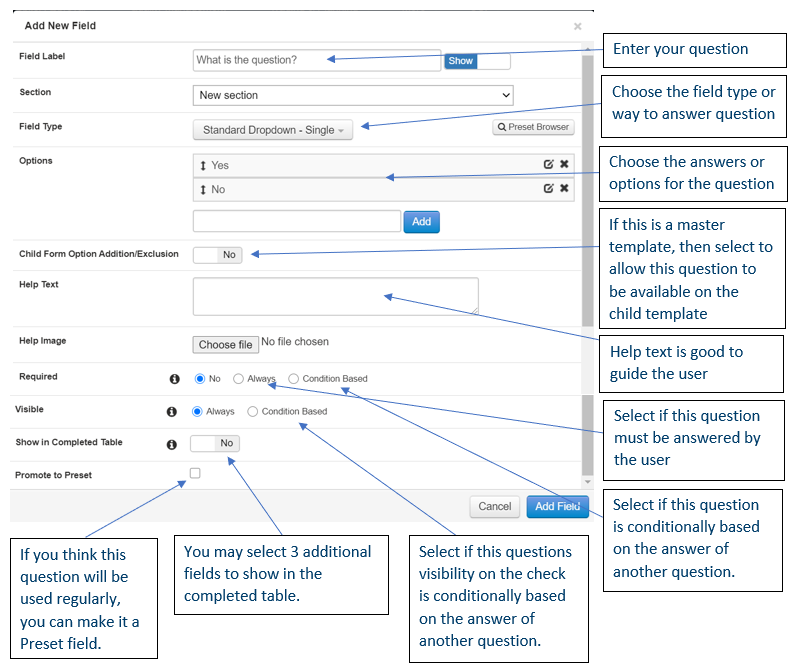
Step 3: Now add in the details of the question and how you want it answered using the field types.
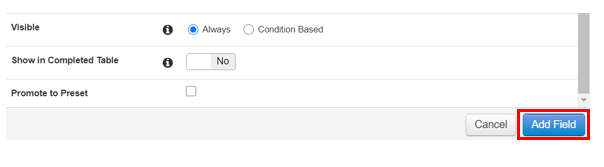
Step 4: Once done select Add Field
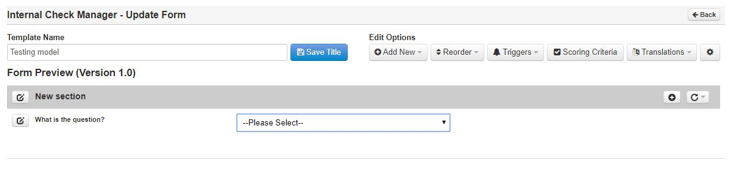
New Field looks like this below
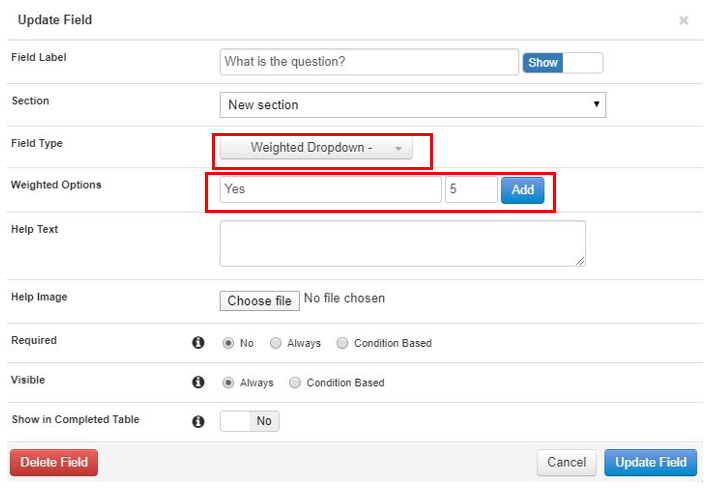
Step 5: To be able to use Scoring on the questionnaire repeat the same steps up to ‘Step 4’ but in the ‘Field Type’ choose a Weighted Dropdown. Add in the answer but then add the points that the answer is worth and select Add
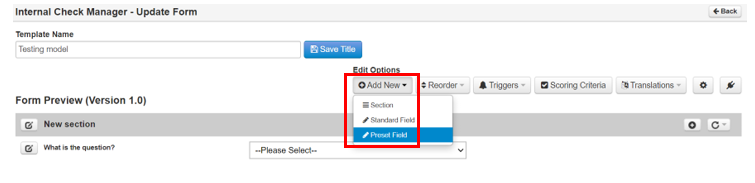
Step 6: To add a Preset Field select Add New – Preset Field
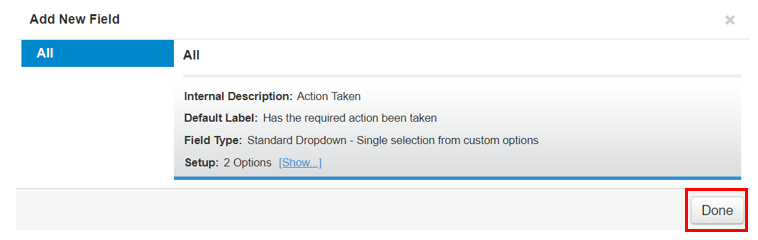
 Step 7: Select the relevant Preset Field, and select Done
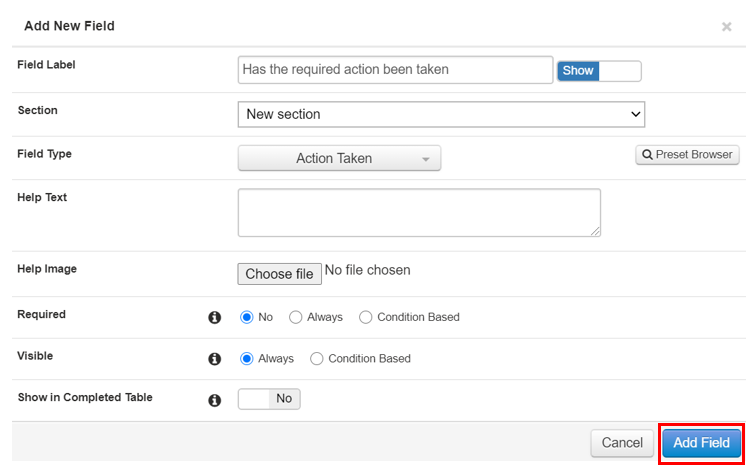
Step 8: Make any changes to the field and then select Add Field.
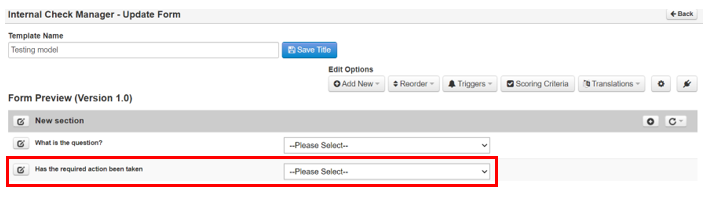
New Field looks like this below
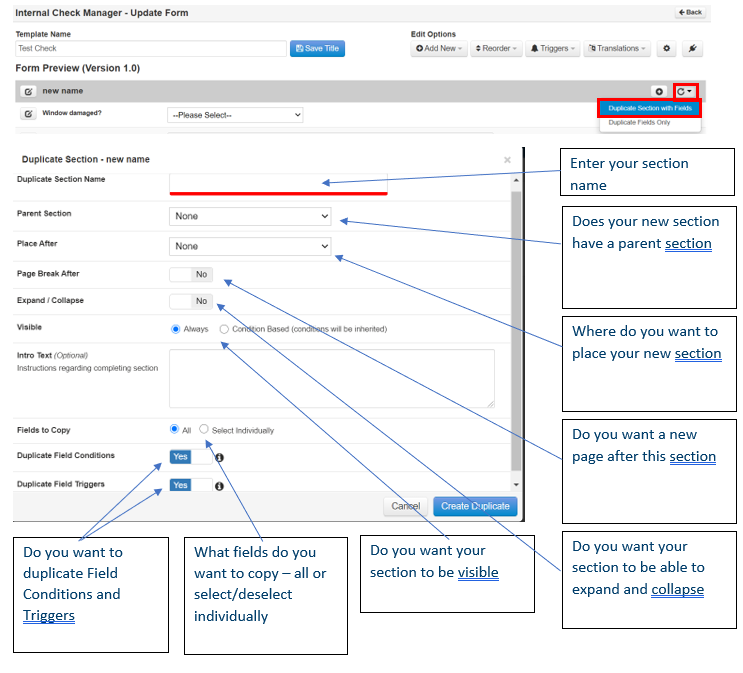
Step 9: If you want to add a new section that is a copy of a previous section you have built, then select the Circular arrow and then Duplicate Section with Fields.
Step 10: Repeat steps to build up your check.