![fc-logo.svg]](https://knowledgebase.foodsconnected.com/hubfs/fc-logo.svg)
After setup is complete the next step is to add your Suppliers to your Supplier List.
There are two options for adding suppliers,
- Add Individual suppliers one at a time (most beneficial for updating a Supplier List).
- Adding bulk supplier (most beneficial when you have a new supplier list with numerous suppliers being added)
Add Individual Suppliers
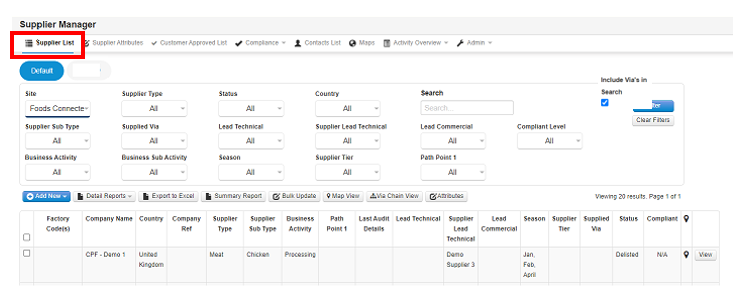
Step 1: Go to the Supplier Manager under the Supplier Approval Tab select Supplier List
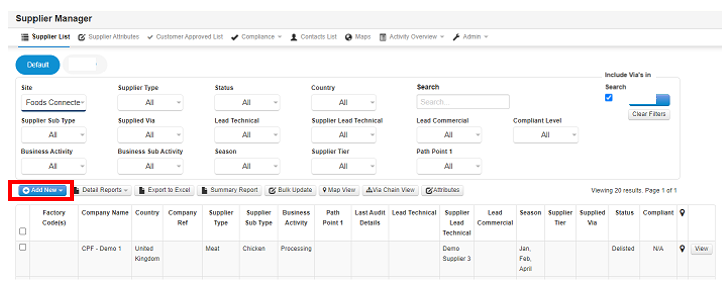
Step 2: Select Add New
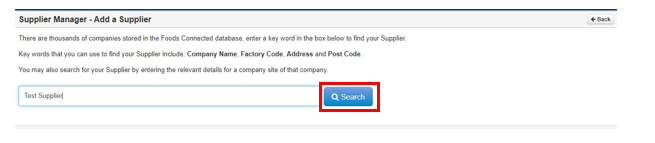
Step 3: Type in your supplier name & select Search.
NOTE: It is good practice to search for part name as well as different spelling in case it might already be in the database.
Step 4: If the supplier is currently on Foods Connected it will appear in the list to select, if the supplier is not in the database it will give you the option to request a new supplier. This request will go to the Foods Connected Support team for review & approval.
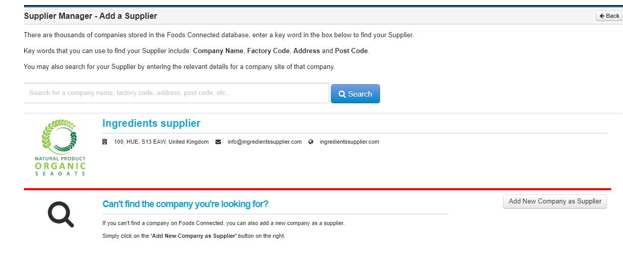
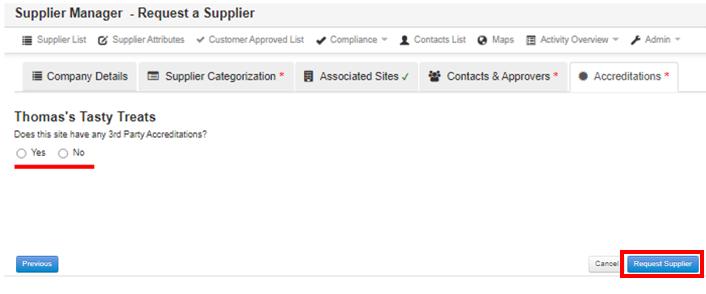
If the company already exists complete the data tabs and Request Supplier
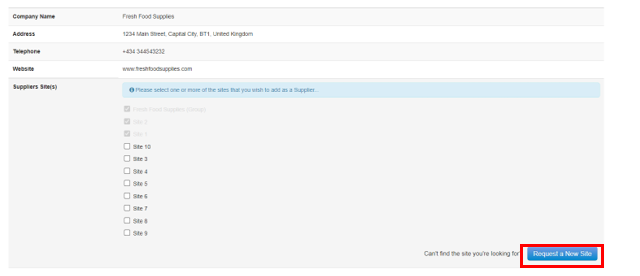
 If the company already exists but the site you require is not available you can request a new site to be added which will go to the support team for approval.
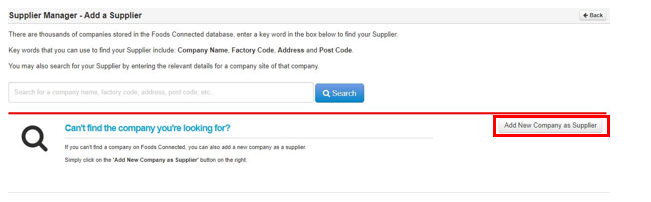
Step 5: If supplier is not there select Add New Company as Supplier
Step 6: Add the Supplier details and select Request Supplier, this will then go for approval to Foods Connected support team and you will be notified when the supplier has been approved.
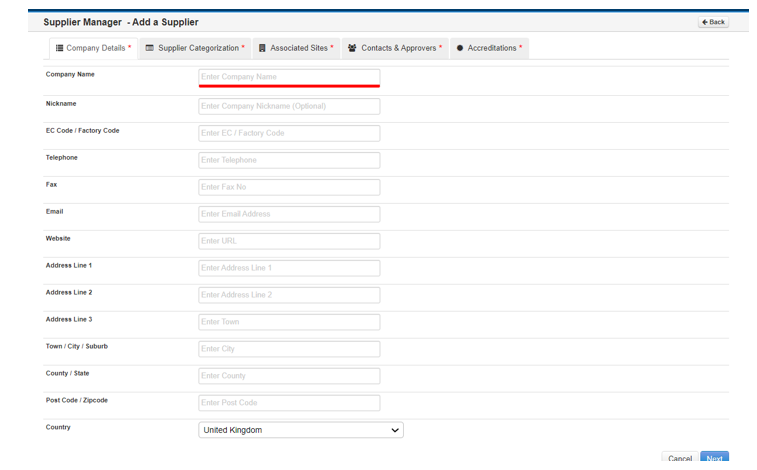
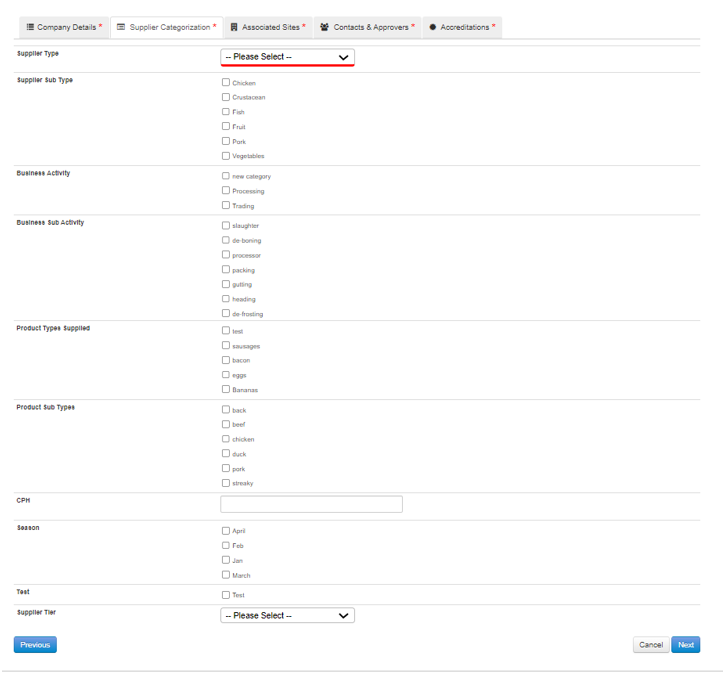
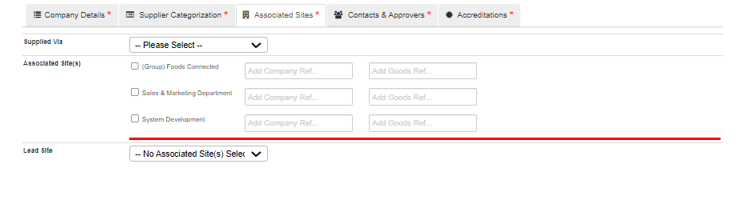
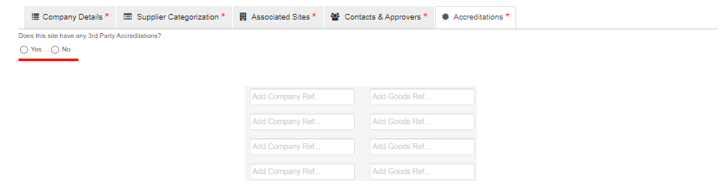
Note the Optional fields are Mandatory they need to be selected when adding a supplier
Add Bulk Suppliers
Step 1: Go to the Supplier Manager under the Supplier Approval Tab select Supplier List
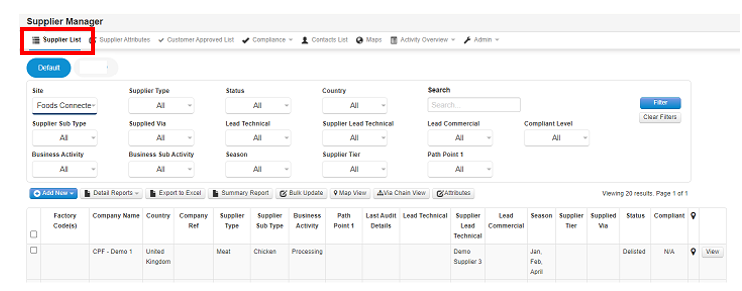
Step 2: Select Add New & Import New
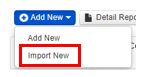
Step 3: Export the template for Importing.

Step 4: Fill in as much detail as possible populating all the data relating to your supplier Manager Columns (note All columns highlighted in grey must be filled in or the import won't work) and save the file to your computer.

Step 5: Select Import and choose the file you have saved upload the file

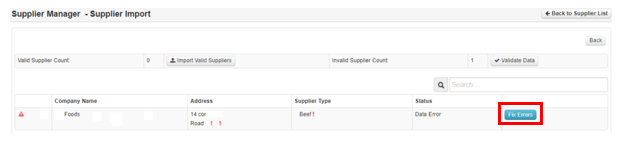
Step 6: The supplier list will now Import and any incorrect data or Suppliers that may already Exist will be highlighted, you can fix the Errors and reimport if needed.