---
title: 1.6 Setup The Compliancy Rules
description: Compliance rules can be set up as part of the approval process for a Supplier or to monitor your suppliers/supplier types performance on an ongoing basis. E.g. All Documents & Specifications must be s
---
[Skip to content](https://knowledgebase.foodsconnected.com/support/1.6-setup-the-compliancy-rules#main-content)
English
Show submenu for translations
[Contact us](https://knowledgebase.foodsconnected.com/support/kb-tickets/new?hsLang=en) [Customer portal](https://customerportal.foodsconnected.com/tickets-view?hsLang=en)
![fc-logo.svg\]](https://knowledgebase.foodsconnected.com/hubfs/fc-logo.svg)
- [Default HubSpot Blog](https://blog.foodsconnected.com/)
Open main navigation
Close main navigation
- [Default HubSpot Blog](https://blog.foodsconnected.com/)
- English
Show submenu for translations
- [Contact us](https://knowledgebase.foodsconnected.com/support/kb-tickets/new)
- [Customer portal](https://customerportal.foodsconnected.com/tickets-view)
- Go to foodsconnected.com
Go to foodsconnected.com
NEED SOME HELP?
- There are no suggestions because the search field is empty.
1. [Knowledge Base](https://knowledgebase.foodsconnected.com/support?hsLang=en)
2. [Supplier Manager](https://knowledgebase.foodsconnected.com/support/supplier-manager?hsLang=en)
3. [Initial Set up](https://knowledgebase.foodsconnected.com/support/supplier-manager?hsLang=en#initial-set-up)
# 1.6 Setup The Compliancy Rules
Compliance rules can be set up as part of the approval process for a Supplier or to monitor your suppliers/supplier types performance on an ongoing basis.
E.g. All Documents & Specifications must be signed off, Audits & Complaints responded to & Questionnaires completed.
This process is colour coded and allows you to address under preforming Suppliers. Approval Compliance will be triggered when added a new supplier
**Note; You can only use the compliance types or tools that you have subscribed too in order to use those as an option for Compliance Rules**
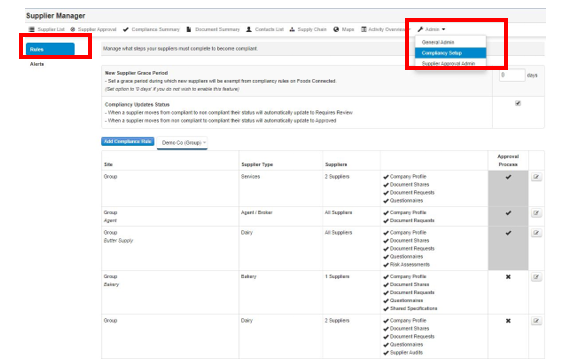
**Step 1: **Select ***Admin* - *Compliancy Setup -* *Rules ***
******
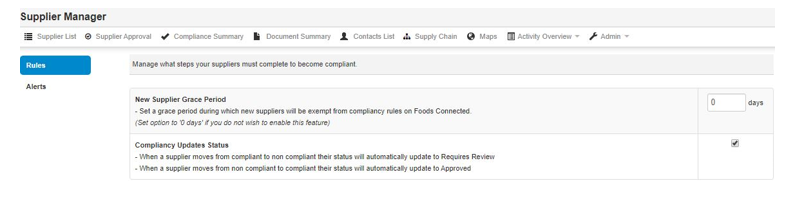
**Step 2: **You can also set a ***Grace Period*** . A ***Grace Period*** is a period which a new supplier will be exempt from compliancy rules to allow them time to respond to all requests.
You can also tick the box **Compliancy Updates Status** to activate when a supplier moves from compliant to non-compliant their status will automatically update to ***Requires Review*** and When a supplier moves from non-compliant to compliant their status will automatically update to ***Approved***
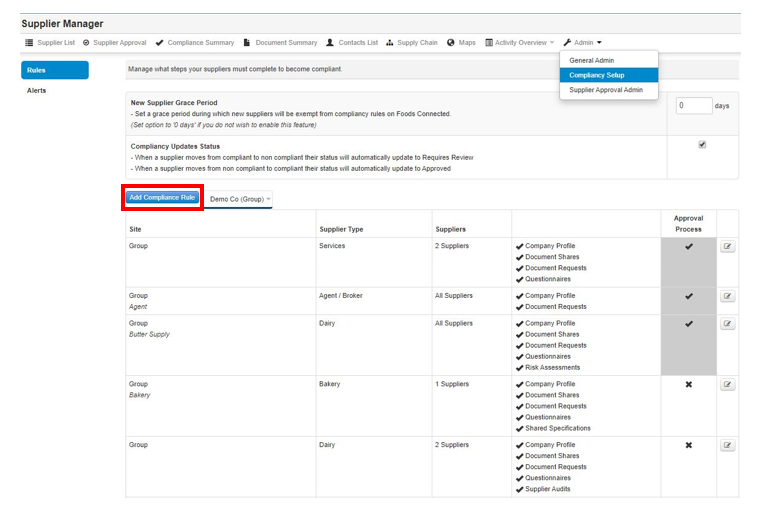
**Step 3: **Select** *Add Compliance Rule***
******
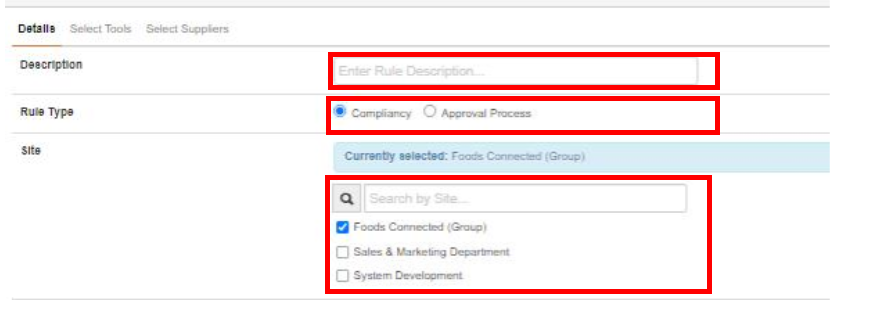
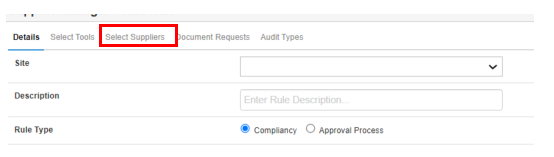
**Step 4: **Select which ***Site/s*** you want to set the compliance rules**. **Then give a** *Description* **of the rule. Then select ***Rule Type ***as*** Compliancy****. *This means the rule type relates to the ongoing compliance rule.
Note – A Supplier that may fall under more than one compliance rule can be set up for multiple rules at the same time
[](https://s3.amazonaws.com/cdn.freshdesk.com/data/helpdesk/attachments/production/43262058877/original/aOh6VwHkyi_onRJgg-nAYRhtgbCdMzofIg.png?1634036972)
**Step 5:** You can set these rules to certain suppliers or all suppliers by selecting the** *Select Suppliers* **tab. This allows you to customise & tailor the compliance rules to specific suppliers.
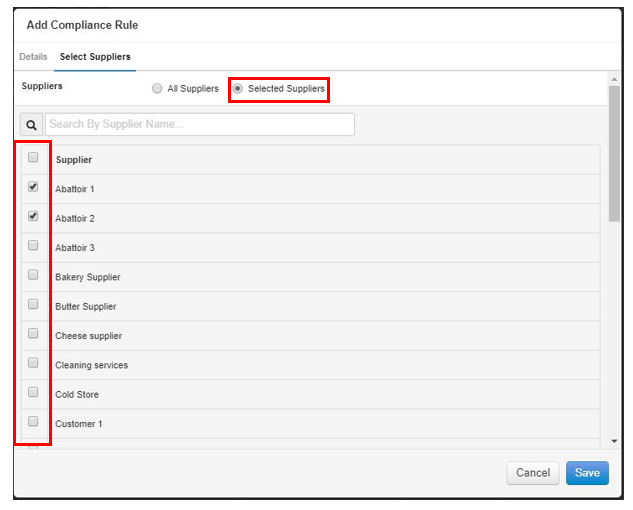
**Step 6: **Select** *Save* **once completed.
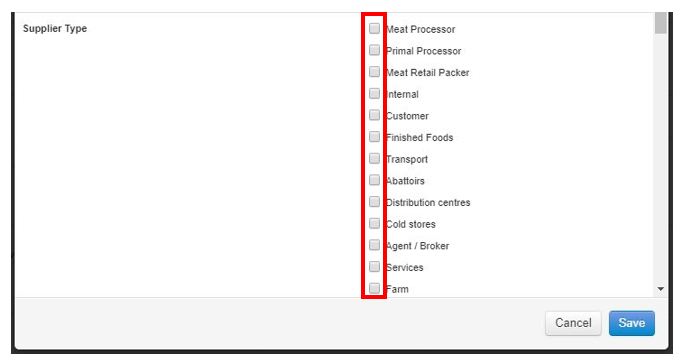
**Step 7:** Select the** *Supplier Type ***this rule is used for by ticking the boxes, you also have the ability to set up rules depending on Custom fields set up for Customers. You can also break the compliancy rule down by as many customers fields as you want to give the ability to customise you rules as much as required.
**Step 8: **Scroll down to** *Supplier Status ***and choose the status. This is when the actual compliancy rules will kick in. Usually you would deselect Delisted as when a supplier is delisted the rules would not be required.

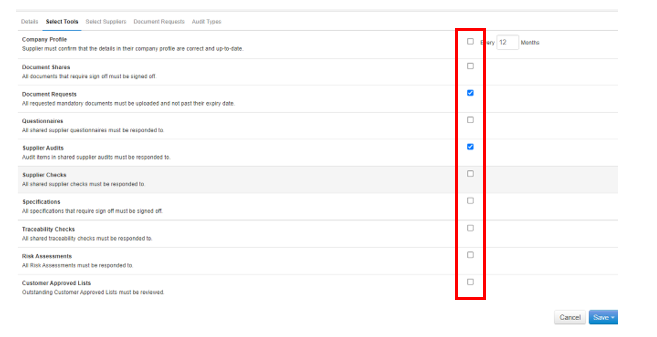
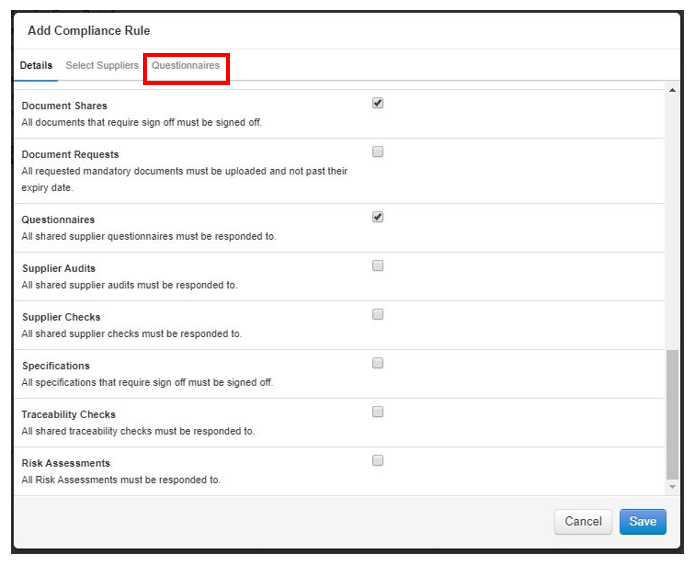
**Step 9: **Then scroll down and activate what the suppliers need to be compliant on. You can choose as many as you need for your own business requirements. For Example if you select questionnaires you can also set which questionnaires are applicable for this supplier Type.
**You can only use the compliance types which are tools on Foods Connected that you have subscribed too. So if you haven’t subscribed to Supplier Document Manager you can use Document Shares as part of the compliance rules. **
****
**Step 10: **Once you select a compliance if available a tab will appear to allow you to choose options suitable for the Supplier Type. To include the Supplied via agents in compliancy rule tick the box. Note: ensure to toggle External specification to relevant option.
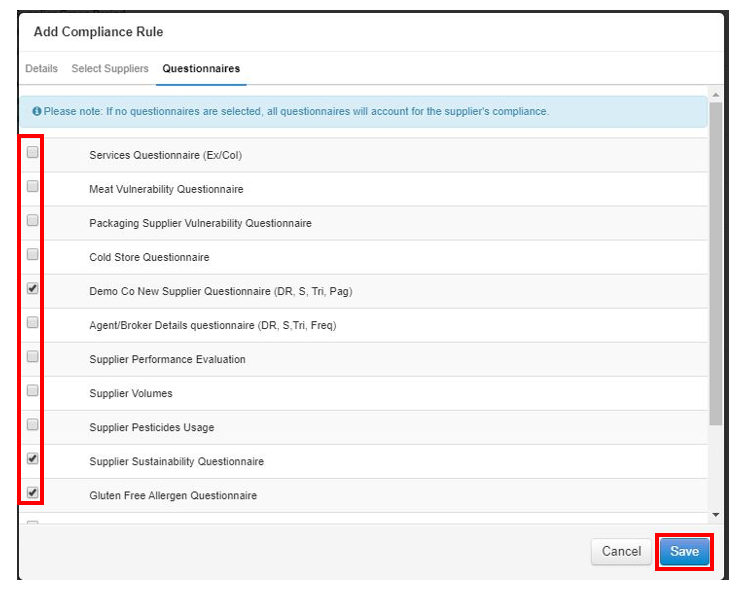
**Step 11**: Select the questionnaires that you want to be part of the compliance rules that you want them to complete for that supplier or supplier type and select ***Save*** when done.
For required Documents you also have the ability to set the compliance to return all requested documents or you can set that the supplier must return one of the selected, this allows for suppliers who have more than one certification
If you have a Via Supplier set against a supplier in your Supplier Manager you can request the documents directly from them, by selecting from the “Request from” dropdown option.
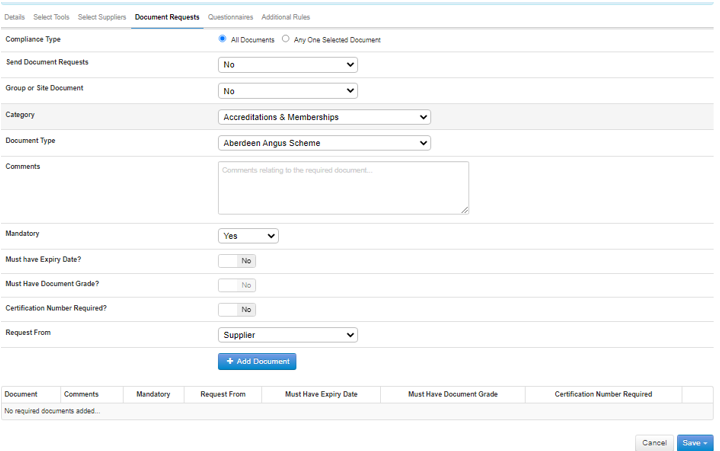New option in the document requests tab of compliancy rules, enables users to pick whether a document request requested from Group and/or Site should satisfy the compliancy. This option will default to no so current rules will not be affected, and compliancy will be satisfied only by requests sent from the site selected for the rule. If set to yes, a document request sent from Group or Site will satisfy the rule so requests sent from Group can be shared across sites.
**Step 12: **Follow these steps for any of the other rules
**Step 13: **Compliancy rules can also be viewed on the Associated site tab detailing rules set up by company and if they vary by site.

- [FAQs](https://knowledgebase.foodsconnected.com/support/faqs?hsLang=en)
- [Activation Process](https://knowledgebase.foodsconnected.com/support/activation-process?hsLang=en)
- [One Pagers](https://knowledgebase.foodsconnected.com/support/one-pagers?hsLang=en)
- [Document Request Manager](https://knowledgebase.foodsconnected.com/support/document-request-manager?hsLang=en#main-content)
- [Tool Documentation](https://knowledgebase.foodsconnected.com/support/document-request-manager?hsLang=en#tool-documentation)
- [Initial Setup of Supplier Document Manager](https://knowledgebase.foodsconnected.com/support/document-request-manager?hsLang=en#initial-setup-of-supplier-document-manager)
- [Company Documents](https://knowledgebase.foodsconnected.com/support/document-request-manager?hsLang=en#company-documents)
- [Document Request](https://knowledgebase.foodsconnected.com/support/document-request-manager?hsLang=en#document-request)
- [Sent Document Request](https://knowledgebase.foodsconnected.com/support/document-request-manager?hsLang=en#sent-document-request)
- [Linking Documents to a Product](https://knowledgebase.foodsconnected.com/support/document-request-manager?hsLang=en#linking-documents-to-a-product)
- [Document Watchlist](https://knowledgebase.foodsconnected.com/support/document-request-manager?hsLang=en#document-watchlist)
- [Settings- Company Settings](https://knowledgebase.foodsconnected.com/support/settings-company-settings?hsLang=en#main-content)
- [Company Settings- Full Guide](https://knowledgebase.foodsconnected.com/support/settings-company-settings?hsLang=en#company-settings-full-guide)
- [My Profile](https://knowledgebase.foodsconnected.com/support/settings-company-settings?hsLang=en#my-profile)
- [Task Manager](https://knowledgebase.foodsconnected.com/support/settings-company-settings?hsLang=en#task-manager)
- [User Email Settings](https://knowledgebase.foodsconnected.com/support/settings-company-settings?hsLang=en#user-email-settings)
- [Privacy Settings](https://knowledgebase.foodsconnected.com/support/settings-company-settings?hsLang=en#privacy-settings)
- [Changing Password](https://knowledgebase.foodsconnected.com/support/settings-company-settings?hsLang=en#changing-password)
- [Additional Security Measures](https://knowledgebase.foodsconnected.com/support/settings-company-settings?hsLang=en#additional-security-measures)
- [Company Profile](https://knowledgebase.foodsconnected.com/support/settings-company-settings?hsLang=en#company-profile)
- [Settings- Company Users Email & Security](https://knowledgebase.foodsconnected.com/support/settings-company-users-email-security?hsLang=en#main-content)
- [Tool Documentation](https://knowledgebase.foodsconnected.com/support/settings-company-users-email-security?hsLang=en#tool-documentation)
- [Company Users, Email & Security](https://knowledgebase.foodsconnected.com/support/settings-company-users-email-security?hsLang=en#company-users-email-security)
- [Supply Chain Manager](https://knowledgebase.foodsconnected.com/support/supply-chain-manager?hsLang=en#main-content)
- [Tool Documentation](https://knowledgebase.foodsconnected.com/support/supply-chain-manager?hsLang=en#tool-documentation)
- [Creating A Supply Chain Template](https://knowledgebase.foodsconnected.com/support/supply-chain-manager?hsLang=en#creating-a-supply-chain-template)
- [Generating & Sharing The Template](https://knowledgebase.foodsconnected.com/support/supply-chain-manager?hsLang=en#generating-sharing-the-template)
- [Completing The Supply Chain](https://knowledgebase.foodsconnected.com/support/supply-chain-manager?hsLang=en#completing-the-supply-chain)
- [Viewing & Exporting Completed Supply Chains](https://knowledgebase.foodsconnected.com/support/supply-chain-manager?hsLang=en#viewing-exporting-completed-supply-chains)
- [Extracting Path Points Into Supplier Manager](https://knowledgebase.foodsconnected.com/support/supply-chain-manager?hsLang=en#extracting-path-points-into-supplier-manager)
- [Editing Completed Supply Chains](https://knowledgebase.foodsconnected.com/support/supply-chain-manager?hsLang=en#editing-completed-supply-chains)
- [Bulk Updating Completed Supply Chains](https://knowledgebase.foodsconnected.com/support/supply-chain-manager?hsLang=en#bulk-updating-completed-supply-chains)
- [Product Check Manager](https://knowledgebase.foodsconnected.com/support/product-check-manager?hsLang=en#main-content)
- [Tool Documentation](https://knowledgebase.foodsconnected.com/support/product-check-manager?hsLang=en#tool-documentation)
- [How To Access Product Check Manager](https://knowledgebase.foodsconnected.com/support/product-check-manager?hsLang=en#how-to-access-product-check-manager)
- [Setup](https://knowledgebase.foodsconnected.com/support/product-check-manager?hsLang=en#setup)
- [How To Record A Product Check](https://knowledgebase.foodsconnected.com/support/product-check-manager?hsLang=en#how-to-record-a-product-check)
- [How To Record A Product Check On The Tablet](https://knowledgebase.foodsconnected.com/support/product-check-manager?hsLang=en#how-to-record-a-product-check-on-the-tablet)
- [How To Access The Activity Overview For Product Check Manager](https://knowledgebase.foodsconnected.com/support/product-check-manager?hsLang=en#how-to-access-the-activity-overview-for-product-check-manager)
- [Reporting](https://knowledgebase.foodsconnected.com/support/product-check-manager?hsLang=en#reporting)
- [User Access](https://knowledgebase.foodsconnected.com/support/product-check-manager?hsLang=en#user-access)
- [Internal Document Manager](https://knowledgebase.foodsconnected.com/support/internal-document-manager?hsLang=en#main-content)
- [Tool Documentation](https://knowledgebase.foodsconnected.com/support/internal-document-manager?hsLang=en#tool-documentation)
- [Initial Setup for Internal Documents](https://knowledgebase.foodsconnected.com/support/internal-document-manager?hsLang=en#initial-setup-for-internal-documents)
- [Adding Internal Documents](https://knowledgebase.foodsconnected.com/support/internal-document-manager?hsLang=en#adding-internal-documents)
- [Managing Internal Documents](https://knowledgebase.foodsconnected.com/support/internal-document-manager?hsLang=en#managing-internal-documents)
- [Managing Folders](https://knowledgebase.foodsconnected.com/support/internal-document-manager?hsLang=en#managing-folders)
- [Appendix](https://knowledgebase.foodsconnected.com/support/internal-document-manager?hsLang=en#appendix)
- [Production Models](https://knowledgebase.foodsconnected.com/support/production-models?hsLang=en#main-content)
- [Overview](https://knowledgebase.foodsconnected.com/support/production-models?hsLang=en#overview)
- [Setup Production Model Template](https://knowledgebase.foodsconnected.com/support/production-models?hsLang=en#setup-production-model-template)
- [Generating Production Model](https://knowledgebase.foodsconnected.com/support/production-models?hsLang=en#generating-production-model)
- [Setting up a Cost Model](https://knowledgebase.foodsconnected.com/support/production-models?hsLang=en#setting-up-a-cost-model)
- [Generating a Cost Model](https://knowledgebase.foodsconnected.com/support/production-models?hsLang=en#generating-a-cost-model)
- [Supplier Manager](https://knowledgebase.foodsconnected.com/support/supplier-manager?hsLang=en#main-content)
- [Tool Documentation](https://knowledgebase.foodsconnected.com/support/supplier-manager?hsLang=en#tool-documentation)
- [Initial Set up](https://knowledgebase.foodsconnected.com/support/supplier-manager?hsLang=en#initial-set-up)
- [Adding a New Supplier](https://knowledgebase.foodsconnected.com/support/supplier-manager?hsLang=en#adding-a-new-supplier)
- [Accessing Your Supplier List](https://knowledgebase.foodsconnected.com/support/supplier-manager?hsLang=en#accessing-your-supplier-list)
- [Viewing Supplier Details](https://knowledgebase.foodsconnected.com/support/supplier-manager?hsLang=en#viewing-supplier-details)
- [Editing or Updating Supplier Details](https://knowledgebase.foodsconnected.com/support/supplier-manager?hsLang=en#editing-or-updating-supplier-details)
- [Activity Overview](https://knowledgebase.foodsconnected.com/support/supplier-manager?hsLang=en#activity-overview)
- [Settings- Manage Products](https://knowledgebase.foodsconnected.com/support/settings-manage-products?hsLang=en#main-content)
- [Admin](https://knowledgebase.foodsconnected.com/support/settings-manage-products?hsLang=en#admin)
- [Initial Set Up](https://knowledgebase.foodsconnected.com/support/settings-manage-products?hsLang=en#initial-set-up)
- [Managing Products](https://knowledgebase.foodsconnected.com/support/settings-manage-products?hsLang=en#managing-products)
- [Customer Received Products](https://knowledgebase.foodsconnected.com/support/settings-manage-products?hsLang=en#customer-received-products)
- [Product Activity](https://knowledgebase.foodsconnected.com/support/settings-manage-products?hsLang=en#product-activity)
- [Supplier Questionnaire Manager](https://knowledgebase.foodsconnected.com/support/supplier-questionnaire-manager?hsLang=en#main-content)
- [Tool Documentation](https://knowledgebase.foodsconnected.com/support/supplier-questionnaire-manager?hsLang=en#tool-documentation)
- [Creating A Questionnaire Template](https://knowledgebase.foodsconnected.com/support/supplier-questionnaire-manager?hsLang=en#creating-a-questionnaire-template)
- [Sharing A Questionnaire](https://knowledgebase.foodsconnected.com/support/supplier-questionnaire-manager?hsLang=en#sharing-a-questionnaire)
- [Responding to Questionnaires](https://knowledgebase.foodsconnected.com/support/supplier-questionnaire-manager?hsLang=en#responding-to-questionnaires)
- [Viewing Received Questionnaires](https://knowledgebase.foodsconnected.com/support/supplier-questionnaire-manager?hsLang=en#viewing-received-questionnaires)
- [Reporting Questionnaires](https://knowledgebase.foodsconnected.com/support/supplier-questionnaire-manager?hsLang=en#reporting-questionnaires)
- [Supplier Check Manager](https://knowledgebase.foodsconnected.com/support/supplier-check-manager?hsLang=en#main-content)
- [Tool Documentation](https://knowledgebase.foodsconnected.com/support/supplier-check-manager?hsLang=en#tool-documentation)
- [Creating A Supplier Check](https://knowledgebase.foodsconnected.com/support/supplier-check-manager?hsLang=en#creating-a-supplier-check)
- [Recording A Check On The Tablet](https://knowledgebase.foodsconnected.com/support/supplier-check-manager?hsLang=en#recording-a-check-on-the-tablet)
- [Recording A Check On The Desktop](https://knowledgebase.foodsconnected.com/support/supplier-check-manager?hsLang=en#recording-a-check-on-the-desktop)
- [Viewing, Reviewing, Requesting Corrective Action & Confirming Checks](https://knowledgebase.foodsconnected.com/support/supplier-check-manager?hsLang=en#viewing-reviewing-requesting-corrective-action-confirming-checks)
- [Completing A Snapshot Report](https://knowledgebase.foodsconnected.com/support/supplier-check-manager?hsLang=en#completing-a-snapshot-report)
- [Supplier Document Manager](https://knowledgebase.foodsconnected.com/support/supplier-document-manager?hsLang=en#main-content)
- [Tool Documentation](https://knowledgebase.foodsconnected.com/support/supplier-document-manager?hsLang=en#tool-documentation)
- [Initial Setup of Supplier Document Manager](https://knowledgebase.foodsconnected.com/support/supplier-document-manager?hsLang=en#initial-setup-of-supplier-document-manager)
- [Creating A Supplier Document Template](https://knowledgebase.foodsconnected.com/support/supplier-document-manager?hsLang=en#creating-a-supplier-document-template)
- [Building The Document](https://knowledgebase.foodsconnected.com/support/supplier-document-manager?hsLang=en#building-the-document)
- [Approving The Document Internally Before Sending Out](https://knowledgebase.foodsconnected.com/support/supplier-document-manager?hsLang=en#approving-the-document-internally-before-sending-out)
- [Delete Documents](https://knowledgebase.foodsconnected.com/support/supplier-document-manager?hsLang=en#delete-documents)
- [View Selected](https://knowledgebase.foodsconnected.com/support/supplier-document-manager?hsLang=en#view-selected)
- [Sharing A Document With Suppliers To Sign Off](https://knowledgebase.foodsconnected.com/support/supplier-document-manager?hsLang=en#sharing-a-document-with-suppliers-to-sign-off)
- [Exceptions](https://knowledgebase.foodsconnected.com/support/supplier-document-manager?hsLang=en#exceptions)
- [Sign Off Review](https://knowledgebase.foodsconnected.com/support/supplier-document-manager?hsLang=en#sign-off-review)
- [Viewing A Customer Document](https://knowledgebase.foodsconnected.com/support/supplier-document-manager?hsLang=en#viewing-a-customer-document)
- [Sign Off The Document](https://knowledgebase.foodsconnected.com/support/supplier-document-manager?hsLang=en#sign-off-the-document)
- [Assign Responsibility](https://knowledgebase.foodsconnected.com/support/supplier-document-manager?hsLang=en#assign-responsibility)
- [Delete/Reject Selected](https://knowledgebase.foodsconnected.com/support/supplier-document-manager?hsLang=en#delete-reject-selected)
- [Receiving & Viewing An Exception](https://knowledgebase.foodsconnected.com/support/supplier-document-manager?hsLang=en#receiving-viewing-an-exception)
- [Risk Assessment Manager](https://knowledgebase.foodsconnected.com/support/risk-assessment-manager?hsLang=en#main-content)
- [Tool Documentation](https://knowledgebase.foodsconnected.com/support/risk-assessment-manager?hsLang=en#tool-documentation)
- [Creating A Risk Assessment Template](https://knowledgebase.foodsconnected.com/support/risk-assessment-manager?hsLang=en#creating-a-risk-assessment-template)
- [Recording, Updating & Viewing Risk Assessments](https://knowledgebase.foodsconnected.com/support/risk-assessment-manager?hsLang=en#recording-updating-viewing-risk-assessments)
- [Creating Reports](https://knowledgebase.foodsconnected.com/support/risk-assessment-manager?hsLang=en#creating-reports)
- [Incident Manager](https://knowledgebase.foodsconnected.com/support/incident-manager?hsLang=en#main-content)
- [Tool Documentation](https://knowledgebase.foodsconnected.com/support/incident-manager?hsLang=en#tool-documentation)
- [Initial Setup](https://knowledgebase.foodsconnected.com/support/incident-manager?hsLang=en#initial-setup)
- [Create Incident Forms – Supplier & Customer Confirmations](https://knowledgebase.foodsconnected.com/support/incident-manager?hsLang=en#create-incident-forms-supplier-customer-confirmations)
- [Edit Incident Forms – Supplier & Customer Confirmations](https://knowledgebase.foodsconnected.com/support/incident-manager?hsLang=en#edit-incident-forms-supplier-customer-confirmations)
- [RASFF Notifications](https://knowledgebase.foodsconnected.com/support/incident-manager?hsLang=en#rasff-notifications)
- [Create An Incident From The RASFF Notifications](https://knowledgebase.foodsconnected.com/support/incident-manager?hsLang=en#create-an-incident-from-the-rasff-notifications)
- [View Incident](https://knowledgebase.foodsconnected.com/support/incident-manager?hsLang=en#view-incident)
- [Edit Incident](https://knowledgebase.foodsconnected.com/support/incident-manager?hsLang=en#edit-incident)
- [Share An Incident](https://knowledgebase.foodsconnected.com/support/incident-manager?hsLang=en#share-an-incident)
- [View Company Incident Shares](https://knowledgebase.foodsconnected.com/support/incident-manager?hsLang=en#view-company-incident-shares)
- [View Responses From Supplier](https://knowledgebase.foodsconnected.com/support/incident-manager?hsLang=en#view-responses-from-supplier)
- [Request More Info](https://knowledgebase.foodsconnected.com/support/incident-manager?hsLang=en#request-more-info)
- [Respond To Incident/Confirm/Close Out Incident](https://knowledgebase.foodsconnected.com/support/incident-manager?hsLang=en#respond-to-incident-confirm-close-out-incident)
- [Supplier Side Incident Manager](https://knowledgebase.foodsconnected.com/support/incident-manager?hsLang=en#supplier-side-incident-manager)
- [Remote Audit Manager](https://knowledgebase.foodsconnected.com/support/remote-audit-manager?hsLang=en#main-content)
- [Tool Documentation](https://knowledgebase.foodsconnected.com/support/remote-audit-manager?hsLang=en#tool-documentation)
- [Initial Set Up](https://knowledgebase.foodsconnected.com/support/remote-audit-manager?hsLang=en#initial-set-up)
- [2. Creating / Editing Standard Template](https://knowledgebase.foodsconnected.com/support/remote-audit-manager?hsLang=en#2-creating-editing-standard-template)
- [Sharing Standard Template](https://knowledgebase.foodsconnected.com/support/remote-audit-manager?hsLang=en#sharing-standard-template)
- [Receiving A Shared Standard](https://knowledgebase.foodsconnected.com/support/remote-audit-manager?hsLang=en#receiving-a-shared-standard)
- [Recalling A Shared Standard](https://knowledgebase.foodsconnected.com/support/remote-audit-manager?hsLang=en#recalling-a-shared-standard)
- [Reviewing & Approving](https://knowledgebase.foodsconnected.com/support/remote-audit-manager?hsLang=en#reviewing-approving)
- [Accessing Activity History](https://knowledgebase.foodsconnected.com/support/remote-audit-manager?hsLang=en#accessing-activity-history)
- [Updating Standard](https://knowledgebase.foodsconnected.com/support/remote-audit-manager?hsLang=en#updating-standard)
- [Specification Manager](https://knowledgebase.foodsconnected.com/support/specification-manager?hsLang=en#main-content)
- [Tool Documentation](https://knowledgebase.foodsconnected.com/support/specification-manager?hsLang=en#tool-documentation)
- [Initial Setup For Specification Manager](https://knowledgebase.foodsconnected.com/support/specification-manager?hsLang=en#initial-setup-for-specification-manager)
- [Creating Specification Templates](https://knowledgebase.foodsconnected.com/support/specification-manager?hsLang=en#creating-specification-templates)
- [Creating And Managing Company Specifications](https://knowledgebase.foodsconnected.com/support/specification-manager?hsLang=en#creating-and-managing-company-specifications)
- [Creating and Managing Collaborative Specifications](https://knowledgebase.foodsconnected.com/support/specification-manager?hsLang=en#creating-and-managing-collaborative-specifications)
- [Creating and Managing Ingredient Specifications](https://knowledgebase.foodsconnected.com/support/specification-manager?hsLang=en#creating-and-managing-ingredient-specifications)
- [Sharing and Managing External Specifications](https://knowledgebase.foodsconnected.com/support/specification-manager?hsLang=en#sharing-and-managing-external-specifications)
- [Providing Customer Access To Linked Specifications](https://knowledgebase.foodsconnected.com/support/specification-manager?hsLang=en#providing-customer-access-to-linked-specifications)
- [Managing Specification Exceptions](https://knowledgebase.foodsconnected.com/support/specification-manager?hsLang=en#managing-specification-exceptions)
- [Viewing Specifications On The App](https://knowledgebase.foodsconnected.com/support/specification-manager?hsLang=en#viewing-specifications-on-the-app)
- [Customer Complaint Manager](https://knowledgebase.foodsconnected.com/support/customer-complaint-manager?hsLang=en#main-content)
- [Tool Documentation](https://knowledgebase.foodsconnected.com/support/customer-complaint-manager?hsLang=en#tool-documentation)
- [How To Access Customer Complaints](https://knowledgebase.foodsconnected.com/support/customer-complaint-manager?hsLang=en#how-to-access-customer-complaints)
- [Setup](https://knowledgebase.foodsconnected.com/support/customer-complaint-manager?hsLang=en#setup)
- [Customer Complaint Usage](https://knowledgebase.foodsconnected.com/support/customer-complaint-manager?hsLang=en#customer-complaint-usage)
- [How To Access The Activity Overview For Customer Complaints](https://knowledgebase.foodsconnected.com/support/customer-complaint-manager?hsLang=en#how-to-access-the-activity-overview-for-customer-complaints)
- [Reporting](https://knowledgebase.foodsconnected.com/support/customer-complaint-manager?hsLang=en#reporting)
- [User Access](https://knowledgebase.foodsconnected.com/support/customer-complaint-manager?hsLang=en#user-access)
- [Internal Check Manager](https://knowledgebase.foodsconnected.com/support/internal-check-manager?hsLang=en#main-content)
- [Tool Documentation](https://knowledgebase.foodsconnected.com/support/internal-check-manager?hsLang=en#tool-documentation)
- [Initial Setup For Internal Checks](https://knowledgebase.foodsconnected.com/support/internal-check-manager?hsLang=en#initial-setup-for-internal-checks)
- [Creating A Master Internal Check Template](https://knowledgebase.foodsconnected.com/support/internal-check-manager?hsLang=en#creating-a-master-internal-check-template)
- [Create A Confirmation Template](https://knowledgebase.foodsconnected.com/support/internal-check-manager?hsLang=en#create-a-confirmation-template)
- [Create A Child Internal Check Template](https://knowledgebase.foodsconnected.com/support/internal-check-manager?hsLang=en#create-a-child-internal-check-template)
- [Recording A Check On The Tablet](https://knowledgebase.foodsconnected.com/support/internal-check-manager?hsLang=en#recording-a-check-on-the-tablet)
- [Viewing, Reviewing & Confirming Checks](https://knowledgebase.foodsconnected.com/support/internal-check-manager?hsLang=en#viewing-reviewing-confirming-checks)
- [Creating Reports](https://knowledgebase.foodsconnected.com/support/internal-check-manager?hsLang=en#creating-reports)
- [Workflow Manager](https://knowledgebase.foodsconnected.com/support/workflow-manager?hsLang=en#main-content)
- [Tool Documentation](https://knowledgebase.foodsconnected.com/support/workflow-manager?hsLang=en#tool-documentation)
- [Creating A New Template](https://knowledgebase.foodsconnected.com/support/workflow-manager?hsLang=en#creating-a-new-template)
- [Approving A Template](https://knowledgebase.foodsconnected.com/support/workflow-manager?hsLang=en#approving-a-template)
- [Generating A New Project Workflow](https://knowledgebase.foodsconnected.com/support/workflow-manager?hsLang=en#generating-a-new-project-workflow)
- [Actioning A Notification Email](https://knowledgebase.foodsconnected.com/support/workflow-manager?hsLang=en#actioning-a-notification-email)
- [Appendix](https://knowledgebase.foodsconnected.com/support/workflow-manager?hsLang=en#appendix)
- [Stock Manager](https://knowledgebase.foodsconnected.com/support/stock-manager?hsLang=en#main-content)
- [Tool Documentation](https://knowledgebase.foodsconnected.com/support/stock-manager?hsLang=en#tool-documentation)
- [Accessing The Stock Manager](https://knowledgebase.foodsconnected.com/support/stock-manager?hsLang=en#accessing-the-stock-manager)
- [Setup & Admin](https://knowledgebase.foodsconnected.com/support/stock-manager?hsLang=en#setup-admin)
- [Stock Manager Usage](https://knowledgebase.foodsconnected.com/support/stock-manager?hsLang=en#stock-manager-usage)
- [Reporting](https://knowledgebase.foodsconnected.com/support/stock-manager?hsLang=en#reporting)
- [User Access](https://knowledgebase.foodsconnected.com/support/stock-manager?hsLang=en#user-access)
- [Forecast Manager](https://knowledgebase.foodsconnected.com/support/forecast-manager?hsLang=en#main-content)
- [Tool Documentation](https://knowledgebase.foodsconnected.com/support/forecast-manager?hsLang=en#tool-documentation)
- [Initial Setup](https://knowledgebase.foodsconnected.com/support/forecast-manager?hsLang=en#initial-setup)
- [Sending Forecasts](https://knowledgebase.foodsconnected.com/support/forecast-manager?hsLang=en#sending-forecasts)
- [Shared Forecasts](https://knowledgebase.foodsconnected.com/support/forecast-manager?hsLang=en#shared-forecasts)
- [Reviewing Submitted Confirmation Forecasts](https://knowledgebase.foodsconnected.com/support/forecast-manager?hsLang=en#reviewing-submitted-confirmation-forecasts)
- [Updating Shared Confirmation Forecasts](https://knowledgebase.foodsconnected.com/support/forecast-manager?hsLang=en#updating-shared-confirmation-forecasts)
- [Reviewing Forecasts](https://knowledgebase.foodsconnected.com/support/forecast-manager?hsLang=en#reviewing-forecasts)
- [Sending Volumes To Negotiation Templates](https://knowledgebase.foodsconnected.com/support/forecast-manager?hsLang=en#sending-volumes-to-negotiation-templates)
- [Order Manager](https://knowledgebase.foodsconnected.com/support/order-manager?hsLang=en#main-content)
- [Tool Documentation](https://knowledgebase.foodsconnected.com/support/order-manager?hsLang=en#tool-documentation)
- [Initial Setup For Order Templates](https://knowledgebase.foodsconnected.com/support/order-manager?hsLang=en#initial-setup-for-order-templates)
- [Creating An Order Template](https://knowledgebase.foodsconnected.com/support/order-manager?hsLang=en#creating-an-order-template)
- [Multi Order Drafts](https://knowledgebase.foodsconnected.com/support/order-manager?hsLang=en#multi-order-drafts)
- [Sent Orders](https://knowledgebase.foodsconnected.com/support/order-manager?hsLang=en#sent-orders)
- [Received Order](https://knowledgebase.foodsconnected.com/support/order-manager?hsLang=en#received-order)
- [Activity](https://knowledgebase.foodsconnected.com/support/order-manager?hsLang=en#activity)
- [Meeting Notes Manager](https://knowledgebase.foodsconnected.com/support/meeting-notes-manager?hsLang=en#main-content)
- [Tool Documentation](https://knowledgebase.foodsconnected.com/support/meeting-notes-manager?hsLang=en#tool-documentation)
- [Accessing Meeting Notes Manager](https://knowledgebase.foodsconnected.com/support/meeting-notes-manager?hsLang=en#accessing-meeting-notes-manager)
- [Company Meetings](https://knowledgebase.foodsconnected.com/support/meeting-notes-manager?hsLang=en#company-meetings)
- [Received Meetings](https://knowledgebase.foodsconnected.com/support/meeting-notes-manager?hsLang=en#received-meetings)
- [Activity Overview](https://knowledgebase.foodsconnected.com/support/meeting-notes-manager?hsLang=en#activity-overview)
- [Admin](https://knowledgebase.foodsconnected.com/support/meeting-notes-manager?hsLang=en#admin)
- [Customer Tool Guides](https://knowledgebase.foodsconnected.com/support/customer-tool-guides?hsLang=en#main-content)
- [Foods Connected](https://knowledgebase.foodsconnected.com/support/customer-tool-guides?hsLang=en#foods-connected)
- [Traceability Manager](https://knowledgebase.foodsconnected.com/support/traceability-manager?hsLang=en#main-content)
- [Tool Documentation](https://knowledgebase.foodsconnected.com/support/traceability-manager?hsLang=en#tool-documentation)
- [Setting Up Traceability Manager](https://knowledgebase.foodsconnected.com/support/traceability-manager?hsLang=en#setting-up-traceability-manager)
- [Recording A New Traceability Check](https://knowledgebase.foodsconnected.com/support/traceability-manager?hsLang=en#recording-a-new-traceability-check)
- [Sharing A Traceability Template](https://knowledgebase.foodsconnected.com/support/traceability-manager?hsLang=en#sharing-a-traceability-template)
- [Confirming A Traceability Template](https://knowledgebase.foodsconnected.com/support/traceability-manager?hsLang=en#confirming-a-traceability-template)
- [Viewing Completed Traceability Templates](https://knowledgebase.foodsconnected.com/support/traceability-manager?hsLang=en#viewing-completed-traceability-templates)
- [Supplier Audit Manager](https://knowledgebase.foodsconnected.com/support/supplier-audit-manager?hsLang=en#main-content)
- [Tool Documentation](https://knowledgebase.foodsconnected.com/support/supplier-audit-manager?hsLang=en#tool-documentation)
- [Initial Setup](https://knowledgebase.foodsconnected.com/support/supplier-audit-manager?hsLang=en#initial-setup)
- [Building A Custom Audit](https://knowledgebase.foodsconnected.com/support/supplier-audit-manager?hsLang=en#building-a-custom-audit)
- [Using And Completing An Audit](https://knowledgebase.foodsconnected.com/support/supplier-audit-manager?hsLang=en#using-and-completing-an-audit)
- [Update An Audit](https://knowledgebase.foodsconnected.com/support/supplier-audit-manager?hsLang=en#update-an-audit)
- [Request An Internal Review](https://knowledgebase.foodsconnected.com/support/supplier-audit-manager?hsLang=en#request-an-internal-review)
- [Mark Audit As Complete](https://knowledgebase.foodsconnected.com/support/supplier-audit-manager?hsLang=en#mark-audit-as-complete)
- [Notify Team Members](https://knowledgebase.foodsconnected.com/support/supplier-audit-manager?hsLang=en#notify-team-members)
- [Send PDF Report](https://knowledgebase.foodsconnected.com/support/supplier-audit-manager?hsLang=en#send-pdf-report)
- [Export Full Audit Table To PDF](https://knowledgebase.foodsconnected.com/support/supplier-audit-manager?hsLang=en#export-full-audit-table-to-pdf)
- [Export Full Audit Table To Excel](https://knowledgebase.foodsconnected.com/support/supplier-audit-manager?hsLang=en#export-full-audit-table-to-excel)
- [Recall Audit](https://knowledgebase.foodsconnected.com/support/supplier-audit-manager?hsLang=en#recall-audit)
- [Reopen Audit](https://knowledgebase.foodsconnected.com/support/supplier-audit-manager?hsLang=en#reopen-audit)
- [Managing Activity Subscriptions](https://knowledgebase.foodsconnected.com/support/supplier-audit-manager?hsLang=en#managing-activity-subscriptions)
- [Supplier Provided Audits](https://knowledgebase.foodsconnected.com/support/supplier-audit-manager?hsLang=en#supplier-provided-audits)
- [Purchasing & Sales Manager](https://knowledgebase.foodsconnected.com/support/purchasing-sales-manager?hsLang=en#main-content)
- [Tool Documentation](https://knowledgebase.foodsconnected.com/support/purchasing-sales-manager?hsLang=en#tool-documentation)
- [Initial Setup For Purchasing & Sales Manager](https://knowledgebase.foodsconnected.com/support/purchasing-sales-manager?hsLang=en#initial-setup-for-purchasing-sales-manager)
- [Sending A Template](https://knowledgebase.foodsconnected.com/support/purchasing-sales-manager?hsLang=en#sending-a-template)
- [Agreements](https://knowledgebase.foodsconnected.com/support/purchasing-sales-manager?hsLang=en#agreements)
- [Pricing Grids](https://knowledgebase.foodsconnected.com/support/purchasing-sales-manager?hsLang=en#pricing-grids)
- [Reporting](https://knowledgebase.foodsconnected.com/support/purchasing-sales-manager?hsLang=en#reporting)
- [Visit & Audit Schedule](https://knowledgebase.foodsconnected.com/support/visit-audit-schedule?hsLang=en#main-content)
- [Tool Documentation](https://knowledgebase.foodsconnected.com/support/visit-audit-schedule?hsLang=en#tool-documentation)
- [Visiting & Audit Schedule](https://knowledgebase.foodsconnected.com/support/visit-audit-schedule?hsLang=en#visiting-audit-schedule)
- [Admin Settings](https://knowledgebase.foodsconnected.com/support/visit-audit-schedule?hsLang=en#admin-settings)
- [Requesting A Visit/Audit](https://knowledgebase.foodsconnected.com/support/visit-audit-schedule?hsLang=en#requesting-a-visit-audit)
- [Responding To A Requested Visit/Audit](https://knowledgebase.foodsconnected.com/support/visit-audit-schedule?hsLang=en#responding-to-a-requested-visit-audit)
- [Calendar View Of Visit/Audit Requests](https://knowledgebase.foodsconnected.com/support/visit-audit-schedule?hsLang=en#calendar-view-of-visit-audit-requests)
- [Formbuilder](https://knowledgebase.foodsconnected.com/support/formbuilder?hsLang=en#main-content)
- [Tool Documentation](https://knowledgebase.foodsconnected.com/support/formbuilder?hsLang=en#tool-documentation)
- [Building A Template](https://knowledgebase.foodsconnected.com/support/formbuilder?hsLang=en#building-a-template)
- [Reordering Sections / Fields](https://knowledgebase.foodsconnected.com/support/formbuilder?hsLang=en#reordering-sections-fields)
- [Appendix – Explanation Of Field Types](https://knowledgebase.foodsconnected.com/support/formbuilder?hsLang=en#appendix-explanation-of-field-types)
- [Default HubSpot Blog](https://blog.foodsconnected.com/)
# Foods Connected
Copyright © 2026, Foods Connected