![fc-logo.svg]](https://knowledgebase.foodsconnected.com/hubfs/fc-logo.svg)
Step 1: Go to Trading & Planning > Planning Tool > Stock Manager > Activity
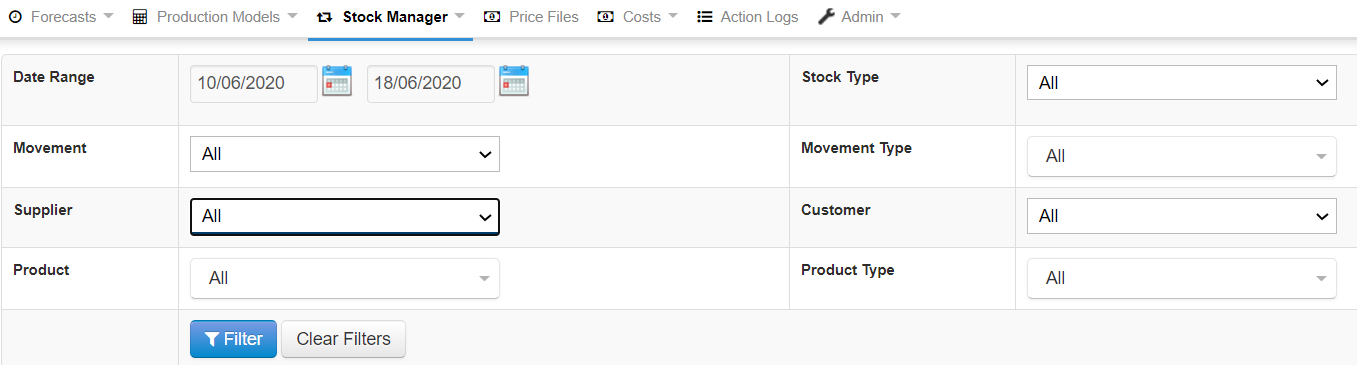
Step 2: The Activity screen displays the following filter options enabling the user to:
Activity:
Date Range – Restrict the stock movement display view to a specific date range of data, by selecting the start date and end date of the date range.
Movement – Restrict the view to a specific movement type e.g. In, Out, New Count
Supplier – Restrict the view to a specific supplier name.
Product – Restrict the view to a specific product.
Stock Type - Restrict the view to a specific stock type e.g. Manual, Production Model, Sales Order, Purchasing Order, Stock Transfer Order.
Movement Type - Restrict the view to a specific movement type e.g. Weekly Stock Update, Donations, Damaged cartons etc.
Customer - Restrict the view to a specific customer name.
Product Type - Restrict the view to a specific product type e.g. Beef, Lamb, Pork, Retail Pack, Veal.
Step 1: Go to Trading & Planning > Planning Tool > Stock Manager > Stock List
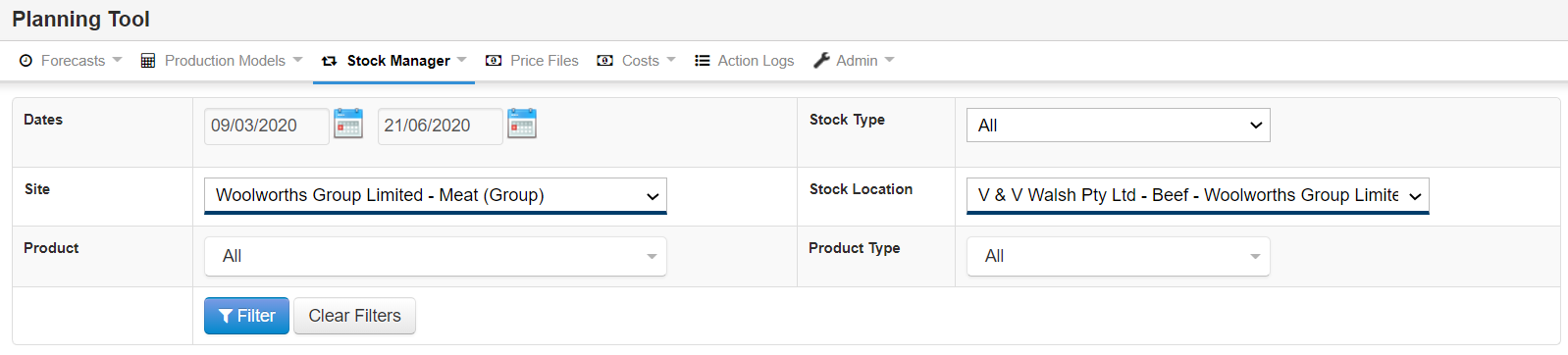
Step 2: The Stock List screen displays the following filter options enabling the user to:
Stock List:
Dates – Restrict the stock levels display to view a specific date range of data, by selecting the start date and end date of the date range.
Site – Restrict the view to a specific site name.
Product – Restrict the view to a specific product.
Stock Type - Restrict the view to a specific stock type e.g. Manual, Production Model, Sales Order, Purchasing Order, Stock Transfer Order.
Stock Location - Restrict the view to a specific delivery site.
Product Type - Restrict the view to a specific product type e.g. Beef, Lamb, Pork, Retail Pack, Veal.
Step 1: Go to Trading & Planning > Planning Tool > Stock Manager > Stock Update Requests
Step 2: The Stock Update Requests screen displays the following filter options enabling the user to:
Stock Update Requests:
Date From – Restrict the display to only view stock update requests from a specified date
Date To – Restrict the display to only view stock update requests until a specified date
Requested From – Restrict the display by selecting a specific supplier user name, to only view the stock update requests from a particular supplier user.
Recipient – Restrict the display by selecting a specific recipient user name, to only view the stock update requests allocated to a specific user name.
Supplier – Restrict the display by selecting a specific supplier, to only view the stock update requests from the selected supplier.
Status – Restrict the display by selecting a status e.g. Requires Review, Requires Your Action, Awaiting Response, Accepted, Declined.
