![fc-logo.svg]](https://knowledgebase.foodsconnected.com/hubfs/fc-logo.svg)
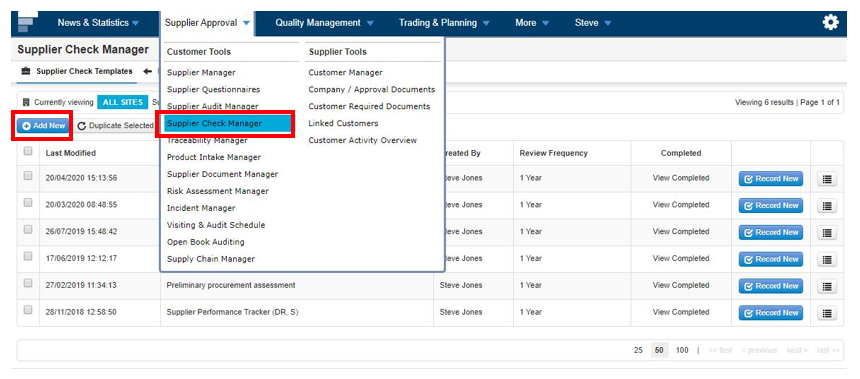
Step 1: Sign in and go to the Supplier Check Manager under Supplier Approval then select Add new.
Step 2: This is where you setup the details for that Supplier Check.
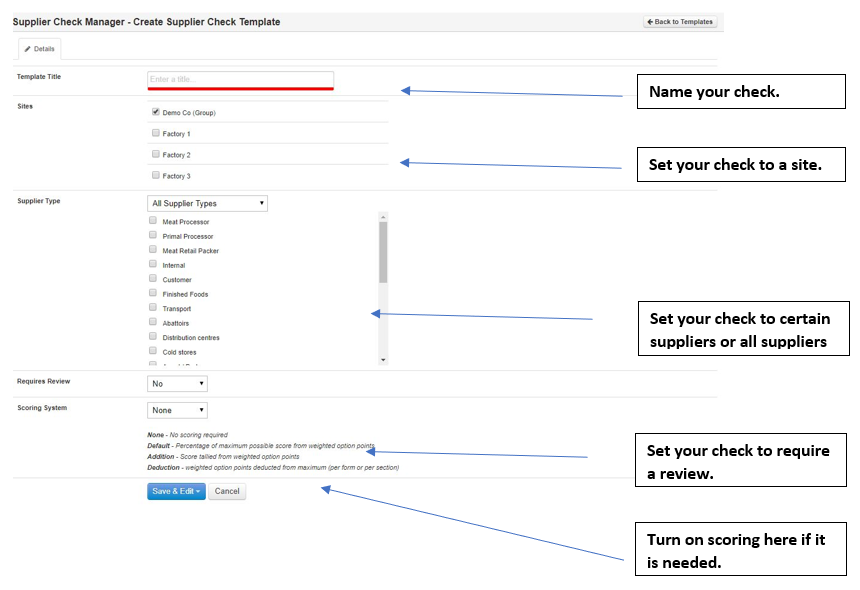
Step 3: Once done above select Save & edit then select Supplier Check Template

Step 4: Build your check using the form builder to suit your needs. To add a new section select Add New Section.

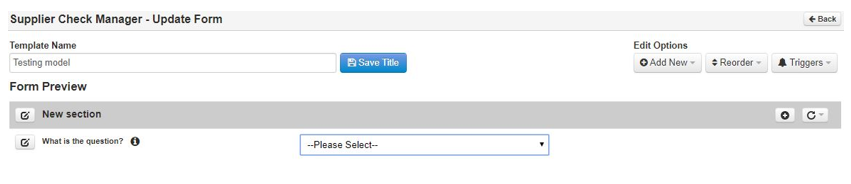
New Section looks like this below

Step 5: To add a new field or question select Add New – Standard Field

Step 6: Now add in the details of the question & how you want it answered using the field types.
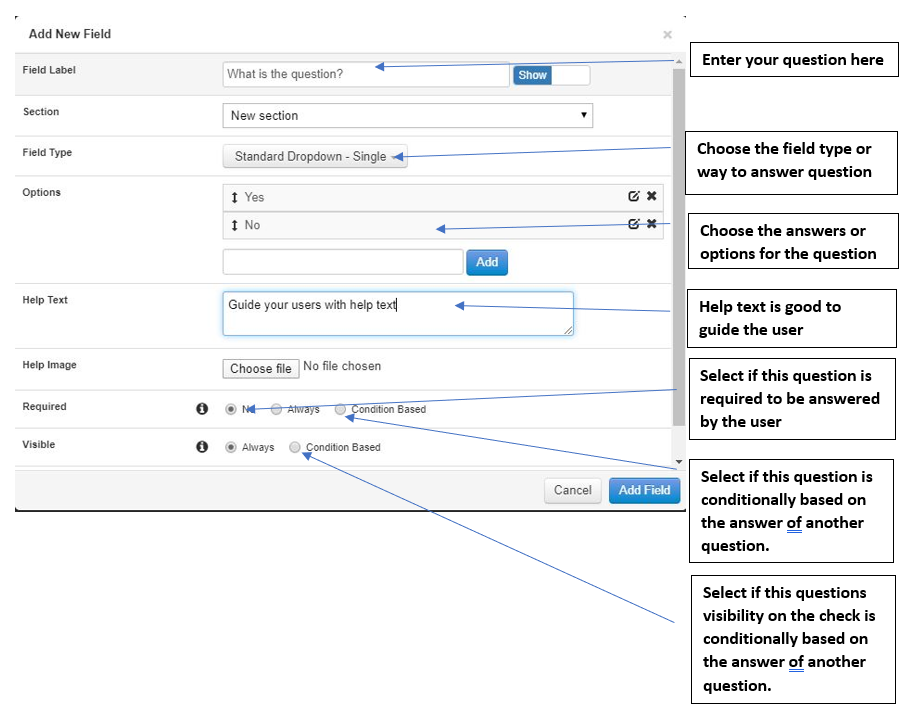
Step 7: Once done select Add Field
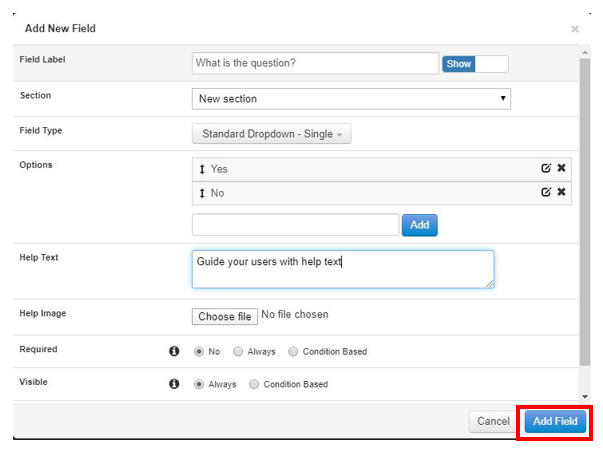
New Field looks like this below
Step 8: Repeat steps to build up your check.