---
title: 4. Viewing Supplier Details
description: Step 1: From your supplier list in the Supplier Manager, click on the View button beside the supplier whose details you want to view. Step 2: The supplier’s profile will open, and you’ll be able to s
---
[Skip to content](https://knowledgebase.foodsconnected.com/support/4.-viewing-supplier-details#main-content)
English
Show submenu for translations
[Contact us](https://knowledgebase.foodsconnected.com/support/kb-tickets/new?hsLang=en) [Customer portal](https://customerportal.foodsconnected.com/tickets-view?hsLang=en)
![fc-logo.svg\]](https://knowledgebase.foodsconnected.com/hubfs/fc-logo.svg)
- [Default HubSpot Blog](https://blog.foodsconnected.com/)
Open main navigation
Close main navigation
- [Default HubSpot Blog](https://blog.foodsconnected.com/)
- English
Show submenu for translations
- [Contact us](https://knowledgebase.foodsconnected.com/support/kb-tickets/new)
- [Customer portal](https://customerportal.foodsconnected.com/tickets-view)
- Go to foodsconnected.com
Go to foodsconnected.com
NEED SOME HELP?
- There are no suggestions because the search field is empty.
1. [Knowledge Base](https://knowledgebase.foodsconnected.com/support?hsLang=en)
2. [Supplier Manager](https://knowledgebase.foodsconnected.com/support/supplier-manager?hsLang=en)
3. [Viewing Supplier Details](https://knowledgebase.foodsconnected.com/support/supplier-manager?hsLang=en#viewing-supplier-details)
# 4. Viewing Supplier Details
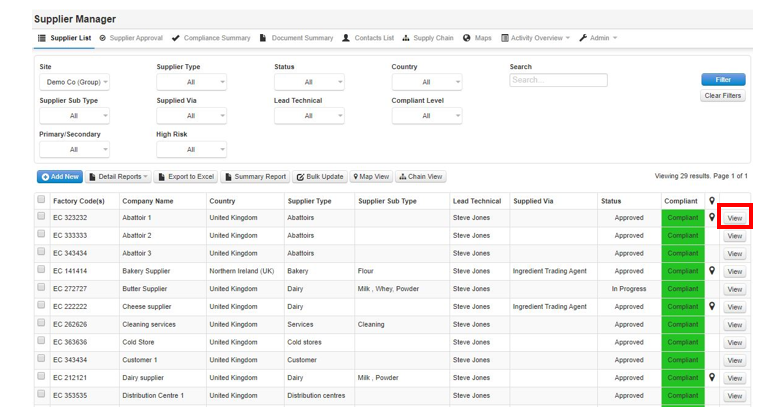
**Step 1:** From your supplier list in the Supplier Manager, click on the ***View ***button beside the supplier whose details you want to view.
**Step 2: **The supplier’s profile will open, and you’ll be able to see their full details including their active contacts on FC and what data they currently have on the system.
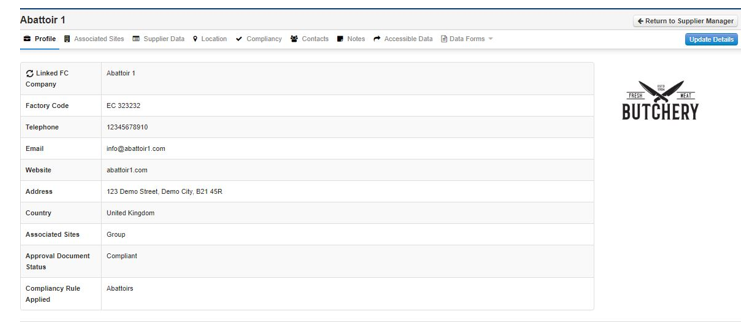
**Associated Sites:** Are the sites of your company that are related to this supplier
**Supplier Data: **Is the quick view of all the completed data and forms for the supplier without having to go into each tool and search
**Location: **The location of the supplier on a map
**Compliancy: **The compliancy status of the supplier for ongoing approval
**Contacts: **A list of active supplier contacts
**Notes: **Any specific notes you want to hold on the supplier
**Accessible data: **Is where you can share products, templates & Supplier lists with your suppliers to allow them to use on your companies behalf
**Data Forms:** Data forms is further forms you might want to create to hold info on your suppliers
- [FAQs](https://knowledgebase.foodsconnected.com/support/faqs?hsLang=en)
- [Activation Process](https://knowledgebase.foodsconnected.com/support/activation-process?hsLang=en)
- [One Pagers](https://knowledgebase.foodsconnected.com/support/one-pagers?hsLang=en)
- [Document Request Manager](https://knowledgebase.foodsconnected.com/support/document-request-manager?hsLang=en#main-content)
- [Tool Documentation](https://knowledgebase.foodsconnected.com/support/document-request-manager?hsLang=en#tool-documentation)
- [Initial Setup of Supplier Document Manager](https://knowledgebase.foodsconnected.com/support/document-request-manager?hsLang=en#initial-setup-of-supplier-document-manager)
- [Company Documents](https://knowledgebase.foodsconnected.com/support/document-request-manager?hsLang=en#company-documents)
- [Document Request](https://knowledgebase.foodsconnected.com/support/document-request-manager?hsLang=en#document-request)
- [Sent Document Request](https://knowledgebase.foodsconnected.com/support/document-request-manager?hsLang=en#sent-document-request)
- [Linking Documents to a Product](https://knowledgebase.foodsconnected.com/support/document-request-manager?hsLang=en#linking-documents-to-a-product)
- [Document Watchlist](https://knowledgebase.foodsconnected.com/support/document-request-manager?hsLang=en#document-watchlist)
- [Settings- Company Settings](https://knowledgebase.foodsconnected.com/support/settings-company-settings?hsLang=en#main-content)
- [Company Settings- Full Guide](https://knowledgebase.foodsconnected.com/support/settings-company-settings?hsLang=en#company-settings-full-guide)
- [My Profile](https://knowledgebase.foodsconnected.com/support/settings-company-settings?hsLang=en#my-profile)
- [Task Manager](https://knowledgebase.foodsconnected.com/support/settings-company-settings?hsLang=en#task-manager)
- [User Email Settings](https://knowledgebase.foodsconnected.com/support/settings-company-settings?hsLang=en#user-email-settings)
- [Privacy Settings](https://knowledgebase.foodsconnected.com/support/settings-company-settings?hsLang=en#privacy-settings)
- [Changing Password](https://knowledgebase.foodsconnected.com/support/settings-company-settings?hsLang=en#changing-password)
- [Additional Security Measures](https://knowledgebase.foodsconnected.com/support/settings-company-settings?hsLang=en#additional-security-measures)
- [Company Profile](https://knowledgebase.foodsconnected.com/support/settings-company-settings?hsLang=en#company-profile)
- [Settings- Company Users Email & Security](https://knowledgebase.foodsconnected.com/support/settings-company-users-email-security?hsLang=en#main-content)
- [Tool Documentation](https://knowledgebase.foodsconnected.com/support/settings-company-users-email-security?hsLang=en#tool-documentation)
- [Company Users, Email & Security](https://knowledgebase.foodsconnected.com/support/settings-company-users-email-security?hsLang=en#company-users-email-security)
- [Supply Chain Manager](https://knowledgebase.foodsconnected.com/support/supply-chain-manager?hsLang=en#main-content)
- [Tool Documentation](https://knowledgebase.foodsconnected.com/support/supply-chain-manager?hsLang=en#tool-documentation)
- [Creating A Supply Chain Template](https://knowledgebase.foodsconnected.com/support/supply-chain-manager?hsLang=en#creating-a-supply-chain-template)
- [Generating & Sharing The Template](https://knowledgebase.foodsconnected.com/support/supply-chain-manager?hsLang=en#generating-sharing-the-template)
- [Completing The Supply Chain](https://knowledgebase.foodsconnected.com/support/supply-chain-manager?hsLang=en#completing-the-supply-chain)
- [Viewing & Exporting Completed Supply Chains](https://knowledgebase.foodsconnected.com/support/supply-chain-manager?hsLang=en#viewing-exporting-completed-supply-chains)
- [Extracting Path Points Into Supplier Manager](https://knowledgebase.foodsconnected.com/support/supply-chain-manager?hsLang=en#extracting-path-points-into-supplier-manager)
- [Editing Completed Supply Chains](https://knowledgebase.foodsconnected.com/support/supply-chain-manager?hsLang=en#editing-completed-supply-chains)
- [Bulk Updating Completed Supply Chains](https://knowledgebase.foodsconnected.com/support/supply-chain-manager?hsLang=en#bulk-updating-completed-supply-chains)
- [Product Check Manager](https://knowledgebase.foodsconnected.com/support/product-check-manager?hsLang=en#main-content)
- [Tool Documentation](https://knowledgebase.foodsconnected.com/support/product-check-manager?hsLang=en#tool-documentation)
- [How To Access Product Check Manager](https://knowledgebase.foodsconnected.com/support/product-check-manager?hsLang=en#how-to-access-product-check-manager)
- [Setup](https://knowledgebase.foodsconnected.com/support/product-check-manager?hsLang=en#setup)
- [How To Record A Product Check](https://knowledgebase.foodsconnected.com/support/product-check-manager?hsLang=en#how-to-record-a-product-check)
- [How To Record A Product Check On The Tablet](https://knowledgebase.foodsconnected.com/support/product-check-manager?hsLang=en#how-to-record-a-product-check-on-the-tablet)
- [How To Access The Activity Overview For Product Check Manager](https://knowledgebase.foodsconnected.com/support/product-check-manager?hsLang=en#how-to-access-the-activity-overview-for-product-check-manager)
- [Reporting](https://knowledgebase.foodsconnected.com/support/product-check-manager?hsLang=en#reporting)
- [User Access](https://knowledgebase.foodsconnected.com/support/product-check-manager?hsLang=en#user-access)
- [Internal Document Manager](https://knowledgebase.foodsconnected.com/support/internal-document-manager?hsLang=en#main-content)
- [Tool Documentation](https://knowledgebase.foodsconnected.com/support/internal-document-manager?hsLang=en#tool-documentation)
- [Initial Setup for Internal Documents](https://knowledgebase.foodsconnected.com/support/internal-document-manager?hsLang=en#initial-setup-for-internal-documents)
- [Adding Internal Documents](https://knowledgebase.foodsconnected.com/support/internal-document-manager?hsLang=en#adding-internal-documents)
- [Managing Internal Documents](https://knowledgebase.foodsconnected.com/support/internal-document-manager?hsLang=en#managing-internal-documents)
- [Managing Folders](https://knowledgebase.foodsconnected.com/support/internal-document-manager?hsLang=en#managing-folders)
- [Appendix](https://knowledgebase.foodsconnected.com/support/internal-document-manager?hsLang=en#appendix)
- [Production Models](https://knowledgebase.foodsconnected.com/support/production-models?hsLang=en#main-content)
- [Overview](https://knowledgebase.foodsconnected.com/support/production-models?hsLang=en#overview)
- [Setup Production Model Template](https://knowledgebase.foodsconnected.com/support/production-models?hsLang=en#setup-production-model-template)
- [Generating Production Model](https://knowledgebase.foodsconnected.com/support/production-models?hsLang=en#generating-production-model)
- [Setting up a Cost Model](https://knowledgebase.foodsconnected.com/support/production-models?hsLang=en#setting-up-a-cost-model)
- [Generating a Cost Model](https://knowledgebase.foodsconnected.com/support/production-models?hsLang=en#generating-a-cost-model)
- [Supplier Manager](https://knowledgebase.foodsconnected.com/support/supplier-manager?hsLang=en#main-content)
- [Tool Documentation](https://knowledgebase.foodsconnected.com/support/supplier-manager?hsLang=en#tool-documentation)
- [Initial Set up](https://knowledgebase.foodsconnected.com/support/supplier-manager?hsLang=en#initial-set-up)
- [Adding a New Supplier](https://knowledgebase.foodsconnected.com/support/supplier-manager?hsLang=en#adding-a-new-supplier)
- [Accessing Your Supplier List](https://knowledgebase.foodsconnected.com/support/supplier-manager?hsLang=en#accessing-your-supplier-list)
- [Viewing Supplier Details](https://knowledgebase.foodsconnected.com/support/supplier-manager?hsLang=en#viewing-supplier-details)
- [Editing or Updating Supplier Details](https://knowledgebase.foodsconnected.com/support/supplier-manager?hsLang=en#editing-or-updating-supplier-details)
- [Activity Overview](https://knowledgebase.foodsconnected.com/support/supplier-manager?hsLang=en#activity-overview)
- [Settings- Manage Products](https://knowledgebase.foodsconnected.com/support/settings-manage-products?hsLang=en#main-content)
- [Admin](https://knowledgebase.foodsconnected.com/support/settings-manage-products?hsLang=en#admin)
- [Initial Set Up](https://knowledgebase.foodsconnected.com/support/settings-manage-products?hsLang=en#initial-set-up)
- [Managing Products](https://knowledgebase.foodsconnected.com/support/settings-manage-products?hsLang=en#managing-products)
- [Customer Received Products](https://knowledgebase.foodsconnected.com/support/settings-manage-products?hsLang=en#customer-received-products)
- [Product Activity](https://knowledgebase.foodsconnected.com/support/settings-manage-products?hsLang=en#product-activity)
- [Supplier Questionnaire Manager](https://knowledgebase.foodsconnected.com/support/supplier-questionnaire-manager?hsLang=en#main-content)
- [Tool Documentation](https://knowledgebase.foodsconnected.com/support/supplier-questionnaire-manager?hsLang=en#tool-documentation)
- [Creating A Questionnaire Template](https://knowledgebase.foodsconnected.com/support/supplier-questionnaire-manager?hsLang=en#creating-a-questionnaire-template)
- [Sharing A Questionnaire](https://knowledgebase.foodsconnected.com/support/supplier-questionnaire-manager?hsLang=en#sharing-a-questionnaire)
- [Responding to Questionnaires](https://knowledgebase.foodsconnected.com/support/supplier-questionnaire-manager?hsLang=en#responding-to-questionnaires)
- [Viewing Received Questionnaires](https://knowledgebase.foodsconnected.com/support/supplier-questionnaire-manager?hsLang=en#viewing-received-questionnaires)
- [Reporting Questionnaires](https://knowledgebase.foodsconnected.com/support/supplier-questionnaire-manager?hsLang=en#reporting-questionnaires)
- [Supplier Check Manager](https://knowledgebase.foodsconnected.com/support/supplier-check-manager?hsLang=en#main-content)
- [Tool Documentation](https://knowledgebase.foodsconnected.com/support/supplier-check-manager?hsLang=en#tool-documentation)
- [Creating A Supplier Check](https://knowledgebase.foodsconnected.com/support/supplier-check-manager?hsLang=en#creating-a-supplier-check)
- [Recording A Check On The Tablet](https://knowledgebase.foodsconnected.com/support/supplier-check-manager?hsLang=en#recording-a-check-on-the-tablet)
- [Recording A Check On The Desktop](https://knowledgebase.foodsconnected.com/support/supplier-check-manager?hsLang=en#recording-a-check-on-the-desktop)
- [Viewing, Reviewing, Requesting Corrective Action & Confirming Checks](https://knowledgebase.foodsconnected.com/support/supplier-check-manager?hsLang=en#viewing-reviewing-requesting-corrective-action-confirming-checks)
- [Completing A Snapshot Report](https://knowledgebase.foodsconnected.com/support/supplier-check-manager?hsLang=en#completing-a-snapshot-report)
- [Supplier Document Manager](https://knowledgebase.foodsconnected.com/support/supplier-document-manager?hsLang=en#main-content)
- [Tool Documentation](https://knowledgebase.foodsconnected.com/support/supplier-document-manager?hsLang=en#tool-documentation)
- [Initial Setup of Supplier Document Manager](https://knowledgebase.foodsconnected.com/support/supplier-document-manager?hsLang=en#initial-setup-of-supplier-document-manager)
- [Creating A Supplier Document Template](https://knowledgebase.foodsconnected.com/support/supplier-document-manager?hsLang=en#creating-a-supplier-document-template)
- [Building The Document](https://knowledgebase.foodsconnected.com/support/supplier-document-manager?hsLang=en#building-the-document)
- [Approving The Document Internally Before Sending Out](https://knowledgebase.foodsconnected.com/support/supplier-document-manager?hsLang=en#approving-the-document-internally-before-sending-out)
- [Delete Documents](https://knowledgebase.foodsconnected.com/support/supplier-document-manager?hsLang=en#delete-documents)
- [View Selected](https://knowledgebase.foodsconnected.com/support/supplier-document-manager?hsLang=en#view-selected)
- [Sharing A Document With Suppliers To Sign Off](https://knowledgebase.foodsconnected.com/support/supplier-document-manager?hsLang=en#sharing-a-document-with-suppliers-to-sign-off)
- [Exceptions](https://knowledgebase.foodsconnected.com/support/supplier-document-manager?hsLang=en#exceptions)
- [Sign Off Review](https://knowledgebase.foodsconnected.com/support/supplier-document-manager?hsLang=en#sign-off-review)
- [Viewing A Customer Document](https://knowledgebase.foodsconnected.com/support/supplier-document-manager?hsLang=en#viewing-a-customer-document)
- [Sign Off The Document](https://knowledgebase.foodsconnected.com/support/supplier-document-manager?hsLang=en#sign-off-the-document)
- [Assign Responsibility](https://knowledgebase.foodsconnected.com/support/supplier-document-manager?hsLang=en#assign-responsibility)
- [Delete/Reject Selected](https://knowledgebase.foodsconnected.com/support/supplier-document-manager?hsLang=en#delete-reject-selected)
- [Receiving & Viewing An Exception](https://knowledgebase.foodsconnected.com/support/supplier-document-manager?hsLang=en#receiving-viewing-an-exception)
- [Risk Assessment Manager](https://knowledgebase.foodsconnected.com/support/risk-assessment-manager?hsLang=en#main-content)
- [Tool Documentation](https://knowledgebase.foodsconnected.com/support/risk-assessment-manager?hsLang=en#tool-documentation)
- [Creating A Risk Assessment Template](https://knowledgebase.foodsconnected.com/support/risk-assessment-manager?hsLang=en#creating-a-risk-assessment-template)
- [Recording, Updating & Viewing Risk Assessments](https://knowledgebase.foodsconnected.com/support/risk-assessment-manager?hsLang=en#recording-updating-viewing-risk-assessments)
- [Creating Reports](https://knowledgebase.foodsconnected.com/support/risk-assessment-manager?hsLang=en#creating-reports)
- [Incident Manager](https://knowledgebase.foodsconnected.com/support/incident-manager?hsLang=en#main-content)
- [Tool Documentation](https://knowledgebase.foodsconnected.com/support/incident-manager?hsLang=en#tool-documentation)
- [Initial Setup](https://knowledgebase.foodsconnected.com/support/incident-manager?hsLang=en#initial-setup)
- [Create Incident Forms – Supplier & Customer Confirmations](https://knowledgebase.foodsconnected.com/support/incident-manager?hsLang=en#create-incident-forms-supplier-customer-confirmations)
- [Edit Incident Forms – Supplier & Customer Confirmations](https://knowledgebase.foodsconnected.com/support/incident-manager?hsLang=en#edit-incident-forms-supplier-customer-confirmations)
- [RASFF Notifications](https://knowledgebase.foodsconnected.com/support/incident-manager?hsLang=en#rasff-notifications)
- [Create An Incident From The RASFF Notifications](https://knowledgebase.foodsconnected.com/support/incident-manager?hsLang=en#create-an-incident-from-the-rasff-notifications)
- [View Incident](https://knowledgebase.foodsconnected.com/support/incident-manager?hsLang=en#view-incident)
- [Edit Incident](https://knowledgebase.foodsconnected.com/support/incident-manager?hsLang=en#edit-incident)
- [Share An Incident](https://knowledgebase.foodsconnected.com/support/incident-manager?hsLang=en#share-an-incident)
- [View Company Incident Shares](https://knowledgebase.foodsconnected.com/support/incident-manager?hsLang=en#view-company-incident-shares)
- [View Responses From Supplier](https://knowledgebase.foodsconnected.com/support/incident-manager?hsLang=en#view-responses-from-supplier)
- [Request More Info](https://knowledgebase.foodsconnected.com/support/incident-manager?hsLang=en#request-more-info)
- [Respond To Incident/Confirm/Close Out Incident](https://knowledgebase.foodsconnected.com/support/incident-manager?hsLang=en#respond-to-incident-confirm-close-out-incident)
- [Supplier Side Incident Manager](https://knowledgebase.foodsconnected.com/support/incident-manager?hsLang=en#supplier-side-incident-manager)
- [Remote Audit Manager](https://knowledgebase.foodsconnected.com/support/remote-audit-manager?hsLang=en#main-content)
- [Tool Documentation](https://knowledgebase.foodsconnected.com/support/remote-audit-manager?hsLang=en#tool-documentation)
- [Initial Set Up](https://knowledgebase.foodsconnected.com/support/remote-audit-manager?hsLang=en#initial-set-up)
- [2. Creating / Editing Standard Template](https://knowledgebase.foodsconnected.com/support/remote-audit-manager?hsLang=en#2-creating-editing-standard-template)
- [Sharing Standard Template](https://knowledgebase.foodsconnected.com/support/remote-audit-manager?hsLang=en#sharing-standard-template)
- [Receiving A Shared Standard](https://knowledgebase.foodsconnected.com/support/remote-audit-manager?hsLang=en#receiving-a-shared-standard)
- [Recalling A Shared Standard](https://knowledgebase.foodsconnected.com/support/remote-audit-manager?hsLang=en#recalling-a-shared-standard)
- [Reviewing & Approving](https://knowledgebase.foodsconnected.com/support/remote-audit-manager?hsLang=en#reviewing-approving)
- [Accessing Activity History](https://knowledgebase.foodsconnected.com/support/remote-audit-manager?hsLang=en#accessing-activity-history)
- [Updating Standard](https://knowledgebase.foodsconnected.com/support/remote-audit-manager?hsLang=en#updating-standard)
- [Specification Manager](https://knowledgebase.foodsconnected.com/support/specification-manager?hsLang=en#main-content)
- [Tool Documentation](https://knowledgebase.foodsconnected.com/support/specification-manager?hsLang=en#tool-documentation)
- [Initial Setup For Specification Manager](https://knowledgebase.foodsconnected.com/support/specification-manager?hsLang=en#initial-setup-for-specification-manager)
- [Creating Specification Templates](https://knowledgebase.foodsconnected.com/support/specification-manager?hsLang=en#creating-specification-templates)
- [Creating And Managing Company Specifications](https://knowledgebase.foodsconnected.com/support/specification-manager?hsLang=en#creating-and-managing-company-specifications)
- [Creating and Managing Collaborative Specifications](https://knowledgebase.foodsconnected.com/support/specification-manager?hsLang=en#creating-and-managing-collaborative-specifications)
- [Creating and Managing Ingredient Specifications](https://knowledgebase.foodsconnected.com/support/specification-manager?hsLang=en#creating-and-managing-ingredient-specifications)
- [Sharing and Managing External Specifications](https://knowledgebase.foodsconnected.com/support/specification-manager?hsLang=en#sharing-and-managing-external-specifications)
- [Providing Customer Access To Linked Specifications](https://knowledgebase.foodsconnected.com/support/specification-manager?hsLang=en#providing-customer-access-to-linked-specifications)
- [Managing Specification Exceptions](https://knowledgebase.foodsconnected.com/support/specification-manager?hsLang=en#managing-specification-exceptions)
- [Viewing Specifications On The App](https://knowledgebase.foodsconnected.com/support/specification-manager?hsLang=en#viewing-specifications-on-the-app)
- [Customer Complaint Manager](https://knowledgebase.foodsconnected.com/support/customer-complaint-manager?hsLang=en#main-content)
- [Tool Documentation](https://knowledgebase.foodsconnected.com/support/customer-complaint-manager?hsLang=en#tool-documentation)
- [How To Access Customer Complaints](https://knowledgebase.foodsconnected.com/support/customer-complaint-manager?hsLang=en#how-to-access-customer-complaints)
- [Setup](https://knowledgebase.foodsconnected.com/support/customer-complaint-manager?hsLang=en#setup)
- [Customer Complaint Usage](https://knowledgebase.foodsconnected.com/support/customer-complaint-manager?hsLang=en#customer-complaint-usage)
- [How To Access The Activity Overview For Customer Complaints](https://knowledgebase.foodsconnected.com/support/customer-complaint-manager?hsLang=en#how-to-access-the-activity-overview-for-customer-complaints)
- [Reporting](https://knowledgebase.foodsconnected.com/support/customer-complaint-manager?hsLang=en#reporting)
- [User Access](https://knowledgebase.foodsconnected.com/support/customer-complaint-manager?hsLang=en#user-access)
- [Internal Check Manager](https://knowledgebase.foodsconnected.com/support/internal-check-manager?hsLang=en#main-content)
- [Tool Documentation](https://knowledgebase.foodsconnected.com/support/internal-check-manager?hsLang=en#tool-documentation)
- [Initial Setup For Internal Checks](https://knowledgebase.foodsconnected.com/support/internal-check-manager?hsLang=en#initial-setup-for-internal-checks)
- [Creating A Master Internal Check Template](https://knowledgebase.foodsconnected.com/support/internal-check-manager?hsLang=en#creating-a-master-internal-check-template)
- [Create A Confirmation Template](https://knowledgebase.foodsconnected.com/support/internal-check-manager?hsLang=en#create-a-confirmation-template)
- [Create A Child Internal Check Template](https://knowledgebase.foodsconnected.com/support/internal-check-manager?hsLang=en#create-a-child-internal-check-template)
- [Recording A Check On The Tablet](https://knowledgebase.foodsconnected.com/support/internal-check-manager?hsLang=en#recording-a-check-on-the-tablet)
- [Viewing, Reviewing & Confirming Checks](https://knowledgebase.foodsconnected.com/support/internal-check-manager?hsLang=en#viewing-reviewing-confirming-checks)
- [Creating Reports](https://knowledgebase.foodsconnected.com/support/internal-check-manager?hsLang=en#creating-reports)
- [Workflow Manager](https://knowledgebase.foodsconnected.com/support/workflow-manager?hsLang=en#main-content)
- [Tool Documentation](https://knowledgebase.foodsconnected.com/support/workflow-manager?hsLang=en#tool-documentation)
- [Creating A New Template](https://knowledgebase.foodsconnected.com/support/workflow-manager?hsLang=en#creating-a-new-template)
- [Approving A Template](https://knowledgebase.foodsconnected.com/support/workflow-manager?hsLang=en#approving-a-template)
- [Generating A New Project Workflow](https://knowledgebase.foodsconnected.com/support/workflow-manager?hsLang=en#generating-a-new-project-workflow)
- [Actioning A Notification Email](https://knowledgebase.foodsconnected.com/support/workflow-manager?hsLang=en#actioning-a-notification-email)
- [Appendix](https://knowledgebase.foodsconnected.com/support/workflow-manager?hsLang=en#appendix)
- [Stock Manager](https://knowledgebase.foodsconnected.com/support/stock-manager?hsLang=en#main-content)
- [Tool Documentation](https://knowledgebase.foodsconnected.com/support/stock-manager?hsLang=en#tool-documentation)
- [Accessing The Stock Manager](https://knowledgebase.foodsconnected.com/support/stock-manager?hsLang=en#accessing-the-stock-manager)
- [Setup & Admin](https://knowledgebase.foodsconnected.com/support/stock-manager?hsLang=en#setup-admin)
- [Stock Manager Usage](https://knowledgebase.foodsconnected.com/support/stock-manager?hsLang=en#stock-manager-usage)
- [Reporting](https://knowledgebase.foodsconnected.com/support/stock-manager?hsLang=en#reporting)
- [User Access](https://knowledgebase.foodsconnected.com/support/stock-manager?hsLang=en#user-access)
- [Forecast Manager](https://knowledgebase.foodsconnected.com/support/forecast-manager?hsLang=en#main-content)
- [Tool Documentation](https://knowledgebase.foodsconnected.com/support/forecast-manager?hsLang=en#tool-documentation)
- [Initial Setup](https://knowledgebase.foodsconnected.com/support/forecast-manager?hsLang=en#initial-setup)
- [Sending Forecasts](https://knowledgebase.foodsconnected.com/support/forecast-manager?hsLang=en#sending-forecasts)
- [Shared Forecasts](https://knowledgebase.foodsconnected.com/support/forecast-manager?hsLang=en#shared-forecasts)
- [Reviewing Submitted Confirmation Forecasts](https://knowledgebase.foodsconnected.com/support/forecast-manager?hsLang=en#reviewing-submitted-confirmation-forecasts)
- [Updating Shared Confirmation Forecasts](https://knowledgebase.foodsconnected.com/support/forecast-manager?hsLang=en#updating-shared-confirmation-forecasts)
- [Reviewing Forecasts](https://knowledgebase.foodsconnected.com/support/forecast-manager?hsLang=en#reviewing-forecasts)
- [Sending Volumes To Negotiation Templates](https://knowledgebase.foodsconnected.com/support/forecast-manager?hsLang=en#sending-volumes-to-negotiation-templates)
- [Order Manager](https://knowledgebase.foodsconnected.com/support/order-manager?hsLang=en#main-content)
- [Tool Documentation](https://knowledgebase.foodsconnected.com/support/order-manager?hsLang=en#tool-documentation)
- [Initial Setup For Order Templates](https://knowledgebase.foodsconnected.com/support/order-manager?hsLang=en#initial-setup-for-order-templates)
- [Creating An Order Template](https://knowledgebase.foodsconnected.com/support/order-manager?hsLang=en#creating-an-order-template)
- [Multi Order Drafts](https://knowledgebase.foodsconnected.com/support/order-manager?hsLang=en#multi-order-drafts)
- [Sent Orders](https://knowledgebase.foodsconnected.com/support/order-manager?hsLang=en#sent-orders)
- [Received Order](https://knowledgebase.foodsconnected.com/support/order-manager?hsLang=en#received-order)
- [Activity](https://knowledgebase.foodsconnected.com/support/order-manager?hsLang=en#activity)
- [Meeting Notes Manager](https://knowledgebase.foodsconnected.com/support/meeting-notes-manager?hsLang=en#main-content)
- [Tool Documentation](https://knowledgebase.foodsconnected.com/support/meeting-notes-manager?hsLang=en#tool-documentation)
- [Accessing Meeting Notes Manager](https://knowledgebase.foodsconnected.com/support/meeting-notes-manager?hsLang=en#accessing-meeting-notes-manager)
- [Company Meetings](https://knowledgebase.foodsconnected.com/support/meeting-notes-manager?hsLang=en#company-meetings)
- [Received Meetings](https://knowledgebase.foodsconnected.com/support/meeting-notes-manager?hsLang=en#received-meetings)
- [Activity Overview](https://knowledgebase.foodsconnected.com/support/meeting-notes-manager?hsLang=en#activity-overview)
- [Admin](https://knowledgebase.foodsconnected.com/support/meeting-notes-manager?hsLang=en#admin)
- [Customer Tool Guides](https://knowledgebase.foodsconnected.com/support/customer-tool-guides?hsLang=en#main-content)
- [Foods Connected](https://knowledgebase.foodsconnected.com/support/customer-tool-guides?hsLang=en#foods-connected)
- [Traceability Manager](https://knowledgebase.foodsconnected.com/support/traceability-manager?hsLang=en#main-content)
- [Tool Documentation](https://knowledgebase.foodsconnected.com/support/traceability-manager?hsLang=en#tool-documentation)
- [Setting Up Traceability Manager](https://knowledgebase.foodsconnected.com/support/traceability-manager?hsLang=en#setting-up-traceability-manager)
- [Recording A New Traceability Check](https://knowledgebase.foodsconnected.com/support/traceability-manager?hsLang=en#recording-a-new-traceability-check)
- [Sharing A Traceability Template](https://knowledgebase.foodsconnected.com/support/traceability-manager?hsLang=en#sharing-a-traceability-template)
- [Confirming A Traceability Template](https://knowledgebase.foodsconnected.com/support/traceability-manager?hsLang=en#confirming-a-traceability-template)
- [Viewing Completed Traceability Templates](https://knowledgebase.foodsconnected.com/support/traceability-manager?hsLang=en#viewing-completed-traceability-templates)
- [Supplier Audit Manager](https://knowledgebase.foodsconnected.com/support/supplier-audit-manager?hsLang=en#main-content)
- [Tool Documentation](https://knowledgebase.foodsconnected.com/support/supplier-audit-manager?hsLang=en#tool-documentation)
- [Initial Setup](https://knowledgebase.foodsconnected.com/support/supplier-audit-manager?hsLang=en#initial-setup)
- [Building A Custom Audit](https://knowledgebase.foodsconnected.com/support/supplier-audit-manager?hsLang=en#building-a-custom-audit)
- [Using And Completing An Audit](https://knowledgebase.foodsconnected.com/support/supplier-audit-manager?hsLang=en#using-and-completing-an-audit)
- [Update An Audit](https://knowledgebase.foodsconnected.com/support/supplier-audit-manager?hsLang=en#update-an-audit)
- [Request An Internal Review](https://knowledgebase.foodsconnected.com/support/supplier-audit-manager?hsLang=en#request-an-internal-review)
- [Mark Audit As Complete](https://knowledgebase.foodsconnected.com/support/supplier-audit-manager?hsLang=en#mark-audit-as-complete)
- [Notify Team Members](https://knowledgebase.foodsconnected.com/support/supplier-audit-manager?hsLang=en#notify-team-members)
- [Send PDF Report](https://knowledgebase.foodsconnected.com/support/supplier-audit-manager?hsLang=en#send-pdf-report)
- [Export Full Audit Table To PDF](https://knowledgebase.foodsconnected.com/support/supplier-audit-manager?hsLang=en#export-full-audit-table-to-pdf)
- [Export Full Audit Table To Excel](https://knowledgebase.foodsconnected.com/support/supplier-audit-manager?hsLang=en#export-full-audit-table-to-excel)
- [Recall Audit](https://knowledgebase.foodsconnected.com/support/supplier-audit-manager?hsLang=en#recall-audit)
- [Reopen Audit](https://knowledgebase.foodsconnected.com/support/supplier-audit-manager?hsLang=en#reopen-audit)
- [Managing Activity Subscriptions](https://knowledgebase.foodsconnected.com/support/supplier-audit-manager?hsLang=en#managing-activity-subscriptions)
- [Supplier Provided Audits](https://knowledgebase.foodsconnected.com/support/supplier-audit-manager?hsLang=en#supplier-provided-audits)
- [Purchasing & Sales Manager](https://knowledgebase.foodsconnected.com/support/purchasing-sales-manager?hsLang=en#main-content)
- [Tool Documentation](https://knowledgebase.foodsconnected.com/support/purchasing-sales-manager?hsLang=en#tool-documentation)
- [Initial Setup For Purchasing & Sales Manager](https://knowledgebase.foodsconnected.com/support/purchasing-sales-manager?hsLang=en#initial-setup-for-purchasing-sales-manager)
- [Sending A Template](https://knowledgebase.foodsconnected.com/support/purchasing-sales-manager?hsLang=en#sending-a-template)
- [Agreements](https://knowledgebase.foodsconnected.com/support/purchasing-sales-manager?hsLang=en#agreements)
- [Pricing Grids](https://knowledgebase.foodsconnected.com/support/purchasing-sales-manager?hsLang=en#pricing-grids)
- [Reporting](https://knowledgebase.foodsconnected.com/support/purchasing-sales-manager?hsLang=en#reporting)
- [Visit & Audit Schedule](https://knowledgebase.foodsconnected.com/support/visit-audit-schedule?hsLang=en#main-content)
- [Tool Documentation](https://knowledgebase.foodsconnected.com/support/visit-audit-schedule?hsLang=en#tool-documentation)
- [Visiting & Audit Schedule](https://knowledgebase.foodsconnected.com/support/visit-audit-schedule?hsLang=en#visiting-audit-schedule)
- [Admin Settings](https://knowledgebase.foodsconnected.com/support/visit-audit-schedule?hsLang=en#admin-settings)
- [Requesting A Visit/Audit](https://knowledgebase.foodsconnected.com/support/visit-audit-schedule?hsLang=en#requesting-a-visit-audit)
- [Responding To A Requested Visit/Audit](https://knowledgebase.foodsconnected.com/support/visit-audit-schedule?hsLang=en#responding-to-a-requested-visit-audit)
- [Calendar View Of Visit/Audit Requests](https://knowledgebase.foodsconnected.com/support/visit-audit-schedule?hsLang=en#calendar-view-of-visit-audit-requests)
- [Formbuilder](https://knowledgebase.foodsconnected.com/support/formbuilder?hsLang=en#main-content)
- [Tool Documentation](https://knowledgebase.foodsconnected.com/support/formbuilder?hsLang=en#tool-documentation)
- [Building A Template](https://knowledgebase.foodsconnected.com/support/formbuilder?hsLang=en#building-a-template)
- [Reordering Sections / Fields](https://knowledgebase.foodsconnected.com/support/formbuilder?hsLang=en#reordering-sections-fields)
- [Appendix – Explanation Of Field Types](https://knowledgebase.foodsconnected.com/support/formbuilder?hsLang=en#appendix-explanation-of-field-types)
- [Default HubSpot Blog](https://blog.foodsconnected.com/)
# Foods Connected
Copyright © 2026, Foods Connected