![fc-logo.svg]](https://knowledgebase.foodsconnected.com/hubfs/fc-logo.svg)
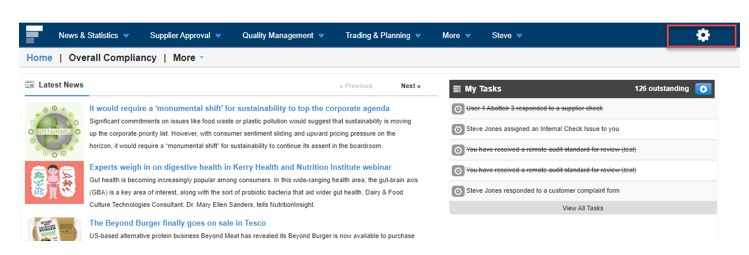
Step 1: Log in to your Foods Connected account and select the ‘Settings Cog’ icon.
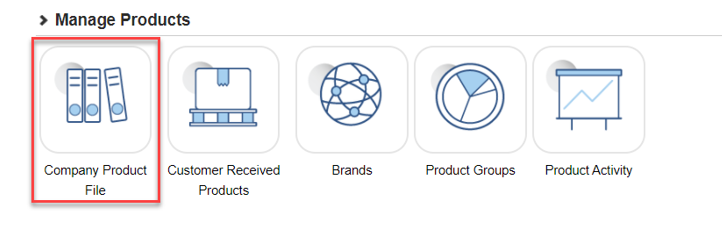
 Step 2: Navigate to ‘Company Product File’ under ‘Manage Products’
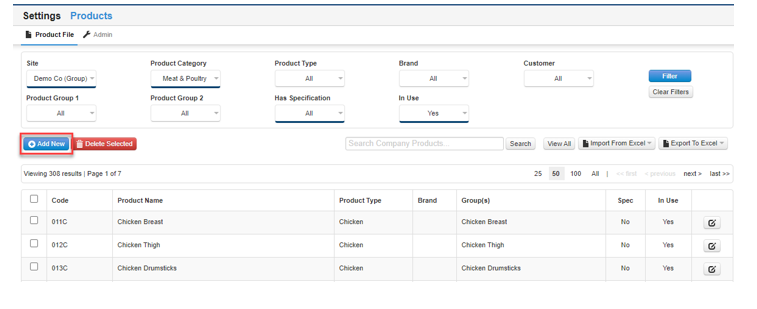
 Step 3: Select ‘Add New’
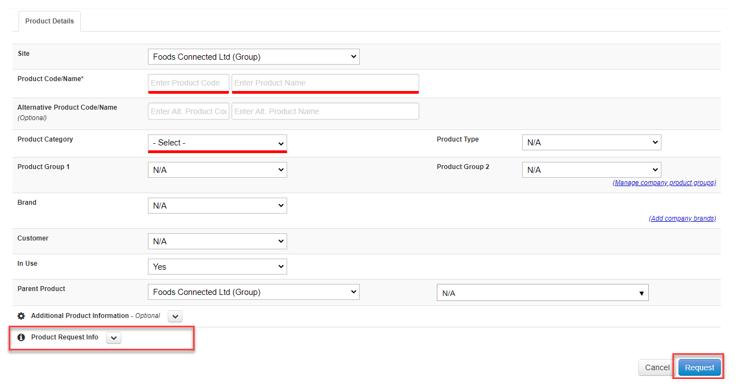
 Step 4: Complete required details - red lines indicate mandatory fields.
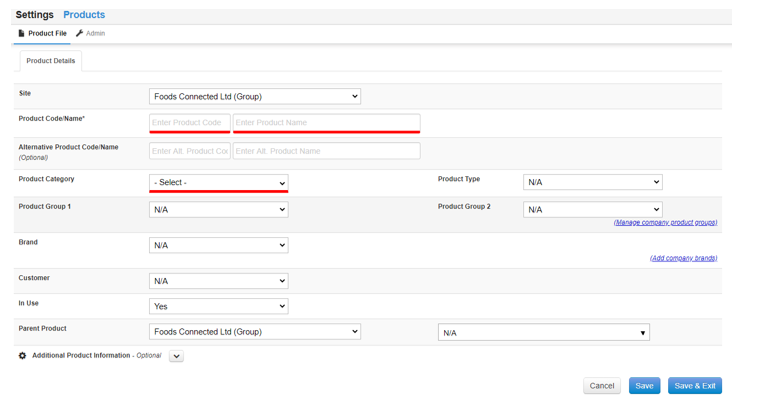 Note: If you include an alternative code/name, it will be bracketed and therefore it will be visible and searchable within the product file itself
Step 5: If required, collapse the additional product information tab and complete detail. Within this section a date can be selected for when the product automatically becomes marked as not in use. Information required to Production models and Costing models is also completed within this section.
 Step 6: Once required details have completed select ‘Save & Exit’.
Step 7: If the product request process is turned on additional detail may be required in the ‘Product Request Info’ tab. Once detail is complete select ‘Request’. A request will be sent to the approver.