![fc-logo.svg]](https://knowledgebase.foodsconnected.com/hubfs/fc-logo.svg)
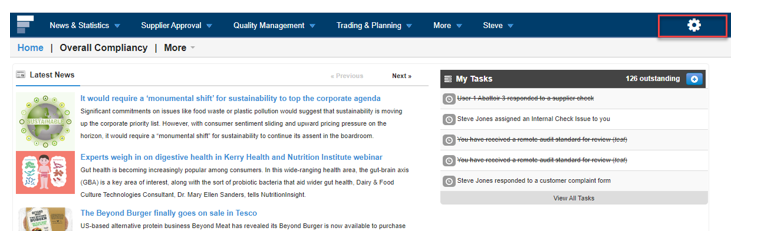
Step 1: Log in to your Foods Connected account and select the ‘Settings Cog’ icon.
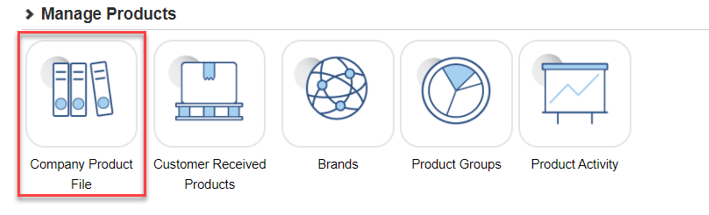
 Step 2: Navigate to ‘Company Product File’ under ‘Manage Products’
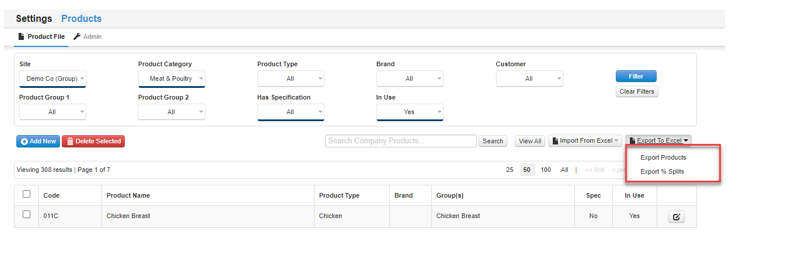
 Step 3: The following page will load; select Import or Export. The dropdown can be used to select either products or % splits. If selecting to export a spreadsheet will download - this exported file can then be imported to update products.