![fc-logo.svg]](https://knowledgebase.foodsconnected.com/hubfs/fc-logo.svg)
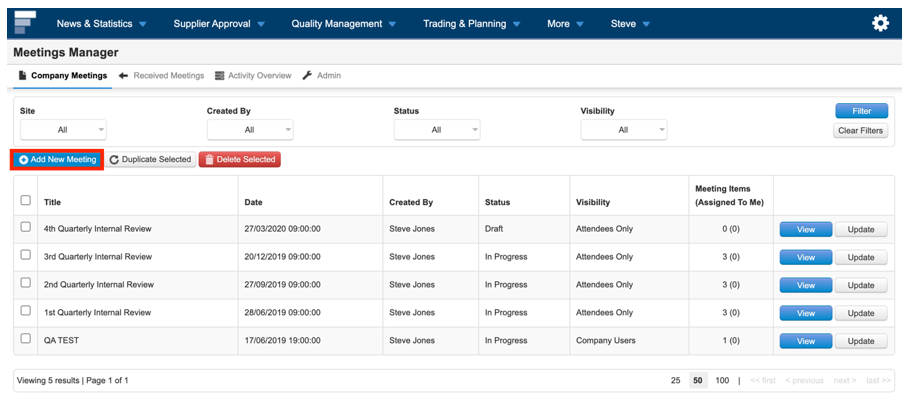
Step 1: Select “Add new meeting” to set up a new meeting
Step 2: Give your meeting a name
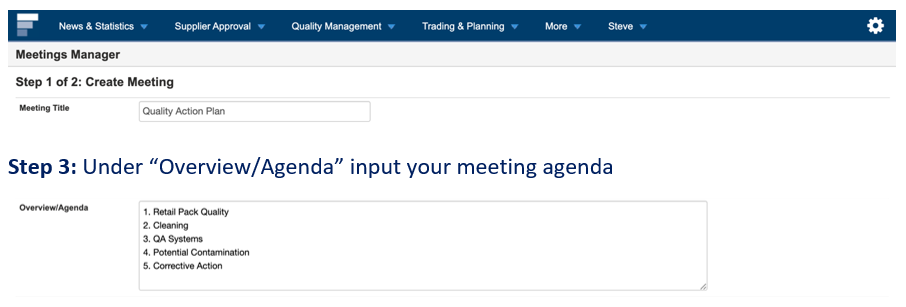
Step 3: Under “Overview/Agenda” input your meeting agenda

Step 4: Give your meeting a date & time

Step 5: Under “Company site” choose which site the meeting relates too

Step 6: Under “Visibility” choose who can see the meeting all company users or meeting attendees only

Step 7: Under “Add attendees” select who will be attending the meeting & who you’d like to invite & what action you allow them. The three options include:
Company Users: Select a user existing in the company
Email Addresses: Include email address for users who are not already existing in Foods Connected
Once done select “Add”.

Step 8: You can add an attachment if you need too (this will allow you to select a file from your computer)
Step 9: Once done, click “Next step”

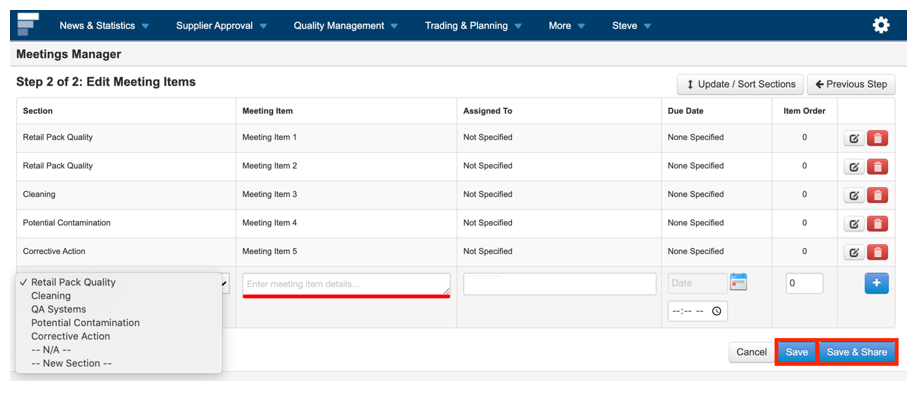
Step 10: Choose to give your meeting a “Section" or not & name it.
Note: Sections can be set up prior to the meeting according to the meeting agenda and when the meeting commences items can then be added under each section, assigned to users, assigned a due date, and items prioritised.
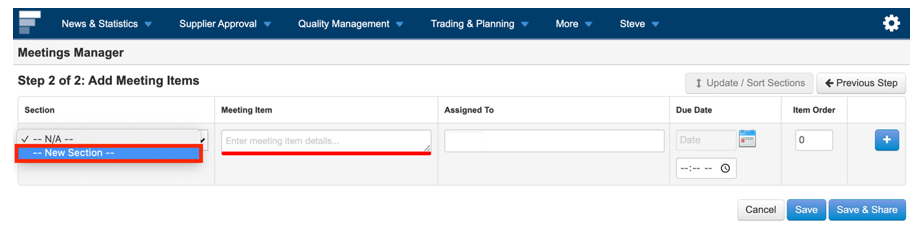
Step 11: Select “Save” to save meeting or select “Save & Share” to save the meeting and share with meeting attendees.
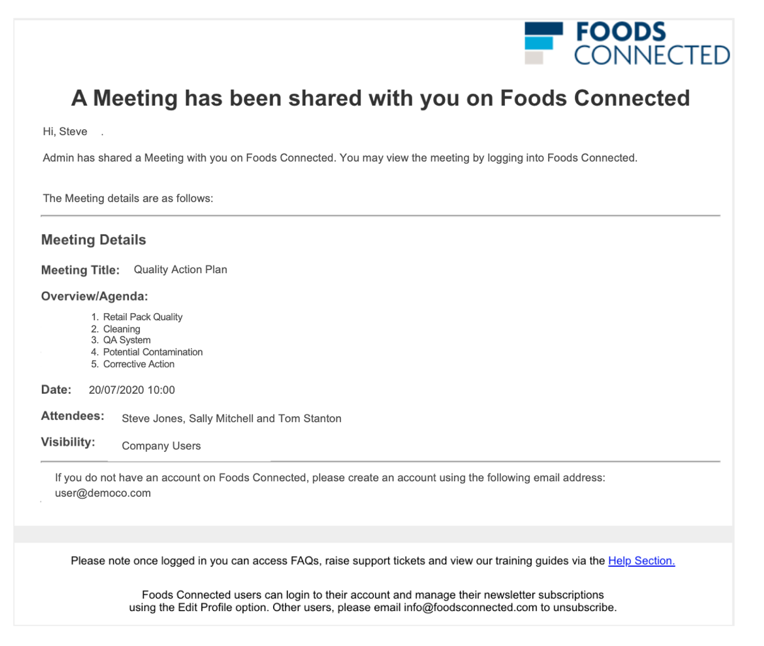
Step 12: Attendees will receive an email from meetings@foodsconnected.com and receive a notification in their ‘My Tasks’ section on Foods Connected.