![fc-logo.svg]](https://knowledgebase.foodsconnected.com/hubfs/fc-logo.svg)
Visible columns allows you to set what fields from the documents are visible in the main table that displays your document library.
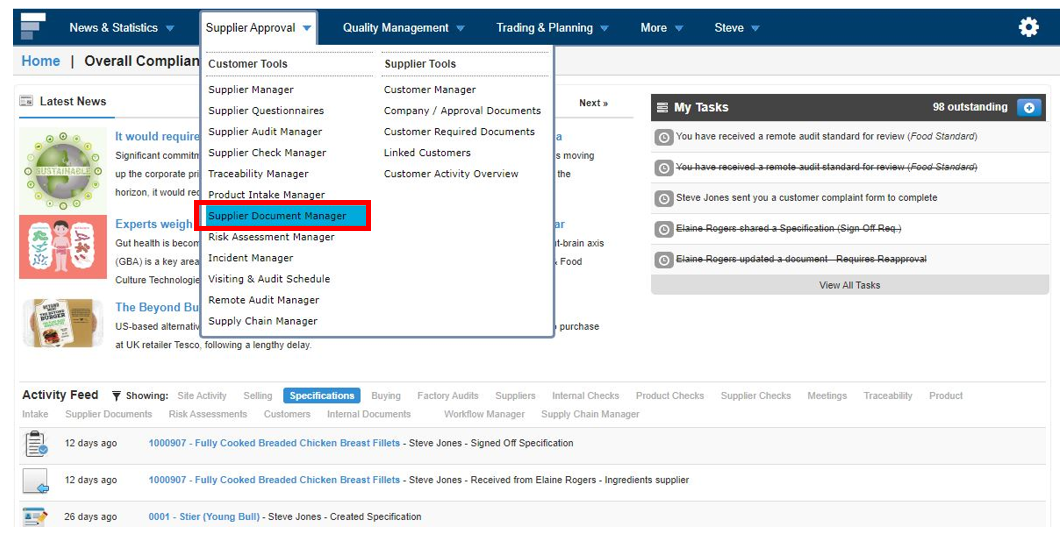
Step 1: Select Supplier Document Manager from the Supplier Approval tab
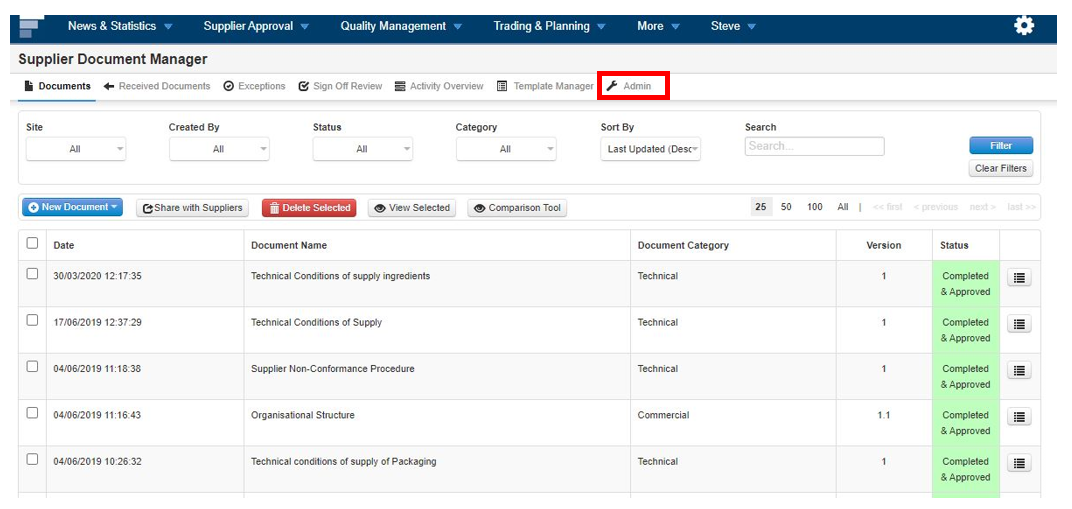
Step 2: Then select Admin
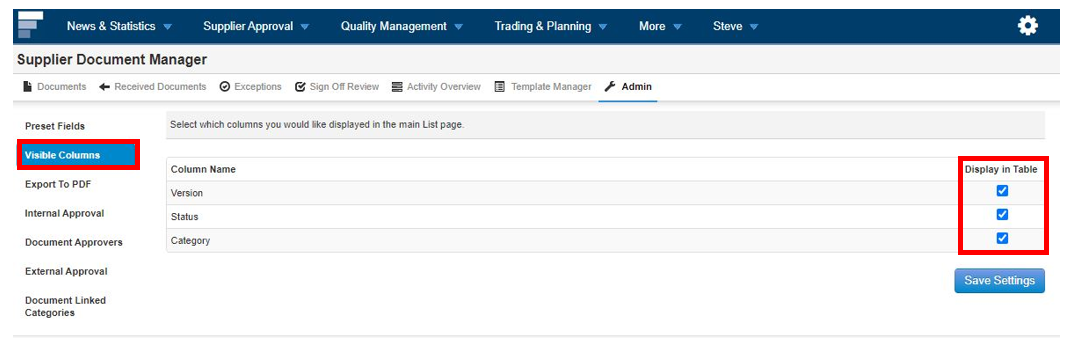
Step 3: Then select Visible Columns on the left. From here you can select what columns you want to show in the main table by selecting them.
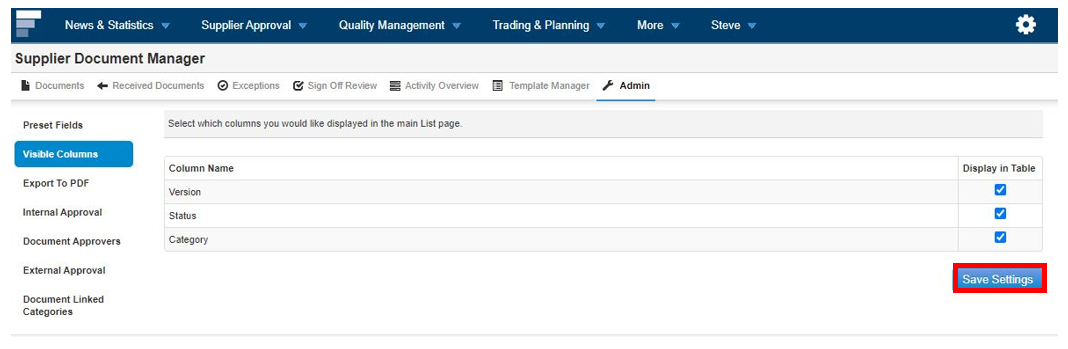
Step 4: Once done, select Save Settings
Step 5: Your main table will now reflect these setting & look like this below.
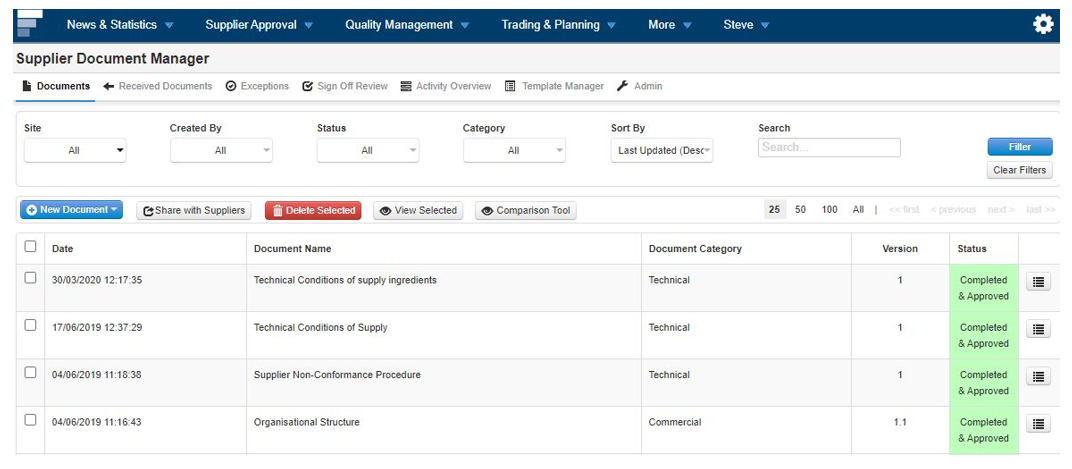
Step 6: If you want to change or edit these setting please follow the steps above.